Knowing how to use a VPN for streaming effectively transforms your device into a global entertainment hub. You likely subscribe to platforms like Netflix or Disney+, but you only see a fraction of the available library due to your location. We know how frustrating it is to pay for a service yet face Geo-blocking.
By using TurisVPN, you mask your true IP Address and replace it with one from a different country. This tricks the streaming service into thinking you are there. In this guide, we will walk you through the exact steps to bypass these blocks and unlock a world of entertainment.
How to Use a VPN for Streaming (Step-by-Step Guide)
Learning how to use a VPN for streaming is easier than you might think, even if you are not tech-savvy. To help you get started, we have broken down the process into four simple, actionable steps that work for major Streaming Platforms like Netflix, Hulu, and BBC iPlayer.
Step 1: Choose a VPN that works with streaming services
Select a high-speed provider that explicitly supports streaming. Slow services cause buffering, so prioritize protocols like WireGuard. When you look at what VPNs do, their primary job is encryption, which can sometimes reduce speed, so choosing a premium provider is essential.
Ensure the provider has a vast server network to offer alternatives if a specific IP address gets blocked.
Step 2: Download and install the VPN app on your device
Download the dedicated app for your device from the provider’s site or app store. Run the installer and follow the prompts. During this phase, you might want to read a general guide on using a VPN to familiarize yourself with the interface.
Grant all necessary permissions to allow the app to configure your network settings for a secure connection.
Step 3: Connect to the right server
Select a server in the country where your content is licensed. To minimize lag, choose a server geographically close to you. Knowing how to use a VPN effectively for streaming relies on choosing the fastest available connection.
Step 4: Open your streaming app and start watching
Launch your streaming platform. The content should now be unlocked. You might doubt if VPNs really work for streaming when errors occur, but persistent cookies are usually the culprit. A quick restart or cache clear typically fixes this. Now, simply press play and enjoy your show without borders.
While the steps above apply to most providers, the quality of your experience depends heavily on the specific tool you use.
Which VPN Do We Recommend for Streaming?
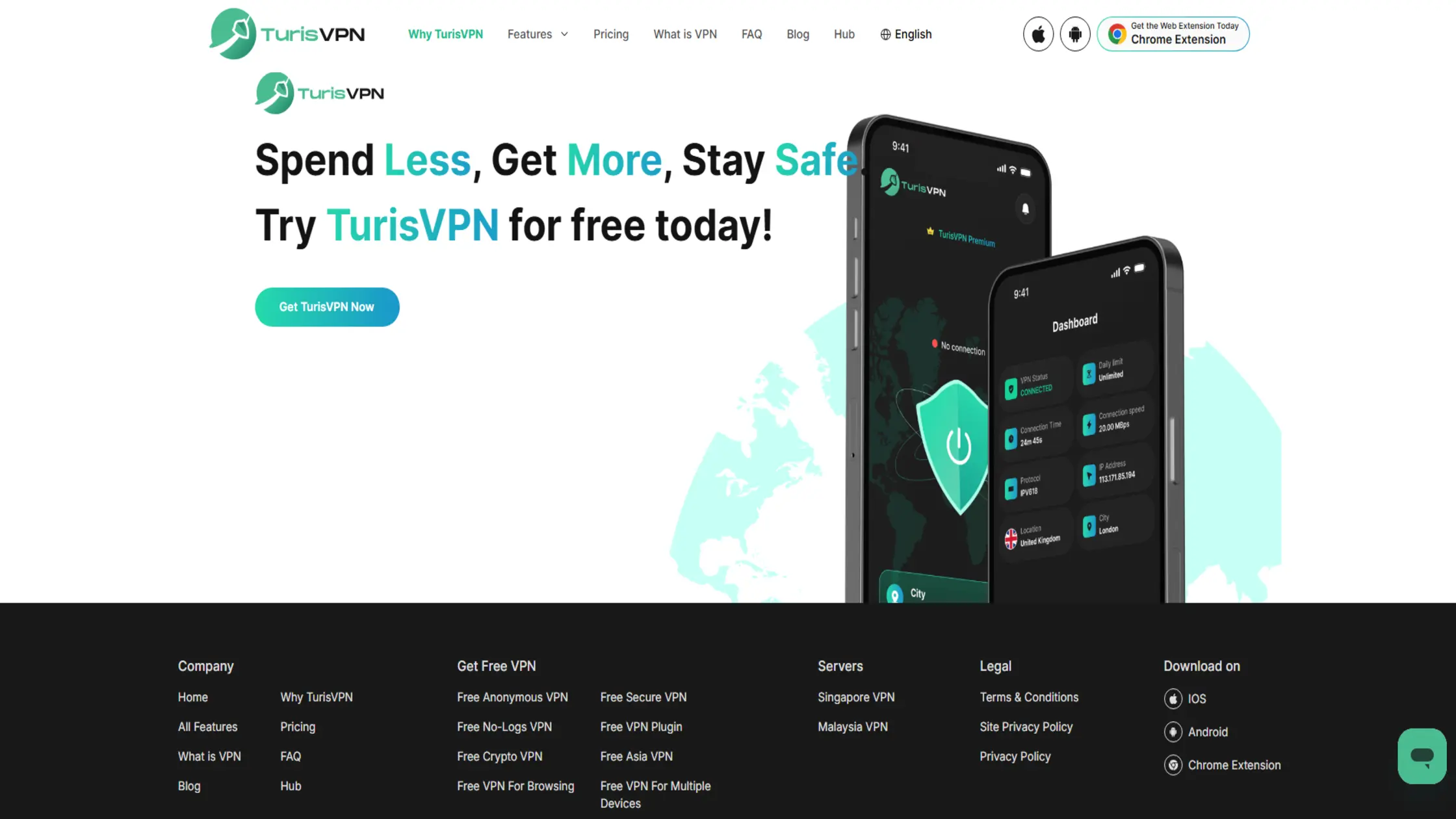
We confidently recommend TurisVPN because we built our network to beat the aggressive blocks used by Streaming Platforms. Speed is the most critical factor for video. Streamers use VPNs to prioritize stability and speed above all else, which is exactly what we deliver. Here are the specific TurisVPN features that ensure a buffer-free experience:
- Unlimited Data Usage: Stream in HD for hours without hitting any bandwidth caps or throttling.
- New WireGuard Protocol: We use this modern technology to provide faster speeds and rock-solid security for smooth playback.
- Strict No-Logs Policy: Your movie marathons remain private. We never track or store your activity data.
- IP-2Hop Technology: This feature routes your traffic through two servers for maximum privacy and better geo-spoofing capabilities.
- One Account, All Devices: Securely stream on your phone, laptop, and tablet simultaneously with a single subscription.
By choosing TurisVPN, you get a seamless, high-speed experience that keeps your data safe while unlocking the world’s content.
Having the right tool is great, but knowing how to configure it on your specific hardware is equally important for a smooth experience.
How to Use a VPN for Streaming on Different Devices
You likely consume content on multiple screens, so knowing how to use a VPN when streaming across different operating systems is vital. Let’s look at the specific adjustments you need to make when watching on a laptop computer and a smartphone.
Using TurisVPN on a Laptop
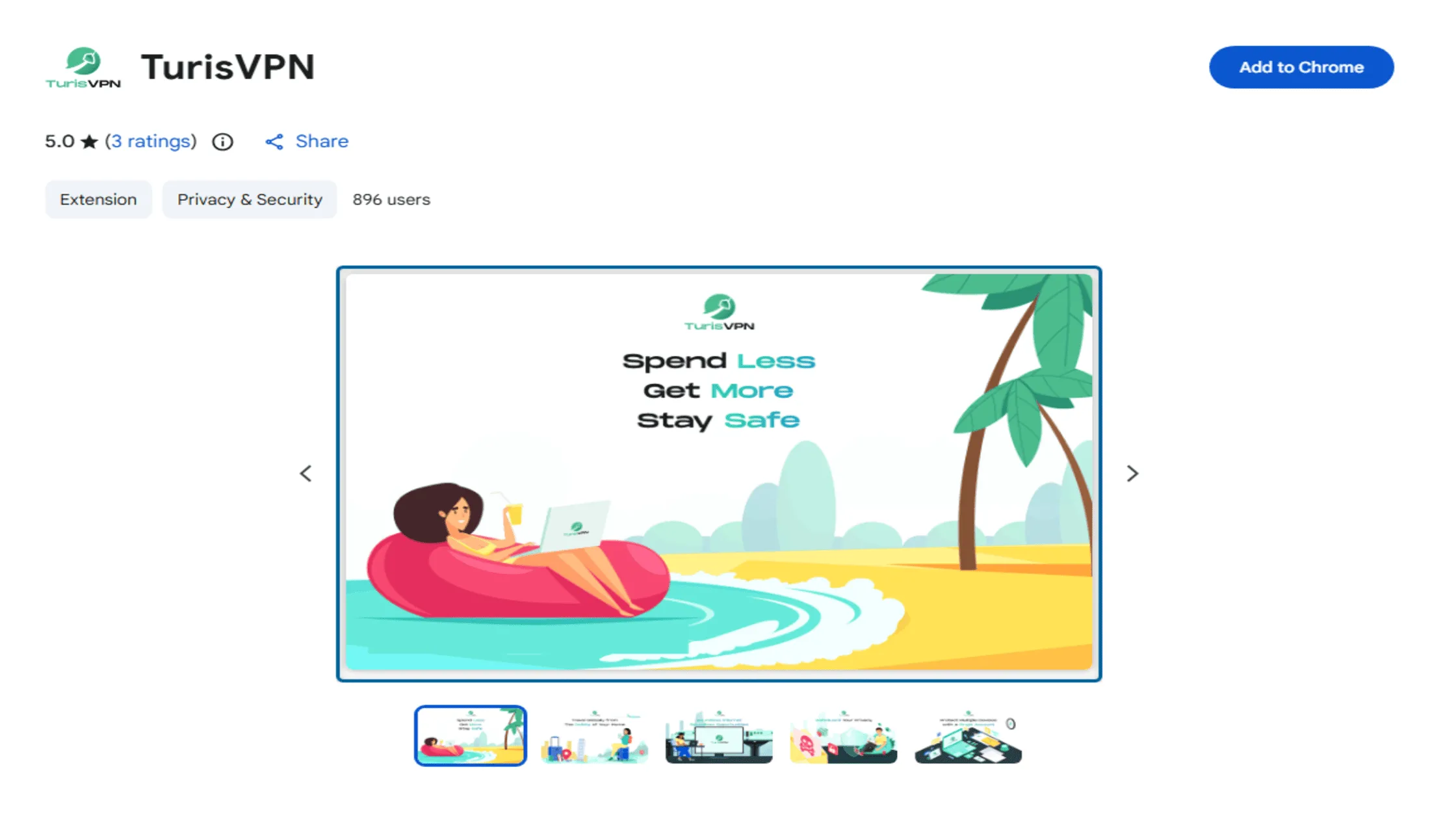
You can use our lightweight browser extension for the fastest way to stream on your laptop or personal computer. It integrates directly with Chrome to unblock content instantly without affecting your entire system.
- Install the Extension: Go to your browser’s web store and add the TurisVPN extension.
- Log In: Click the TurisVPN icon in your browser toolbar and enter your credentials.
- Select a Location: Choose a server in the country where your show is available
- Clear Cache: If you encounter issues, you can easily verify your connection status by following our guide on checking if the VPN is working. Then quickly clear your browser’s cache and cookies to remove old location data.
- Start Streaming: Open your streaming site in a new tab. You should now see the unblocked library.
Using TurisVPN on a SmartPhone
You must ensure that your phone’s GPS location does not conflict with your VPN location. Streaming Platforms on mobile often check both your IP and your GPS data.
- Download the App: Install the official TurisVPN app from the App Store (iOS) or Google Play (Android).
- Grant Permissions: Allow the app to add VPN configurations to your phone’s settings when prompted.
- Disable GPS: Turn off “Location Services” for your streaming apps in your phone’s settings to prevent location leaks.
- Connect: Open TurisVPN, select your target country, and tap the connect button. Wait for the “VPN” icon to appear in your status bar.
- Launch & Watch: Open your streaming app. If the content is still locked, try reinstalling the streaming app to clear stored data.
Even with the best setup, you might occasionally face technical hiccups, so let’s address how to solve them.
Common VPN Streaming Problems (and How to Fix Them)

Even with the best software, you might occasionally run into errors like the dreaded “proxy detected” message or sudden quality drops. These issues usually stem from cached location data or a specific server IP being flagged by the streaming provider.
Below are the most frequent issues users face and the specific steps to resolve them immediately.
Problem 1: The “Proxy Detected” Error
This is the most common issue: the streaming service (like Netflix or Hulu) identifies your IP address as a VPN and blocks access.
How to Fix It:
- Disconnect from the VPN: Start by turning off your TurisVPN.
- Clear your browser cache: Go to your browser settings and delete cookies and cached data to remove any old location traces.
- Select a new server: Open TurisVPN and choose a different city within the same country
- Reconnect and refresh: Connect to the new server and refresh the streaming page.
Problem 2: Slow Speeds and Buffering
High-quality streaming requires significant bandwidth. If your video is constantly pausing, your connection might be throttled or overcrowded.
How to Fix It:
- Switch protocols: Go to the TurisVPN settings and switch to WireGuard, which is faster than OpenVPN.
- Close background apps: Ensure no other downloads or heavy applications are running.
- Connect to a closer server: If you don’t need a specific country, choose a server geographically closer to you for better speed.
Problem 3: Mobile Location Mismatch
On mobile devices, streaming apps often check your GPS location against your IP address. If they don’t match, the app blocks you.
How to Fix It:
- Disable GPS: Turn off “Location Services” or GPS on your iOS or Android device.
- Force stop the app: Completely close the streaming app so it doesn’t run in the background.
- Reconnect the VPN: Ensure TurisVPN is connected to the correct region.
- Relaunch the app: Open the streaming app again; it should now rely solely on the VPN IP.
If you experience persistent connection drops, you might need to uninstall the VPN on your device, then reinstall it. Troubleshooting is easier with a premium service, which leads us to the debate over free versus paid options.
Free vs Paid VPNs for Streaming: What Actually Works?
You get what you pay for, especially when it comes to the bandwidth and server access needed for buffer-free streaming. Here is a comparison table that breaks down the key differences between free services and a premium VPN option:
| Feature | Free VPNs | Paid VPN (TurisVPN) |
| Streaming Access | Rarely works; IPs are often blacklisted by Netflix/Hulu. | Optimized to unblock major platforms like Netflix, Hulu, & BBC iPlayer. |
| Speed & Performance | Slow; often throttled due to server congestion. | Fast; uses WireGuard protocol for buffer-free HD/4K streaming. |
| Data Limits | Strict caps (often ~500 MB/month), usually not enough for a single movie. | Unlimited bandwidth and data usage for endless streaming. |
| Server Network | Limited locations; thousands of users crammed onto a few servers. | Vast global network; specifically updated to bypass geo-blocks. |
| Privacy & Security | High risk; may track data, inject ads, or sell your info. | Strict No-Logs Policy; includes advanced features like IP-2Hop. |
| Device Support | Limited (usually 1 device). | Connect up to 4 devices simultaneously with one account. |
To understand the detailed differences, read our comparison of paid VPN vs free options.
Now that we have established why paid services are superior, let’s summarize the overall advantages and disadvantages.
Pros & Cons of VPN for Streaming
You should weigh the benefits of VPN for streaming against the potential downsides to manage your expectations. Using a tool like TurisVPN opens up a massive library of content, but it introduces an extra step in your connection process.
| Pros | Cons |
| Bypass Geo-blocking: Watch content from any country. | Potential Speed Loss: Encryption can slightly slow down internet speed. |
| Privacy Protection: Hides your viewing habits from ISPs. | Detection Risk: Streaming sites sometimes block VPN IP addresses. |
| Throttling Prevention: Stops ISPs from slowing down video traffic. | Cost: Reliable streaming requires a paid subscription. |
| Secure Public Wi-Fi: Stream safely in hotels and airports. | Setup: Requires initial installation and login. |
Bottom Line
Mastering how to use a VPN for streaming empowers you to take full control of your digital entertainment experience. By masking your IP Address and encrypting your traffic, you can bypass arbitrary Geo-restrictions imposed by major platforms.
Choose a reliable provider like TurisVPN, connect to the right server, and press play. Don’t let your location dictate what you can watch. Start your seamless streaming journey today.
FAQs
Q1. How do I stream Netflix with a VPN?
To stream Netflix, open TurisVPN and connect to a server in the country whose library you want to access (e.g., the US or the UK). Once connected, open Netflix. If you see an error, clear your browser cache or try a different server city.
Q2. Which VPN is best for streaming Netflix and Hulu?
We recommend TurisVPN because we optimize our servers specifically for these platforms. We use the WireGuard protocol to ensure fast speeds so you can watch in high definition without interruption.
Q3. Can I use one VPN account on multiple streaming devices?
Yes! With TurisVPN, you can connect multiple devices simultaneously under a single subscription. This means you can watch on your laptop while your family members stream on their tablets or smart TVs using the same account.
Q4. Is It Legal to Use a VPN for Streaming?
Generally, yes. Using a VPN is legal in most countries. However, using it to bypass geo-blocks goes against the Terms of Service of most Streaming Platforms. While they may block your IP address, they rarely ban user accounts for it.