Knowing how to set a work location on Google Maps allows you to plan routes, check traffic, and access navigation quickly. When you save your work address, getting directions to my work becomes faster and more accurate. This guide explains how to add, edit, remove, and modify Google Maps work locations on any device.
This feature organizes your commute. You can easily switch between different routes or check delays. Whether you’re on iPhone, Android, or desktop, Google Maps gives simple options to manage your Google work location preferences.
How to Set Work Location on Google Maps: iPhone

For iPhone users, saving your office address is very easy. The function is right in the app’s main menu. This makes it simple to change the Google Maps work address whenever necessary. Here is the simple guide for how to change work on Google Maps on iPhone:
- Open Google Maps: Tap the Google Maps app icon. It is on your iPhone home screen.
- Access the Saved Menu: Tap the “Saved” tab. It is at the bottom of the screen. This area holds all your personally saved places.
- Find the “Labeled” Section: Scroll up in the Saved menu. Look for the “Labeled” category. You should see “Home” and “Work” listed there. They are likely under the title “Your Labeled Places.”
- Select “Work”: Tap the “Work” option. If you have not set it, the app will ask you to “Set Work Location.” If a location is set, the current address will show. You can tap it to modify it.
- Enter the New Address: Start typing your work address into the search bar. Google Maps will offer suggestions as you type. Select the correct one from this list.
- Confirm and Save: The map will pinpoint the location after you select it. Tap “Save” or “Done” to confirm the new address.
You can also use Siri shortcuts to launch routes directly. If your Google Maps edit work details ever change, like moving offices, edit the address anytime by following the same steps. Remember that your saved tag on Google Maps will also sync with other devices linked to your Google account, ensuring accurate navigation.
If you are also interested in keeping your personal locations separate from app locations, you might want to learn more about how to change location in the iPhone App Store.
How to Set Work Location on Google Maps: Android
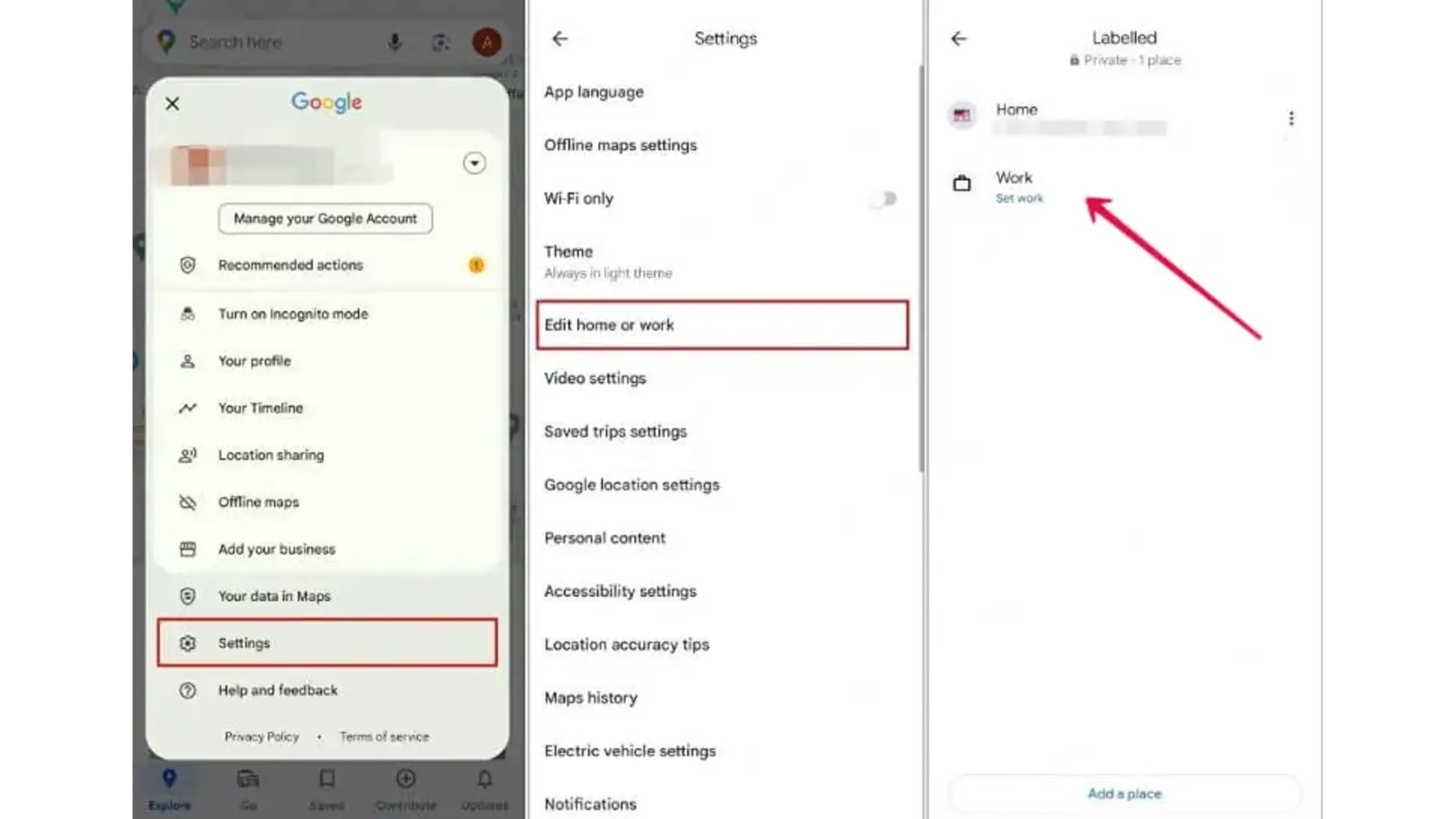
Android users can follow a similar method to set a work location on Google Maps. Before you start, sign in with your Google account to keep your information synced across platforms. Here is how you add work to Google Maps on an Android device:
- Launch the App: Open the Google Maps app on your Android phone or tablet.
- Access Search or Saved Places: You can tap the search bar at the top. Or, you can tap the “Saved” tab at the bottom.
- Search for “Work”: Use the search bar. Just type “Work.” Then tap the “Set location” prompt that appears. If you use the “Saved” tab, look under the “Labeled” places.
- Enter the Location: Tap the “Work” label. A prompt will appear. You will type in your exact work street address, your company’s name, or a nearby landmark.
- Select the Address: Choose the right, verified address. It will be in the list of suggestions that Google Maps shows as you type.
- Complete the Process: Once you confirm the address, it is instantly saved as your main work location.
This setup makes it easy to check your home-to-work map daily. Google Maps will also display your commute time right on the home screen, helping you plan better.
If you switch jobs or move offices, use the “How to edit work on Google Maps” feature to update your data. The app automatically caches your usual routes, so try to clear them if you prefer privacy.
You can also modify Google Maps settings to control cache storage and recent history. For instance, if you frequently change your location on Hinge, the speed of this update is great. We suggest you check the accuracy after you set the work location on Google Maps for the first time.
How to Set Work Location on Google Maps: Computer

Most people use their phones for travel. Still, sometimes it is easier to set and check locations on a large screen. Learning how to set a work location on Google Maps from your computer gives you an advantage when planning routes or work trips from the office.
- Go to Google Maps: Open your browser. Go to the Google Maps website. Make sure you are signed into your Google account.
- Access the Menu: Click the three horizontal lines. This is the “hamburger” menu. It is in the top-left corner of the screen.
- Open “Your Places”: A menu will open. Click on “Your places.” A side panel will appear. It has three tabs: Labeled, Saved, and Visits.
- Select the “Labeled” Tab: Click the “Labeled” tab. This is where you can add work to Google Maps and your home location.
- Edit the Work Address: Look next to the “Work” label. Click the “Edit” button. It looks like a pen icon.
- Type and Select: Enter your exact work address, the business name, or coordinates. Use the text box. Select the correct, verified location from the suggestions the service gives you.
- Confirm: Click “Save” to finish the change.
This method works well for making big changes in Google Maps. This includes checking the exact coordinates of a new office building. It is a reliable way to ensure my position on Google Maps is correct for daily travel.
If you collaborate with clients via mobile apps, check our guide on how to share location with WhatsApp to learn how to securely transmit real-time positions.
How to Add or Remove a Work Location from Google Maps?

Sometimes, you need to change your Google Maps work address or remove it entirely. This section shows you how to manage both actions effectively.
To remove or delete your work address:
The process to remove a work address from Google Maps is simple:
- Go to Labeled Places: Go to the “Saved” tab on your phone. Or use “Your Places” on your computer. Go to the “Labeled” section.
- Find “Work”: Locate the “Work” label.
- Clear the Address:
- On Mobile: Tap the three-dot menu next to the saved work address. Choose “Remove work” or “Clear address.” This deletes the specific address.
- On Desktop: Click the “Edit” button next to “Work.” Then click the “X” or “Clear” option.
- Confirm: The label will now go back to saying “Set work location.”
Knowing how to remove your work address from Google Maps ensures you stay private when switching jobs. If your phone also stores cached routes, consider deleting those for security.
To add a new address:
Here is a short step-by-step guide to add work to Google Maps:
- Open Google Maps on your device.
- Go to the “Your Places” or “Saved” section.
- Select the “Labeled” tab.
- Tap “Work” and enter your work address.
- Save the location to set it as your work destination.
Once added, your new route appears under directions to my work suggestions. You can edit your home to work map at any time.
If you manage multiple saved spots, such as home, gym, or client offices, use the Set home Google Maps option similarly. This keeps your saved places aligned with your calendar or commute schedule. If you ever want to test navigation from a different city, you can check out our guide on how to change location on Skout.
Best Way to Spoof GPS Location on Google Maps (Using TurisVPN)

Our users often ask, “Can you change your location on Google Maps?” The answer is yes, you can. However, you’ll need VPN access to appear in a different region. TurisVPN makes it easy to adjust your virtual presence while maintaining data privacy. When you use TurisVPN:
- Your IP address is masked to reflect a chosen country or region.
- Apps like Google Maps interpret your VPN endpoint as your real position.
- You can access region-specific navigation views without altering internal phone settings.
This is especially useful when testing commute data in different areas, managing business territories, or safeguarding privacy while using public Wi-Fi. If your workplace requires that you appear “on-site” virtually, spoofing via VPN adds flexibility. Here is a short step-by-step to spoof your GPS location on Google Maps using TurisVPN:
- Install and open the TurisVPN app on your device.
- Select a VPN server in the location you want to spoof.
- Connect to the chosen VPN server to mask your real IP address.
- Open Google Maps; it will detect the VPN server location as your current position.
- Use Google Maps for location-based features, then disconnect from TurisVPN to restore your real location.
If you experience inconsistencies, you can modify Google Maps permissions so it reads network-based location data rather than GPS. Always ensure your VPN stays connected before opening the app. For those who want more control over their location privacy, we have a helpful guide on where to put the VPN for unrestricted ChatGPT access.
Learning how to set a work location on Google Maps helps you save time, organize commutes, and sync travel data smoothly across devices. Whether adding, editing, or removing addresses, the process remains simple and secure. For privacy-conscious users, pairing this with TurisVPN guarantees that your routes and virtual presence remain encrypted.
Whether you use an iPhone, Android, or a computer, following these steps ensures accurate Google work location management. It’s the easiest way to make your daily travel intelligent and private.
FAQs
Q1: How to Track Someone on Google Maps?
You can track people only with their permission. Ask them to share their live location from the Google Maps app. Once shared, the contact appears under your list of visible users. You can combine this with setting home Google Maps or tagging on Google Maps features to organize frequent locations securely.
Q2: How to Delete a Destination on Google Maps?
If you wish to clear saved locations, here’s how to delete a destination on Google Maps:
- Launch Google Maps.
- Tap on “History” or “Saved.”
- Select the destination you want to delete.
- Tap “Remove.”
This will clean your location history, keeping your changes in Google Maps minimal and accurate.