







You’ve probably experienced the frustration of trying to download an app, only to find it’s not available in your region. Whether it’s a streaming service like Hulu, a social media platform like WeChat, or even popular games like PUBG Mobile with special content locked by region, these limitations can be a real headache. With many apps offering region-exclusive content, not having access can be a serious inconvenience, especially when traveling or trying to use global services.
In this article, you’ll discover how to change your location in the App Store on iPhone, iPad, or Mac (2024) to bypass these restrictions. This guide will show you the steps to switch your region, letting you download restricted apps, unlock unique features, and enjoy a more seamless experience across different countries.
It’s important to note that switching back to a previous region can be done, but it may affect access to apps or media purchased in different regions unless you re-purchase them. You may lose access to previous purchases unless you switch back, which makes frequent changes less practical.
Using TurisVPN To Change Location In Iphone App Store
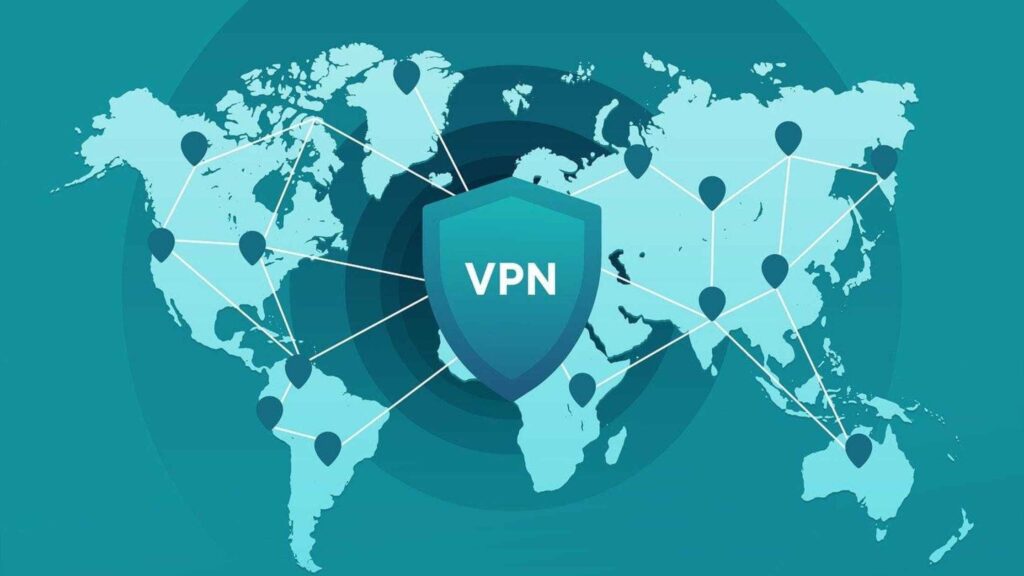
Using TurisVPN to change the location on your iPhone’s App Store is a way to access content like Tamilyogi streaming platforms that may be restricted to specific regions. While a VPN doesn’t directly alter your App Store country settings, it can help you access region-locked apps or content by masking your IP address to make it appear as if you’re in another country.
Steps to Use TurisVPN for Changing Location:
- Install TurisVPN
First, download and install TurisVPN from the App Store. Set up an account and log in. - Connect to a Server in the Desired Country
Open the TurisVPN app, choose a server in the country where you want to access the App Store. For example, if you want to access apps only available in the U.S., connect to a U.S.-based server. - Change Your App Store Region
After connecting to the VPN, you will need to change your App Store region:- Open Settings on your iPhone.
- Tap on your name (Apple ID), then go to Media & Purchases and select View Account.
- Tap on Country/Region, then select Change Country or Region.
- Choose the country that matches the VPN location (e.g., U.S.).
- Agree to the terms and conditions, then enter a payment method and billing address associated with that country (you may need a local card, but in some regions, you can skip this step).
- Download Your Desired Apps
Now, the App Store will display apps available in the region you selected. TurisVPN can help you unlock other content too, like watching F1 in Singapore for free, as explained here.
In conclusion, while using TurisVPN helps mask your location and access geographically restricted apps, you still need to follow Apple’s specific steps to permanently change your App Store country.
Bottom Line
Changing your App Store location is a great way to unlock new apps, exclusive content, and special offers that are only available in certain regions. While it offers great flexibility, the process requires preparation, such as canceling subscriptions and using valid payment methods for the new country. By using tools like TurisVPN, you access content without needing to switch your location permanently, giving you even more flexibility.
FAQs
Q1. Will I lose my apps if I change countries?
When you change your country or region, you may lose access to some books, movies, TV shows, games and apps. Your balance from your old country or region becomes unusable in your new country or region.
Q2. What happens if I change my App Store country?
When you change your App Store country, you’ll gain access to apps available in the new region, also different prices and promotions.
However, there are some downsides: any ongoing subscriptions will be canceled, you’ll need to resubscribe in the new region, and any remaining store credit will not carry over. You may also lose access to previously purchased apps or content that is not available in the new country, and re-downloading them may only be possible if you switch back to your original region.