Changing your country in the Amazon app can open up access to region-specific products, deals, and services. Whether you’re moving abroad, travelling, or want to shop in another marketplace, this guide will explain how to change country in the Amazon app for both iOS and Android devices.
Understanding this process ensures you enjoy a seamless shopping experience regardless of your location.
Why You Might Need to Change Your Country on Amazon
You may wonder why you need to change your Amazon country in the app. The Amazon app automatically detects your current location, but manually adjusting the country setting gives you control. Several reasons exist to update your location, including:
- You have permanently moved to a new country and need to access the local Amazon marketplace. This includes products, shipping rates, and delivery options specific to your new location. Using your old country’s settings can cause shipping problems and make products unavailable.
- Travellers or expatriates might want to temporarily change their country to browse the local store. Perhaps you want to buy a gift for a friend abroad. Maybe you want to find items exclusive to another region.
- Digital content libraries like Kindle books, Amazon Music, and Prime Video are often locked by region due to licensing. Changing your country lets you unlock full access to local content and streaming libraries.
- Your country controls access to apps and content in the Amazon App Store. If you see “content unavailable” errors, knowing how to change the country in the Amazon App Store fixes these issues.
You can browse other regions in the shopping app. Still, a permanent country change is required to fully use local payment options, currencies, and regional offers. Additionally, knowing how to use a VPN can help secure your data and access Amazon content globally. This improves your overall experience.
If security is your focus, you might also be interested in learning whether a VPN hides search history to ensure full privacy protection.
Amazon Available Countries List
Amazon operates distinct marketplaces internationally, often tied to specific countries or regions. Here are some key Amazon countries where you can register or shop. Knowing how to change the Amazon country in the app will allow you to switch to these different local sites:
- United States (amazon.com)
- United Kingdom (amazon.co.uk)
- Canada (amazon.ca)
- Australia (amazon.com.au)
- India (amazon.in)
- Japan (amazon.jp)
- Germany (amazon.de)
- France (amazon.fr)
- Italy (amazon.it)
- Spain (amazon.es)
- Mexico (amazon.com.mx)
- Netherlands (amazon.nl)
- United Arab Emirates (amazon.ae)
- Saudi Arabia (amazon.sa)
- Brazil (amazon.com.br)
- Singapore (amazon.sg)
This list continues to grow. Selecting the correct country in the Amazon mobile app ensures access to the products and services offered within that marketplace.
How to Change Country in the Amazon App on iOS
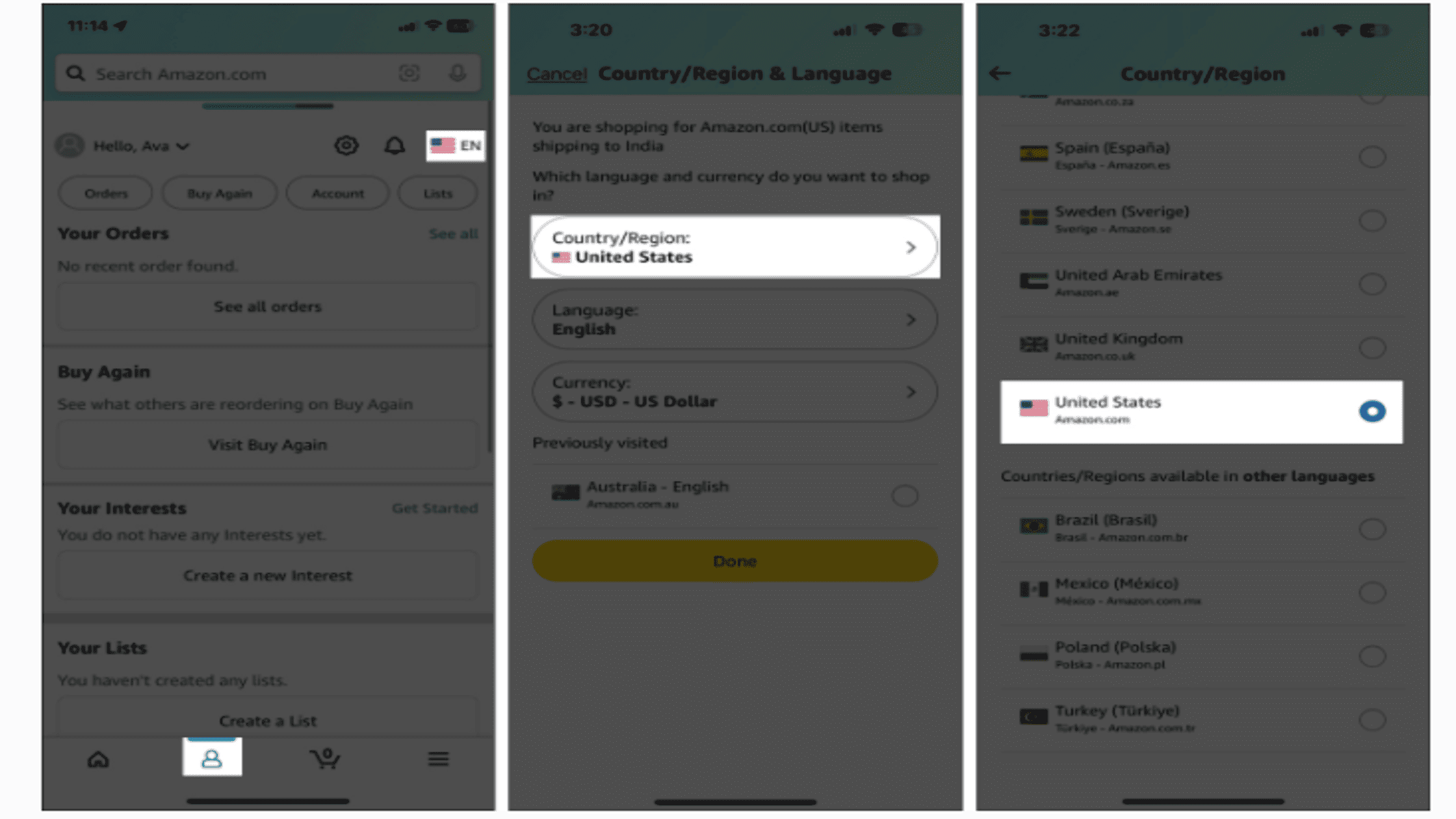
Changing your country in the Amazon app on iPhone or other iOS devices is straightforward. This initial change primarily updates the Amazon shopping app view:
- Open the Amazon app on your iPhone.
- Tap the profile icon at the bottom.
- Tap the country flag icon at the top right.
- Select Country/Region from the menu.
- Pick the country you want to switch to.
- Confirm the change by tapping Done or Continue. The app will restart with the new country’s store.
This method applies to many regions and enables you to shop like a local in the new marketplace. If you are looking specifically for how to change country in the Amazon app on iOS, these steps guarantee a smooth transition while accessing region-specific goods.
As a side note, if you are concerned about security while travelling and making changes, a key area of study for us is the security implications, such as whether a VPN can be hacked.
How to Change Country in the Amazon App on Android
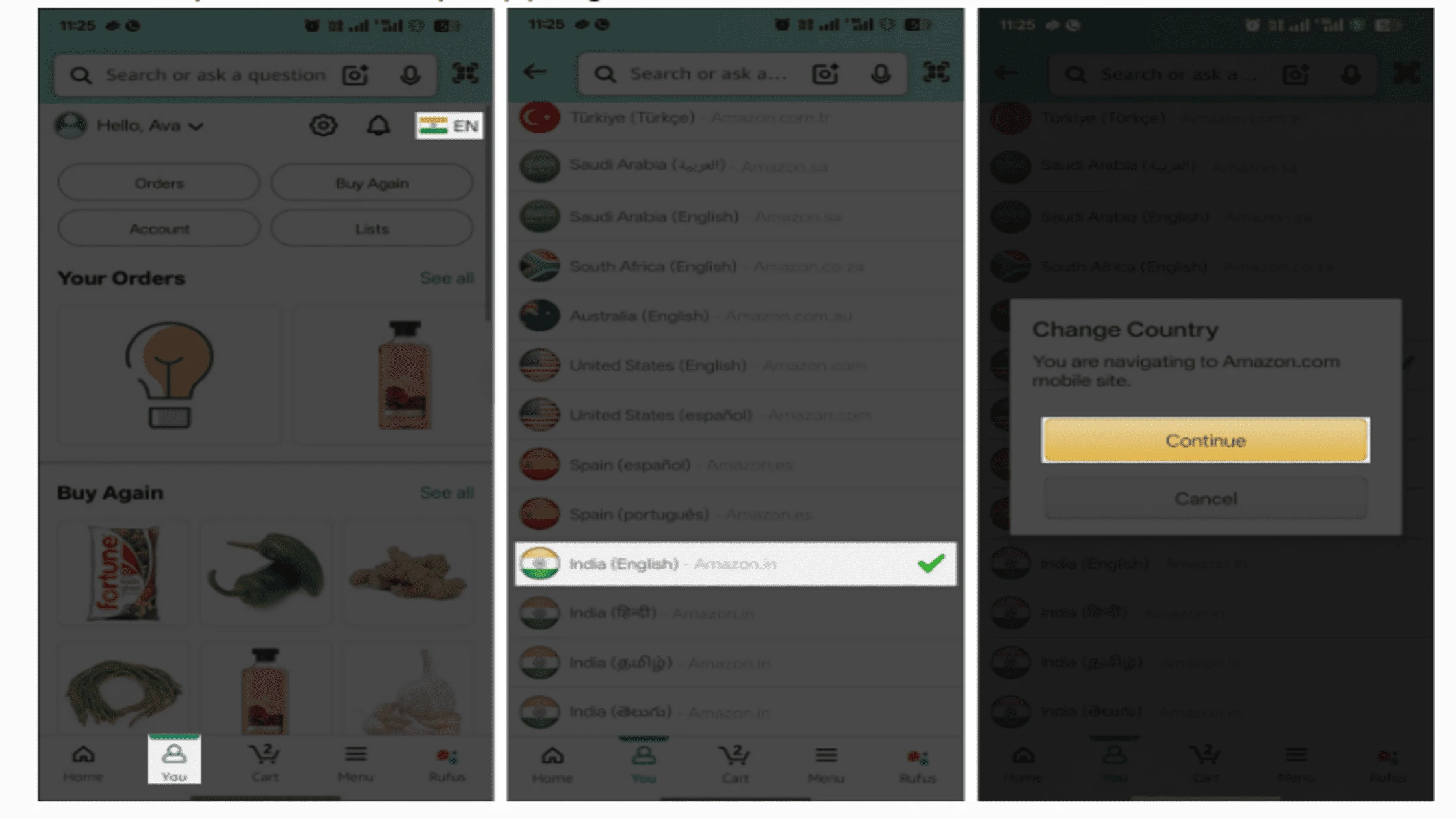
For Android users, the process to change your Amazon app country closely mirrors iOS, but with slight UI differences. These steps show you how to change the country in the Amazon app on Android:
- Launch the Amazon app on your Android device.
- Tap the profile icon or the menu button at the bottom.
- Look for the flag icon at the top right or go into Settings.
- Select Country/Region & Language.
- Choose Country/Region.
- Pick the country you want from the list.
- Save and confirm, updating payment info if necessary.
Knowing how to change country in the Amazon app on Android helps unlock products and deals specific to your new region, including localised shipping options. While you’re focusing on digital movement, you might also want to understand if you need the extra protection of a VPN for certain browsing methods by checking if you need a VPN for Tor.
How to Change Country on the Amazon Website
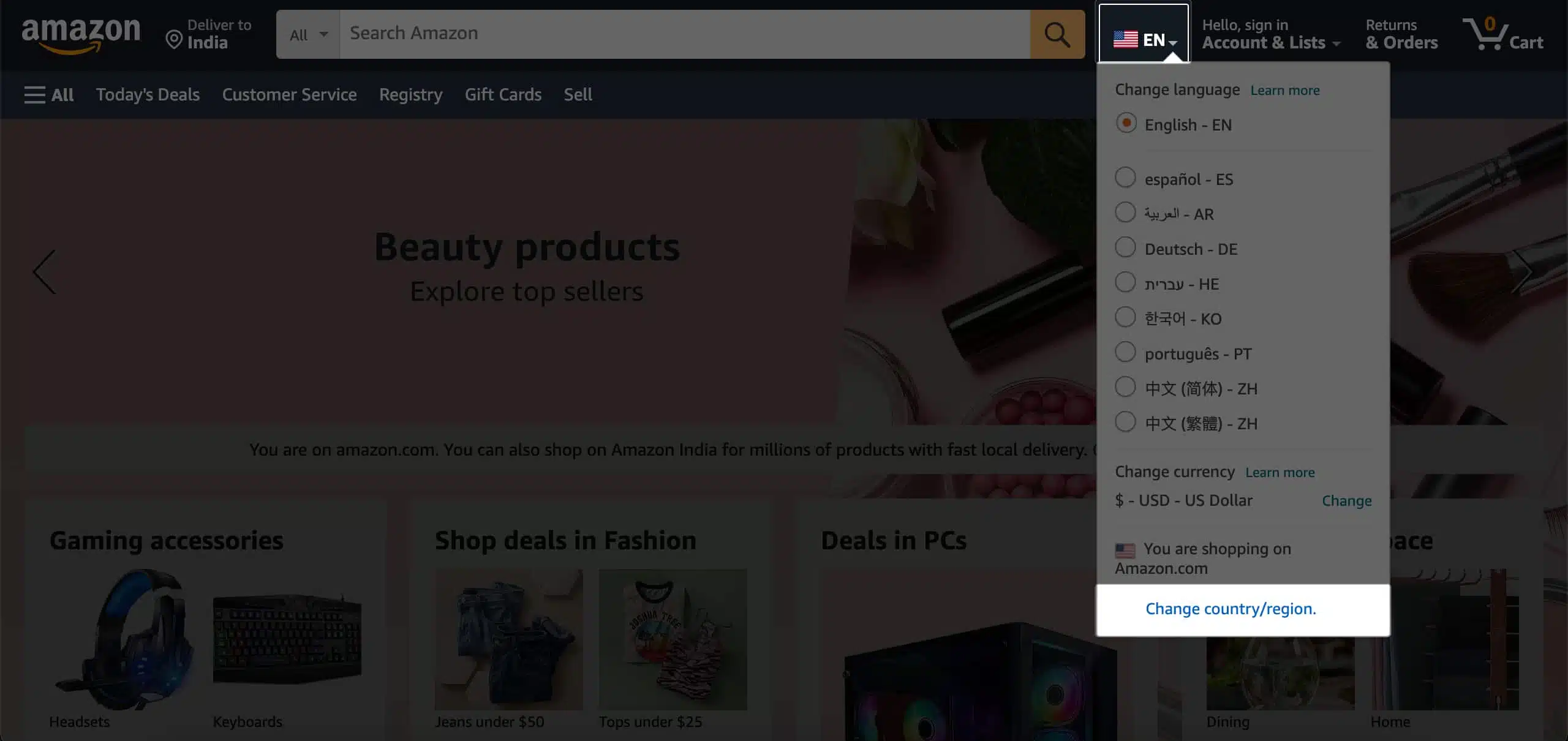
Besides the app, you may find it easier to change your country on the Amazon website. This method also affects your mobile app experience and is required for a full account transfer that impacts digital services. This is crucial after the initial steps of how to change countries in the Amazon app:
- Log in to your Amazon account on the website.
- Go to “Manage Your Content and Devices” in your account settings.
- Click the “Preferences” tab.
- Select “Country/Region Settings” and click “Change.”
- Enter your new country address and confirm.
- Review the summary of changes and click “Update” to finish.
The website method syncs with your app account, so changing country here is essential if your app doesn’t immediately reflect your new location or you prefer making the change on a desktop.
What Happens After You Change Your Amazon Country
Changing your country on the Amazon app is a big step that may affect many parts of your Amazon experience. After successfully finishing the transfer, you will notice immediate and significant changes. You must understand these effects to avoid any surprises.
Marketplace changes
The Amazon shopping app will now automatically load with the product list, local prices (in the native currency), and local features of your new country. Shipping options and availability will be based on your new address, and product suggestions will change to reflect local trends.
All your orders and purchase history will be visible in the new marketplace interface. However, past international orders might still show their original currency. When comparing options for better security and access in your new region, it is important to understand the differences between a paid VPN vs free choices.
Prime membership
When you transfer your account, your existing Prime membership usually does not move automatically to the new country’s program. In most cases, your original membership will be cancelled. A partial refund might be given. The membership might also just continue until it expires, but with only limited benefits in your new location.
You will likely need to sign up for a new Prime membership in the new country. This grants you benefits like free local shipping, local deals, and the local Amazon Prime app content. Always check the specific Prime terms for the destination country before completing the transfer.
Digital services
Digital content, such as Kindle books, apps bought from the Amazon App Store, and streaming content on the Amazon Prime Video app, is licensed by region. When you transfer, all the Kindle books you have bought will move to your new marketplace. However, some content might not be available in the new region’s library due to licensing restrictions.
The library available through the Amazon Music app will also change to reflect the local selection. Any in-app subscriptions or digital services not available in the new country might be cancelled.
Gift cards and balances
Any remaining balance on Amazon Gift Cards or promotional credits tied to your original marketplace may not move to the new one. These balances are often locked to the country where they were issued.
Use any remaining credits before switching to avoid losing them before you finish the process to change your Amazon country in the app via the website. For device privacy concerns during this process, our guide on using a VPN in incognito mode offers helpful tips.
Use TurisVPN to Access Region-Locked Amazon Content

Sometimes changing your country in the Amazon app is not enough. Digital content or products are often restricted based on your computer’s IP location. Using a trusted VPN service like TurisVPN helps you bypass these restrictions. TurisVPN masks your real IP address. This lets you access Amazon as if you were in the country you want.
Using TurisVPN to bypass Amazon’s geo-restrictions is simple and effective. Follow these steps:
- Download and install TurisVPN on your preferred device from the official TurisVPN website or app store.
- Open TurisVPN and log in with your account credentials.
- Choose a server location in the country where the desired Amazon content or marketplace is available.
- Connect to the selected server to mask your real IP address with an IP from that region.
- Open the Amazon app or website and enjoy access; you will now appear as browsing from the VPN server’s country.
By following these steps, TurisVPN helps you unlock Amazon’s full potential while ensuring your online activity remains private and secure. When you are streaming media, you may wonder about the effect on your data usage; a detailed look at how much data a VPN uses per hour can answer those questions.
Bottom Line
Knowing how to change country in the Amazon app empowers you to shop intelligently regardless of where you are in the world. Both the iOS and Android apps offer simple steps to switch your country or region. However, remember that changing your country affects your Prime membership, digital content, and gift card balances.
A VPN like TurisVPN can improve your global Amazon shopping by giving access to region-locked content and enhancing security. Changing your Amazon country and using a VPN together creates a flexible shopping setup. You might also want to look at our comparison of whether free VPNs are safe before deciding on a security solution.
FAQs
Q1. Can I switch my Amazon country back later?
Yes, you can change your Amazon country multiple times. However, each switch may require updating payment methods and addresses. Also, some account features may reset or require reactivation after each change. Remember the 180-day limitation for digital content transfers.
Q2. Will my Prime membership work in the new region?
Prime memberships are region-specific. You will usually need to subscribe again for Prime in the new country. Certain Prime benefits may differ between countries, so check details in your new Amazon region.
Q3. Can I use one Amazon account for multiple countries?
Amazon does not support simultaneous use of one account across multiple country marketplaces. You must choose one country at a time in your account settings, which limits your product and service access to that region.