Sharing feedback can feel risky when your identity is publicly known. That’s why so many people want to know how to write an anonymous Google review without facing awkward consequences later.
Anonymous reviews mean sharing your thoughts without revealing your real name, photo, or other personal info, allowing honest, pressure-free feedback while protecting your privacy. While Google no longer allows fully anonymous posts, there are still ways to leave your review without revealing who you are. Our blog post will show you how.
Key Takeaways
| – Google no longer allows fully anonymous reviews; each review is tied to a Google account. – You can still limit personal exposure by using a pseudonym and adjusting privacy settings. – TurisVPN helps protect your IP address and browsing data during the review process. – Focus on honest, respectful, and specific feedback to avoid removal or flagging. – Business owners should respond to all reviews, including anonymous ones, with professionalism. |
Can You Really Post Anonymous Reviews on Google?
No, you can not make a Google review anonymous because Google removed fully anonymous reviews in 2018. Now, every review is tied to a Google account. That account includes metadata like IP addresses, timestamps, and device info.
But there are still ways to reduce how traceable your identity is. You can:
- Use a pseudonym on a new Google account
- Avoid connecting that account to Gmail, YouTube, or Drive
- Skip adding photos or specific details that reveal who you are
- Adjust privacy settings so your name and profile aren’t visible on Maps
Even when writing anonymously, your review still has to follow Google’s rules. Reviews must be based on your real personal experience. You can’t post reviews for your own business or in exchange for discounts or rewards.
When you report a review, your identity isn’t shown to the business or the reviewer. Google only allows one review per account, per business. If you want to update your opinion, you can edit the existing review, but you can’t stack reviews from the same account. So, true anonymity isn’t possible. But you can still protect your privacy if you do it right.
| >> Read more: What is an anonymous proxy service? |
How to Write an Anonymous Google Review? Step-by-step
You can post a review on Google anonymously by following these easy steps.
| Create or use a separate Google account > Enable a VPN to hide your IP address > Go to Google Maps or the business profile > Click “Write a Review” and share your feedback honestly > Avoid personal clues > Adjust your privacy settings > Clear cookies afterward. |
Let’s break it down step-by-step to protect your identity while staying within Google’s rules:
1. Create or Log in to Google (Use a Review Account)
Start creating a new Google account by using a fake name. Don’t link it to your personal Gmail, YouTube, or other services.
You can also use an old account that’s not tied to your real identity. This keeps your review separate from your daily Google activity.
2. Enable VPN (Optional but Recommended)
A VPN hides your IP address. It’s a good step if you want to make your location less traceable. Connect to a VPN server before opening Google Maps.
Using a VPN helps mask your real IP address. So, your review is harder to trace back to you. The VPN also adds an extra layer of privacy, especially if you’re leaving a review that could be sensitive.
When using Free VPN, you reduce the risk of Google or third parties linking the review to your real identity or location. This is especially helpful if you’re using a new Google account or posting from a device you’ve never used before.
So you can follow these steps to enable VPN:
- Step 1: Choose a trusted and secure Free VPN.
- Step 2: Download and install the VPN on your device.
- Step 3: Connect to a server in your own country (to match your Google Maps region).
3. Go to Google Maps or Business Profile
Open Google Maps in incognito mode or go directly to the business’s Google profile page. Make sure you’re logged in with your pseudonym account.
4. Click “Write a Review” & Rate the Business
Look for the “Write a review” button on the business page. Choose a star rating based on your experience.
5. Write Clear, Honest, and Respectful Review
Write your feedback clearly and truthfully. Avoid exaggeration or fake details. Focus on general service quality or experience, not exact times or names.
6. Avoid Sharing Personal Clues
Don’t mention things that can identify you like exact dates, locations, or anything unique to your visit. Skip uploading photos unless you’re sure they’re anonymous.
7. Adjust Privacy Settings After Posting
These steps help you make your Google reviews private:
| Go to your Google account > “Manage your contributions” in Maps > Set profile visibility to private. |
Also, in your Google account’s Personal Info section, make sure your name is only visible to you.
8. Clear Cookies / Log Out of VPN (If Used)
Once done, clear your browser history, cookies, and cache. Log out of the review account and disconnect your VPN if you used one. You won’t be fully invisible, but you’ll stay private enough to avoid attention while still helping others with your honest review.
Account Option for Maximum Anonymity
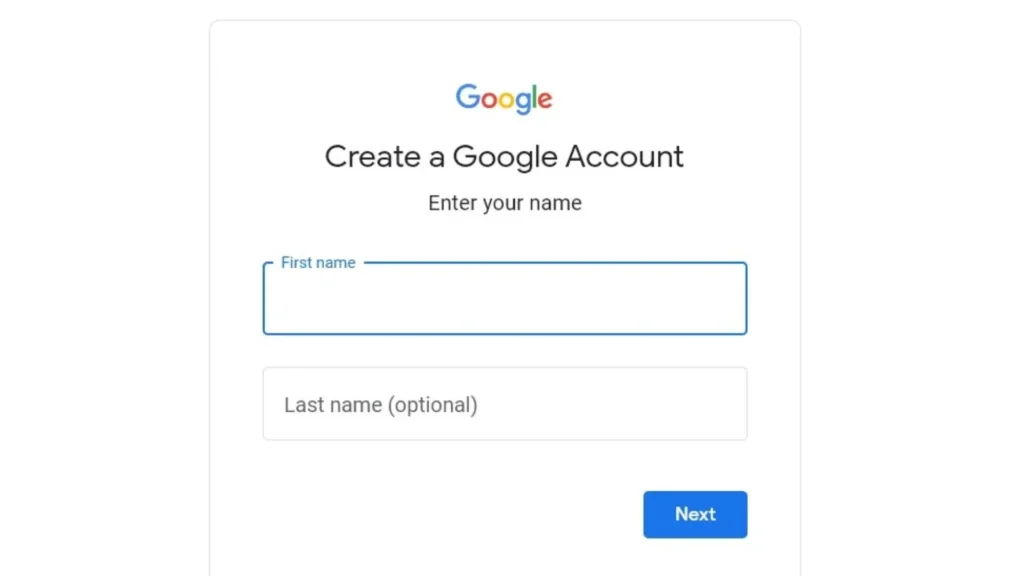
You can’t post reviews without a Google account. But you can choose how private that account is. Here are two options:
Existing Google Account
If you want to use your current account, make a few changes first:
- Change your display name to something generic like “Verified Guest” or “Real Customer.”
- Remove your profile photo and personal details from your Google account.
- Keep your reviews short, neutral, and free from personal stories that could reveal your identity.
This method is quick, but still connected to your past activity.
New Account
For better privacy, create a new Gmail just for reviews:
- Use a fake name that doesn’t link to your real identity.
- Don’t add recovery emails or phone numbers tied to your accounts.
- Use strong passwords and two-factor authentication.
- Bookmark the business page you want to review.
- Leave your review from an incognito window.
This setup gives you more control and less risk of being linked to your main Google identity.
Secure Your Review Process with TurisVPN

If you’re serious about privacy, using Free Anonymous VPN is one of the smartest moves you can make. The VPN hides your IP address, encrypts your traffic, and helps prevent businesses or even Google from linking your reviews back to your real identity.
Why You Should Use a VPN When Posting Google Reviews
Your Google review may be tied to your account, but your IP address and location data are just as revealing. TurisVPN helps you:
- Mask your IP address and location
- Avoid connection logs or tracebacks
- Use Google services more privately, especially in incognito mode
- Reduce metadata trails while leaving a review
With Free Secure VPN, you’re using a privacy-first tool with no-log policies, unlimited data, and multi-device support.
Recommended VPN Options for Review Privacy
There are many VPNs on the market, but TurisVPN stands out for being:
- Free to start, zero-cost, no trial limits
- Fast and private with the WireGuard protocol and IP-2HOP feature
- User-friendly with a Chrome extension, Android/iOS apps
- Based in Southeast Asia, where tech is smarter and pricing is more budget-friendly
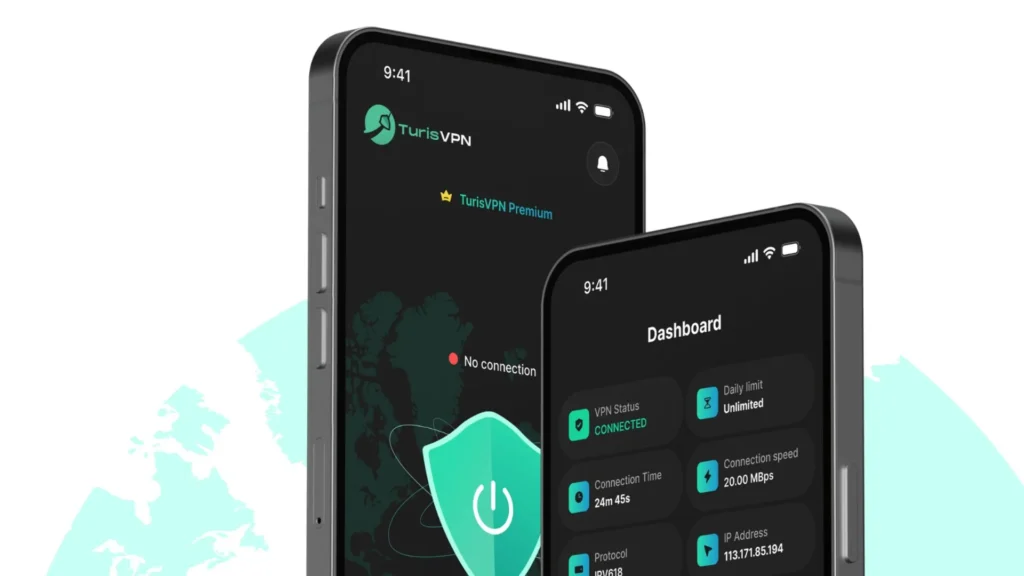
Steps to Use TurisVPN for Google Reviews
- Download the TurisVPN app or Chrome extension
- Choose a server (e.g., Malaysia or Singapore VPN servers)
- Connect and stay protected before logging into your Google review account
- Write your review on Google Maps or Business Profile
- Clear cookies and disconnect VPN when done for extra safety
Best Practices for Anonymous Google Reviews

Staying private is one thing. Staying fair and useful is another. Follow these best practices to protect your review and make it count:
Be Respectful, Polite, and Objective
Write like you’re advising a friend. A respectful tone lowers the chances of your review being flagged or removed by Google or business owners. Instead of saying, “Terrible service, worst place ever,” say, “The staff seemed overwhelmed and took 25 minutes to bring the food.” Keep it polite and factual.
If your review doesn’t show up right away, don’t panic. Google may hold it for moderation, especially if it contains strong language, links, personal details, or was posted from a new account or VPN.
Sometimes, reviews disappear due to policy violations or even bugs in Google’s system. Keeping your review respectful and objective helps ensure it goes live and stays up.
Avoid Defamation or Unprovable Claims
Don’t write accusations you can’t back up, like “They stole my card info” or “This place launders money.” These can be seen as defamatory or misleading. Stick to what you experienced. If you suspect something serious, report it to the proper authorities.
Focus on Real Experiences and Details
Mention the date and what happened during your visit, but avoid overly specific personal details that could identify you. For example: “Visited on a Tuesday morning. The checkout line moved slowly, and only one register was open.” This is helpful to others and protects your anonymity better than saying, “I came after my doctor’s appointment at 9:30 AM on March 3.”
Know the Difference Between Constructive Feedback vs. Attacks
Constructive feedback points out problems and offers a better way: “It would help if staff acknowledged customers waiting in line.” Some customers just want to attack by leaving a comment like: “They’re clueless and don’t care.” Google is more likely to keep your review live if it sounds helpful rather than hostile.
What If You’re a Business Owner? How to Manage Anonymous Reviews
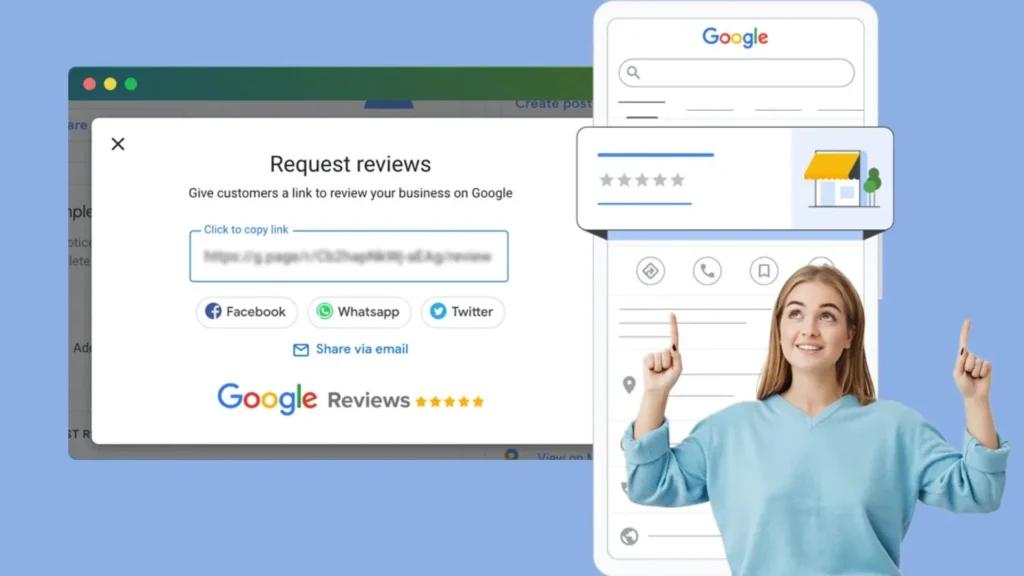
Anonymous or not, every review is a chance to learn or improve. Here’s how to handle them the smart way:
1. Monitor Your Online Presence
Check your Google Business Profile often. Set up notifications for new reviews. Staying updated helps you act quickly, whether it’s to thank a happy customer or address a complaint.
2. Respond to All Reviews—Including Anonymous Ones
Even if the reviewer hides their name, respond politely and directly. Thank them, acknowledge the issue, and show you care. A good response builds trust with future customers.
Example:
“Thanks for your feedback. We’re sorry to hear about the delay and are working to improve our service speed.”
3. Assess and Report Suspicious Reviews
If a review sounds fake, vague, or harmful without proof, you can flag it to Google for removal. Be specific in your report. Explain why it violates Google’s review policy.
4. Build a Buffer of Genuine, Positive Reviews
Ask real customers to leave us a Google review. Use SMS or QR codes to prompt them right after service when the experience is still fresh.
Offer small, non-monetary perks (like a free drink refill) to encourage reviews. This boosts your ratings naturally over time.
5. Maintain Transparency and Professionalism
Some people value privacy and won’t attach their name to a review. That doesn’t make their opinion invalid. Treat all feedback as useful, even when it’s anonymous. It shows you care about real experiences.
Also, don’t chase perfect 5-star scores. Encourage honest feedback instead. That’s how your business grows and earns trust.
Bottom Line
So, how to write an anonymous Google review in 2025? While full anonymity isn’t possible anymore, you can still post with low traceability. Use a pseudonym, keep your details out of the review, and take simple privacy steps like using TurisVPN. Respect Google’s policies and focus on genuine, honest feedback.
FAQs
Q1. Can I edit my anonymous review later?
Yes. You can go to Google Maps → Your Contributions → Reviews. Find the review, click the three-dot menu, and select “Edit review.”
Q2. What happens if the business responds to my review?
If you’re signed in, you’ll get a notification when the business replies. Their response is public. You can reply back or ignore it and your identity will remain hidden as long as your profile doesn’t reveal personal details.
Q3. Can the business trace my account identity?
No, not directly. But if your review includes clues (like your name, order details, or time of visit), they might guess who you are. That’s why it’s best to leave out personal info.
Q4. Can I Leave Multiple Reviews for the Same Business?
No. Google only allows one review per account per business. However, you can edit or update your existing review anytime. Creating multiple accounts to post more reviews may violate Google’s policy and risk removal.