Free networks in cafes and airports often lack strong encryption, making your private data a clear target for hackers and digital thieves. We at TurisVPN solve this by creating a secure, encrypted tunnel for your device, ensuring your bank details and private chats stay shielded from prying eyes.
Our guide provides simple, high-speed solutions to lock your device and maintain total privacy on any open hotspot. Follow these essential steps to learn how to use public wifi safely and browse anywhere with absolute confidence.
Essential Safety Measures for Public Wi-Fi Use
Securing your connection requires a mix of the right software and smart browsing habits. By following the nine safety steps below, any user can turn a high-risk hotspot into a secure, private digital workspace.
Use TurisVPN for Maximum Protection
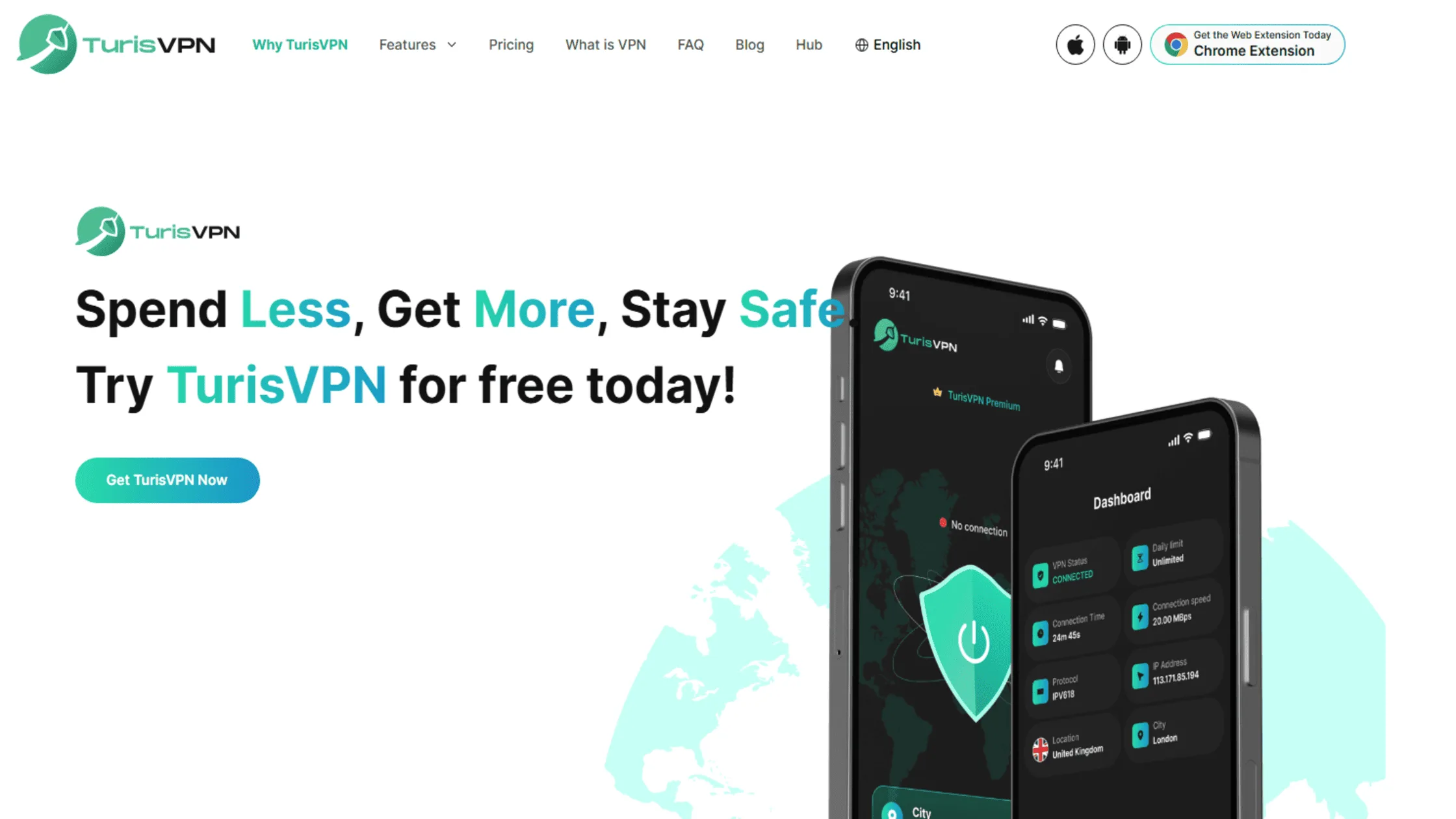
Using a public Wi-Fi network safely starts with creating a secure tunnel for your online traffic. TurisVPN uses strong encryption to wrap your data in a shield that hackers cannot read. Here is how to use TurisVPN to stay safe on a public network:
- Download the TurisVPN app for your mobile phone or install the Chrome Extension on your computer.
- Open the application and log in to your secure account.
- Select a server location closest to you for the best performance.
- Tap the “Connect” button to initiate the encrypted tunnel before opening your browser.
Using TurisVPN ensures that even if a hacker intercepts any data, they only see a jumble of garbled code. Gaining a deeper understanding of how a VPN works and its main types helps users realize that encryption is the primary barrier between a private life and public exposure.
Stick to HTTPS Websites
Checking for the padlock icon in your browser’s address bar is a critical step in using public Wi-Fi safely. HTTPS encryption ensures that the data exchanged between your browser and the website server is encrypted, preventing basic eavesdropping. While HTTPS protects the content of your communication, it does not hide the fact that you are visiting a specific domain.
How to verify a secure HTTPS connection:
- Look for the Padlock: Check the URL bar for a “lock” symbol before entering data.
- Check the Prefix: Ensure the URL starts with https:// rather than just http://.
- Read Browser Warnings: If your browser says “Connection is not private,” leave the site immediately.
- Use “HTTPS Everywhere”: Enable this setting in your browser to force secure connections on all sites.
To ensure a network admin doesn’t track your every move, using a VPN to hide your search history is the most effective choice. Combining HTTPS with TurisVPN provides a double layer of encryption that protects both the destination and the content of your web traffic.
Enable Multi-Factor Authentication (MFA)
Multi-factor authentication serves as a secondary gatekeeper, preventing unauthorized access even if your password is stolen. A major part of staying secure involves assuming that credentials could be intercepted on an untrusted network.
By requiring a fingerprint, a hardware key, or a code from an authenticator app, you ensure that a hacker cannot enter your account with a password alone. We recommend using app-based authenticators rather than SMS, as SMS is susceptible to SIM swapping or network-level interception. This simple step adds a vital layer of defense to your most sensitive accounts.
How to set up Multi-Factor Authentication:
- Go to Settings: Open the “Security” or “Privacy” section of your online account.
- Select MFA/2FA: Choose the option to “Enable Two-Factor Authentication.”
- Pick an App: Select “Authenticator App” (like Google Authenticator or Authy) as your primary method.
- Scan QR Code: Use the app to scan the code provided by the website.
- Save Backup Codes: Store the provided emergency recovery codes in a safe, offline place.
Maintain Security Software
Keeping antivirus and firewall software up to date is essential for protecting all devices. These programs act as active shields that scan for incoming threats and block unauthorized attempts to access system ports.
Modern security suites ensure that your VPN protects you from hackers by checking the integrity of your encrypted tunnel. Without updated software, your device remains vulnerable to “zero-day” exploits that hackers use to gain remote control over unprotected hardware. Regular updates ensure your digital bodyguard is always prepared for the latest cyber threats.
How to maintain your security software:
- Enable Auto-Updates: Set your OS and antivirus to update automatically in the background.
- Run Weekly Scans: Schedule a full system scan at least once a week to detect hidden malware.
- Turn on Firewall: Ensure your built-in system firewall is set to “On” for public networks.
- Check VPN Version: Regularly update your VPN app to take advantage of the latest security protocols.
Verify the Network Name
Attackers often create fake hotspots with names like “Airport_Guest_Free” to trick users into a trap. Verifying the exact SSID (Service Set Identifier) with venue staff is a core rule to protect your safety. If you see two networks with nearly identical names, it is a red flag that an “Evil Twin” hotspot is active nearby.
By manually selecting the correct network, you avoid handing your data directly to a malicious actor’s monitoring station. Always double-check before you click “Connect” to avoid a digital ambush.
How to verify a legitimate Wi-Fi network:
- Ask the Staff: Request the official network name and password from an employee.
- Look for Signs: Check for official signage near the counter that lists the Wi-Fi details.
- Check for “Open” Status: Be suspicious of networks that require no password if the venue usually has one.
- Confirm the SSID: Ensure the name matches exactly; hackers often use typos (e.g., “Starbuckss” vs. “Starbucks”).
Disable Auto-Connect
Allowing your smartphone to automatically join any available network is a significant security risk you must manage. Knowing how to safely use public wifi on an iPhone requires you to go into your Wi-Fi settings and toggle off the “Ask to Join Networks” or “Auto-Join” features.
If this is left on, your phone will constantly search for familiar network names and might connect to a rogue hotspot that mimics them. By forcing a manual connection, you remain the final authority on which networks your device trusts. This small configuration change prevents your phone from leaking data in the background while it’s in your pocket.
How to disable auto-connect on your devices:
- On iPhone: Go to Settings > Wi-Fi > Ask to Join Networks > Set to “Ask” or “Off.”
- On Android: Go to Settings > Network & Internet > Wi-Fi > Wi-Fi Preferences > Turn off “Connect to public networks.”
- On Windows: Click the Wi-Fi icon, right-click the network name, and uncheck “Connect automatically.”
- Forget Old Networks: Regularly “Forget” networks you no longer use to prevent accidental reconnections.
Turn Off File Sharing
Features like AirDrop and Windows File Sharing are designed for trusted home networks and should be disabled in public spaces. Mastering how to use public wifi safely means closing these “open doors” so other users on the same hotspot cannot see your private folders.
When sharing is active, a hacker can potentially send malicious files to your device or browse your documents without you ever receiving a notification. Ensure your sharing settings are set to “No One” or “Hidden” before you open your laptop in a coffee shop. This isolates your device and keeps your local storage strictly private.
How to disable file sharing safely:
- On iPhone/Mac: Open Control Center > Long-press the Wi-Fi/Bluetooth card > Set AirDrop to “Receiving Off.”
- On Windows: Go to Settings > Network & Internet > Ethernet/Wi-Fi > Change advanced sharing options > Turn off “File and printer sharing.”
- Check Cloud Sync: Pause large cloud uploads (like Dropbox or OneDrive) until you are on a private network.
- Use Public Profile: Set your Windows network profile to “Public” to hide your PC from the local network.
Avoid Sensitive Transactions
Entering credit card numbers or logging into your primary bank account should be avoided on open networks. A key rule for using public Wi-Fi is to save high-stakes activities for a private, trusted connection at home or the office. Even with encryption, the risk of a sophisticated session hijacking remains higher on public infrastructure than on private lines.
If a financial emergency arises, always ensure TurisVPN is active to provide an additional layer of military-grade protection. Treating public Wi-Fi as a “browsing-only” zone is the safest habit you can develop for long-term identity protection.
Use Mobile Data Instead
When you are unsure about the legitimacy of a hotspot, switching to your 5G or LTE data is the most secure alternative. Learning how to safely use wifi in public often leads to the conclusion that your cellular network is inherently harder for local hackers to breach.
Mobile data uses licensed spectrum and carrier-grade encryption, which provides a much smaller attack surface than a $50 router in a cafe. While it may consume your data plan, the security benefits for sensitive tasks like checking work emails are unparalleled. It is the ultimate fallback for any security-conscious traveler.
The strategies above provide a comprehensive shield against common threats, but many users worry that these security layers might slow them down.
Does VPN Affect Internet Speed?

Yes, a VPN can affect internet speed, but the impact is usually very small and often unnoticeable. While encrypting and routing data through a remote server takes only a tiny amount of time, modern technology ensures browsing stays fast.
Many users worry that protection will cause lag, but current protocols make this concern a thing of the past. High-quality providers ensure that the extra layer of security doesn’t ruin a streaming or gaming experience.
In fact, using a VPN can sometimes help bypass ISP speed limits if a provider deliberately slows down a connection. Since the ISP cannot see whether a person is watching videos or downloading files, specific bandwidth caps cannot be applied.
Optimized tools keep data moving quickly while keeping it private. A very slight increase in lag is a small price to pay for a huge gain in safety. Considering the high cost of a data breach, the trade-off for a secure link is always worth it. Understanding how speed works is great, but knowing what specific risks exist in the real world is also vital.
Common Risks of Using Public Wi-Fi
Public networks are open books where your data can be seen by anyone with the right tools. Each of these risks targets a specific weakness in how open wireless signals function, making it easy for hackers to harvest logins or track browsing habits. Recognizing these specific dangers is the first step toward building a strong defense for any device.
| Threat | What it Does | Best Fix |
| MitM Attack | Steals data in transit | Use TurisVPN |
| Evil Twin | Fakes a real network | Verify the SSID |
| Snooping | Listens to your traffic | Use HTTPS sites |
| Malware | Infects your device | Update software |
Man-in-the-Middle (MitM) Attacks
A Man-in-the-Middle (MitM) attack occurs when a hacker inserts their device between a user and the internet gateway to read or change data. This positioning allows the attacker to intercept everything, from private messages to login tokens, in real time.
The attack relies on a wireless interceptor and software that can strip away basic security layers. Common types include ARP spoofing or DNS hijacking. For example, if you log into a travel site, the hacker sees your username and password as they pass through his laptop. This means the attacker can impersonate you and gain access to your private accounts.
Malicious “Evil Twin” Hotspots
An “Evil Twin” is a rogue access point that looks exactly like a legitimate one, such as “Airport_Free_Wifi.” Once you connect, every bit of data you transmit passes through the hacker’s hardware before reaching the internet. This is a primary reason why learning how to use public wifi safely involves verifying network names with staff.
The hacker can even serve you fake login pages for Google or Facebook to harvest your credentials. Because the signal is often stronger than the real network, your device might even prefer it, making manual connection management essential.
Packet Sniffing (Wi-Fi Snooping)
Packet sniffing involves using a small piece of hardware or software to capture data packets as they float through the air. This is the digital equivalent of someone sitting at the next table with a directional microphone listening to your private phone call.
If you don’t take security precautions on public networks, a sniffer can see exactly which websites you are visiting and any unencrypted data you send. Encryption from TurisVPN neutralizes this threat by scrambling those packets before they ever leave your device. To a sniffer, your traffic will look like a stream of random characters, impossible to decode.
Malware and Ransomware Injection
Hackers can use vulnerabilities in the Wi-Fi protocol to slip malicious code onto your device while you are connected. This malware can range from annoying adware to devastating ransomware that locks your files until a fee is paid.
Using a public Wi-Fi network safely means having an active firewall and avoiding any “software update” prompts that appear while you are on a public network. These are often fake prompts used to trick you into installing a virus. Once the malware is on your system, it can track your keystrokes even after you leave the cafe.
Session Hijacking
Session hijacking occurs when a criminal steals a login “cookie” to take over an account. This lets them stay logged in as the user on sites like Amazon or Facebook without needing a password.
To stay safe on public Wi-Fi, you should log out of every site after each task. If the user logs out, the stolen cookie becomes useless to the hacker. Using a VPN prevents them from seeing the cookie in the first place, keeping active sessions private.
Bottom Line
Knowing how to use public wifi safely is essential for anyone who values their privacy in 2026. By using TurisVPN, turning on MFA, and being careful with network names, you can browse anywhere without fear. We recommend taking a few seconds to check your settings before you join a new hotspot.
Remember that hackers look for easy targets, so adding these layers makes your data much harder to steal. Stay smart, keep your encryption active, and enjoy the convenience of free Wi-Fi with total security. Your digital safety is in your hands, and we are here to help you protect it.
FAQs
Q1. Can public Wi-Fi see your history?
Yes, the administrator of a public network can often see the domains you visit and how much time you spend on them. However, if you use a VPN, your traffic is encrypted, which means the network provider cannot see your specific actions.
Q2. Are banking apps safe on public Wi-Fi?
Banking apps have strong security, but they are not 100% safe against all types of public Wi-Fi attacks. We suggest using them only when your VPN is on or when you’re using your mobile data plan. It is always better to wait for a private network for big money moves.
Q3. What is the biggest risk when using public Wi-Fi networks?
The biggest risk is the lack of encryption, which leaves your data vulnerable to Man-in-the-Middle attacks. Without encryption, your passwords and personal details are vulnerable to anyone with basic hacking software.
Q4. Does using a VPN protect you on public Wi-Fi?
Yes, a VPN is the best tool for safety because it encrypts all the data your device sends and receives. It keeps your info safe from sniffers, hackers, and fake hotspots. It effectively creates a private network just for you on any public connection.