‘How to remove suggested search on Instagram’ is a common question for users who want a cleaner and more private browsing experience. Instagram’s suggested results can be helpful, but they often show accounts or topics you’d rather avoid. In this guide, you’ll learn simple ways to manage and remove suggestions on both phone and desktop, whether by clearing history, resetting content, or adjusting settings.
What Is Suggested Searches Feature on Instagram?
The “Suggested Searches” feature on Instagram is an algorithm-driven tool designed to streamline your experience and help you discover new content, accounts, and hashtags. When you tap on the Instagram search bar, this feature instantly populates a list of suggestions. These aren’t random; they are personalized predictions based on your past activity, including who you follow, the posts you like, the profiles you visit, and even your interactions on other Facebook-owned platforms.
Instagram’s algorithm analyzes your behavior to anticipate what you might be interested in. This is why you might see suggestions for accounts of people you know, brands you’ve shown interest in, or topics you’ve previously searched for. While this can help find content, it can also become a source of frustration, leading many users to wonder how to remove suggested search on Instagram to maintain a cleaner, more private browsing experience. It’s a key part of the platform’s user interface, but fortunately, it’s one you can largely control.
What Triggers Suggested Searches on Instagram?
Understanding what triggers suggested searches on Instagram is the first step to knowing how to remove suggested search on Instagram. The platform’s algorithm is a sophisticated system that constantly learns from your online behavior to provide personalized recommendations. These suggestions aren’t just random; they are a direct result of several key factors:
- Your Recent Search History: This is the most obvious trigger. If you’ve been looking up a specific account, hashtag, or topic, Instagram will prioritize those in your Instagram search bar as you type, making it a form of first-letter search on Instagram.
- Your Engagement and Activity: The algorithm closely monitors your interaction with content. Liking posts, commenting, saving content, and the profiles you visit all serve as strong signals. For instance, if you’re engaging with several pet-related accounts, Instagram will start suggesting more of them to you.
- Your Connections: Instagram’s suggestions are heavily influenced by your existing network. It will suggest people you have mutual friends with, your contacts from your phone or Facebook (if linked), and accounts that your friends follow.
- Popularity and Relevancy: The algorithm also considers what’s popular or trending. A viral post or a widely used hashtag will often appear in your search suggestions, even if you haven’t directly interacted with that specific content before.
- Your Activity Outside of Instagram: In some cases, if your Instagram and Facebook accounts are linked, the app can use your activity on Facebook to inform its suggestions on Instagram.
How To Remove Suggested Search On Instagram On Phone?
If you’re looking for how to remove suggested search on Instagram directly from your phone, you’ll be glad to know there are several effective methods. The Instagram mobile app gives you granular control over your search history and recommendations, allowing you to fine-tune what the algorithm suggests.

1. Clear your recent search history
This is the most direct and effective way to manage what appears in your Instagram search bar. By clearing your recent search history, you’re essentially telling the algorithm to forget your past queries, which can significantly reduce irrelevant suggestions.
- Step 1: Open your Instagram app and tap the search icon (magnifying glass) at the bottom.
- Step 2: Tap on the Instagram search box at the top.
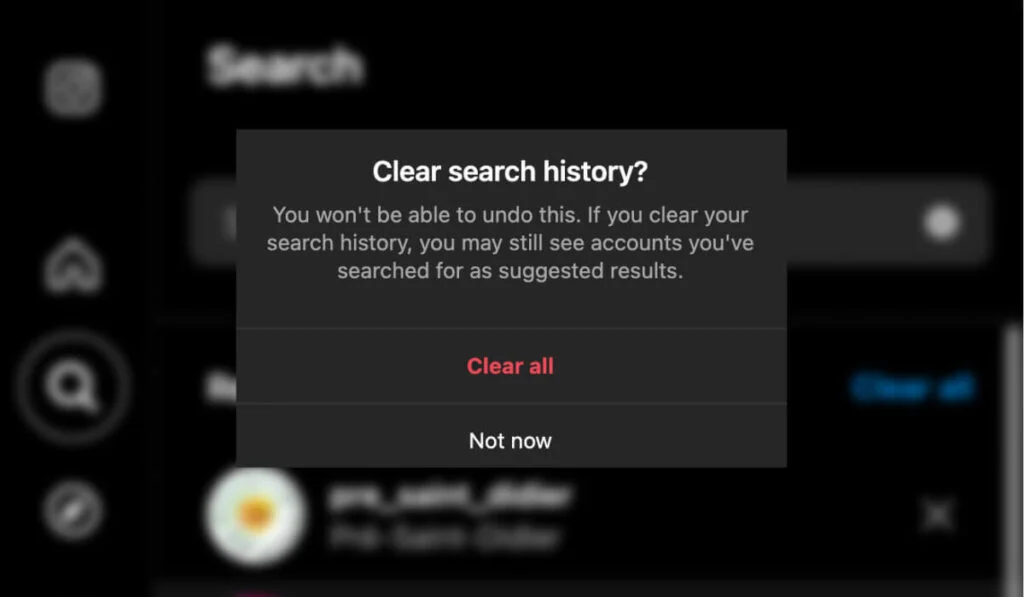
- Step 3: You will see your recent searches. To get rid of all of them, tap “See all” and then “Clear All.”
- Step 4: A pop-up will appear asking you to confirm. Tap “Clear All” again.
2. Reset your suggested content
If you’re still seeing unwanted profiles or hashtags after clearing history, the next step in how to remove suggested search on Instagram is to reset your suggested content. This option refreshes Instagram’s recommendations and gives your feed and Instagram search bar a clean slate.
- Step 1: Tap your profile picture in the bottom right of the Instagram app.
- Step 2: Tap the Menu icon (three horizontal lines) in the top right corner of your profile page.
- Step 3: Scroll down to the “What you see” section and tap on Content preferences.
- Step 4: Find and tap the “Reset suggested content” option.
- Step 5: Follow the instructions on the screen to review and confirm the reset.
3. Block specific accounts
If your suggested searches are constantly showing a specific person or brand you’d rather not see, a more targeted approach is to block them. This is a permanent and effective way to ensure their profile never shows up in your feed or search suggestions. Here’s the guide on how to block someone on Instagram:
- Step 1: Go to the profile of the account you want to block.
- Step 2: Tap the three dots in the top right corner.
- Step 3: Select “Block” from the menu.
4. Clear the app cache
On some phones, cached data keeps old recommendations from disappearing. Clearing it forces Instagram to reload with updated settings.
- For Android: Go to your phone’s Settings > Apps > Instagram > Storage & cache > Clear cache.
- For iPhone: There is no direct “clear cache” button. The best method is to offload or uninstall and then reinstall the app. Go to Settings > General > iPhone Storage > Instagram > Offload App (this saves your data) or Delete App. Reinstalling will give you a fresh start.
How To Remove Suggested Search On Instagram On Desktop?
While the mobile app offers the most comprehensive set of tools, you can also manage your search suggestions directly from the Instagram website on your computer. The desktop version provides a clean, straightforward way to take control of what you see. Here’s how to remove suggested searches on Instagram when you’re on a desktop.
1. Clear your recent search history
This is the fastest and most direct way to get a clean slate on your desktop. Clearing your history on the desktop site works just as effectively as it does on the mobile app.
- Step 1: Go to Instagram.com and log in to your account.
- Step 2: Click on the search icon (magnifying glass) in the left-hand menu.
- Step 3: In the “Recent” section, you will see all your past searches.
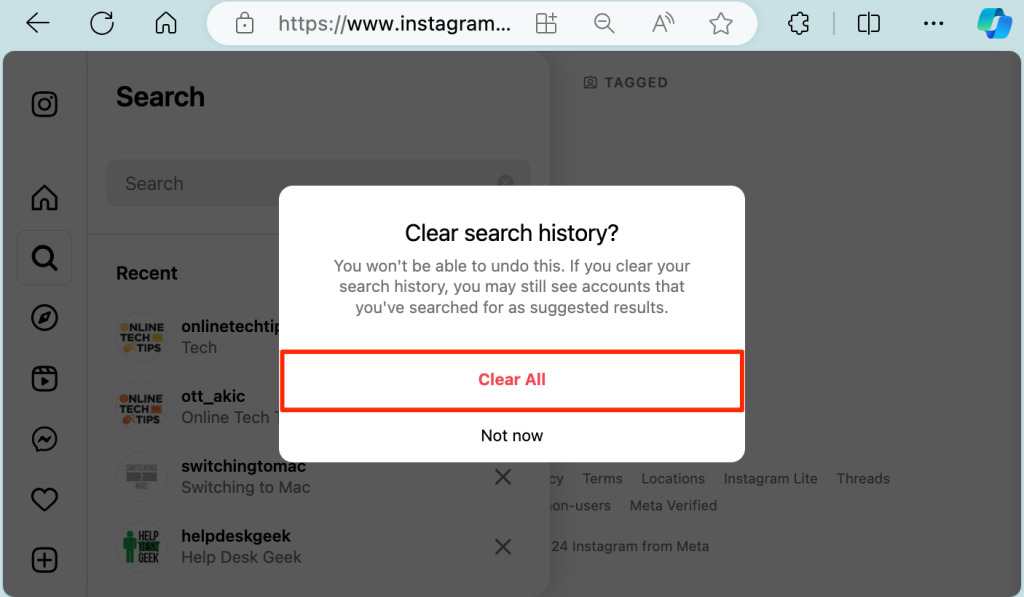
- Step 4: To clear everything, simply click on the “Clear All” button at the top right of the search results.
2. Remove individual search suggestions
If you don’t want to clear your entire search history, you can selectively remove individual search suggestions.
- Step 1: Go to Instagram.com and click the search icon in the left-hand menu.
- Step 2: The “Recent” section will display your search history.
- Step 3: To remove a specific search, hover your mouse over it and click the “X” that appears to the right. The suggestion will be instantly deleted.
3. Hide account suggestions from others
This desktop-only feature is for managing how your account appears as a suggestion to others. It’s a key step to take if you want to control your public visibility on the platform.
- Step 1: Go to Instagram.com and click on your profile picture in the top-right corner.
- Step 2: Select “Edit profile” from the menu.
- Step 3: Scroll to the very bottom of the page.
- Step 4: Turn off the button next to “Show account suggestions on profiles.” This will prevent your profile from being suggested to others on similar profiles.
>>> Read more: How To Know If Someone Is Stalking You On Instagram? 3 Signs You’re Being Watched.
4. Manage suggestions through the mobile app
Some desktop features are limited. If you want to reset Instagram search suggestions fully or clear Instagram recommendations, you’ll need to use the mobile app. Advanced options like resetting suggested content or adjusting content preferences are only available on the phone.
Using TurisVPN to Block Unwanted Instagram Search Suggestions
While clearing history and resetting content are effective, some users want an extra layer of control over what appears in their Instagram search bar. This is where TurisVPN can help. A VPN can’t change Instagram’s algorithm, but it does remove location/IP signals that feed suggestions, useful when you’re working on how to remove suggested search on Instagram and want cleaner, more generic results.

Step 1: Download and Install TurisVPN.
First, you’ll need to download the TurisVPN and install it on your device.
- Apple App Store
- Google Play Store
- Browser extension for Chrome.
Step 2: Connect to a Server.
Open the app and connect to a server of your choice. A fast, nearby server is usually the best option for optimal performance. The VPN will create a secure, encrypted tunnel for all your internet traffic.
Step 3: Browse Instagram with Enhanced Privacy.
With the VPN active, open your Instagram app. Any new data you generate, such as searches, liked posts, or profiles you visit, is now protected. While Instagram’s own algorithm will still use your in-app activity to generate suggestions, the VPN prevents outside entities from gathering data that could be used for cross-platform ad targeting.
Bottom Line
Knowing how to remove suggested search on Instagram gives you more control over your privacy and the content you see. Whether you’re on mobile or desktop, steps like clearing recent searches, resetting suggested content, or blocking unwanted accounts can help you keep the Instagram search bar clean. For even greater control, pairing these methods with tools like TurisVPN ensures fewer location-based nudges and more relevant suggestions.
FAQs
Q1. Will Clearing My Search History Affect My Saved Posts or DMs?
No. Clearing your search history only removes records from the Instagram search box. Your saved posts, liked content, and direct messages remain untouched.
Q2. How Often Should I Clear Instagram’s Search History?
It depends on your usage. If you frequently look up new accounts or hashtags, you may want to clear suggestions on Instagram every few weeks. This helps refresh recommendations and prevent old searches from resurfacing.
Q3. What happens when you turn off suggestions on Instagram?
When you turn off search suggestions Instagram provides, you’ll see fewer auto-filled recommendations in the search bar. Your feed and explore page will rely more on your future interactions rather than past history or contacts, making it a great way to reset Instagram search suggestions for a fresh start.