Deciding to leave a long-time service like AOL is a big move. Understanding exactly how to close an AOL account for good is very important. This ensures a smooth exit and prevents the loss of crucial data. Our guide will provide all the necessary steps.
We will cover the preparations you must make. We will then show you the precise steps to deactivate your AOL account on any device.
What Is AOL?
AOL, which stands for America Online, was a major player in the early days of the internet. For millions, AOL was their first way to get online, often through dial-up service. The company’s core offering has always included AOL Mail. This is the main reason people search for AOL Mail login today.
There are different versions of the service, such as free email accounts, as well as premium subscriptions like AOL Desktop Gold that offer extra features and tech support. Alongside email, AOL’s services have included instant messaging through AIM and entertainment content such as news and games.
Over time, AOL shifted from being a full internet service provider to primarily focusing on email and digital content. As a result, many users still search for information about whether AOL email is active and how to close an AOL email account. The debate over AOL email quality continues among internet users due to the service’s long history.
Why People Might Want to Close or Deactivate Your AOL Account
AOL still works, but many users are leaving. There are numerous reasons people seek to close an AOL account or deactivate it:
- Privacy concerns and protecting personal data from breaches.
- Switching to a different email provider with more modern features.
- No longer needing the email address tied to old online accounts.
- Preventing spam or unwanted marketing emails associated with AOL accounts.
- Simplifying digital footprints by terminating unused accounts.
If you are frustrated because you found that AOL won’t let you sign in or worry that AOL is closing email accounts due to inactivity, closing the account yourself gives you peace of mind and control. Sometimes the best path is to log off AOL permanently.
The general reasons users want to delete their AOL account are also common reasons for deleting other social media profiles. If you’re managing multiple accounts, check out our guides on deleting a MeetMe account and deleting a Musical.ly account to help simplify your online presence.
Things to Do Before Deleting or Deactivating Your AOL Account
Before proceeding to close an AOL account, it’s vital to prepare to avoid losing important data or disrupting your online life.
Back up important emails
AOL will erase your data after the deletion window closes. You must back up anything important first, before initiating any large-scale deletions. You can do this by forwarding them to another email or exporting them via mail clients.
First, look for how to delete AOL mail in bulk if you have many emails—backing up guarantees that you can still recover AOL email that has been deactivated.
Data backup is always the starting point when we help users manage other data, such as deleting a Lyft account. Managing your data is key, whether you are trying to find out how to retrieve deleted WhatsApp messages or secure your emails.
Update the email address on all online services
Your AOL address is likely used for many other accounts. This includes banks, social media, and utilities. We recommend logging into every service and changing your primary or recovery email address before you delete your AOL account.
Before you close your AOL account, update your email on shopping sites, too. The process is similar to when you delete a Victoria’s Secret account or manage your profile before you delete a Best Buy account.
Notify contacts
After you close an AOL account, senders will get an error message. To keep in touch, send a last email to your primary contacts. Please give them your new email address. You could also set up an auto-responder on AOL briefly before deletion.
This informs anyone you missed. This is similar to informing contacts when you delete an eHarmony account and move to a new dating platform. Dating app users will also find our guide helpful for deleting an OkCupid profile.
Cancel paid subscriptions
Your AOL account may be connected to premium services. This could be a dial-up plan or Desktop Gold. You must cancel these paid subscriptions first. You may have to wait a certain amount of time, sometimes up to 90 days, after canceling before you can delete the account.
You can find billing information after completing an AOL Mail sign-in and looking under “Subscriptions.” Settle all outstanding payments before going to the AOL termination page. If you have trouble canceling, call the AOL help number in the US at 1-800-827-6364 for direct assistance.
Be sure to check travel site subscriptions, such as when you delete an Expedia account.
Be aware of AOL’s data retention
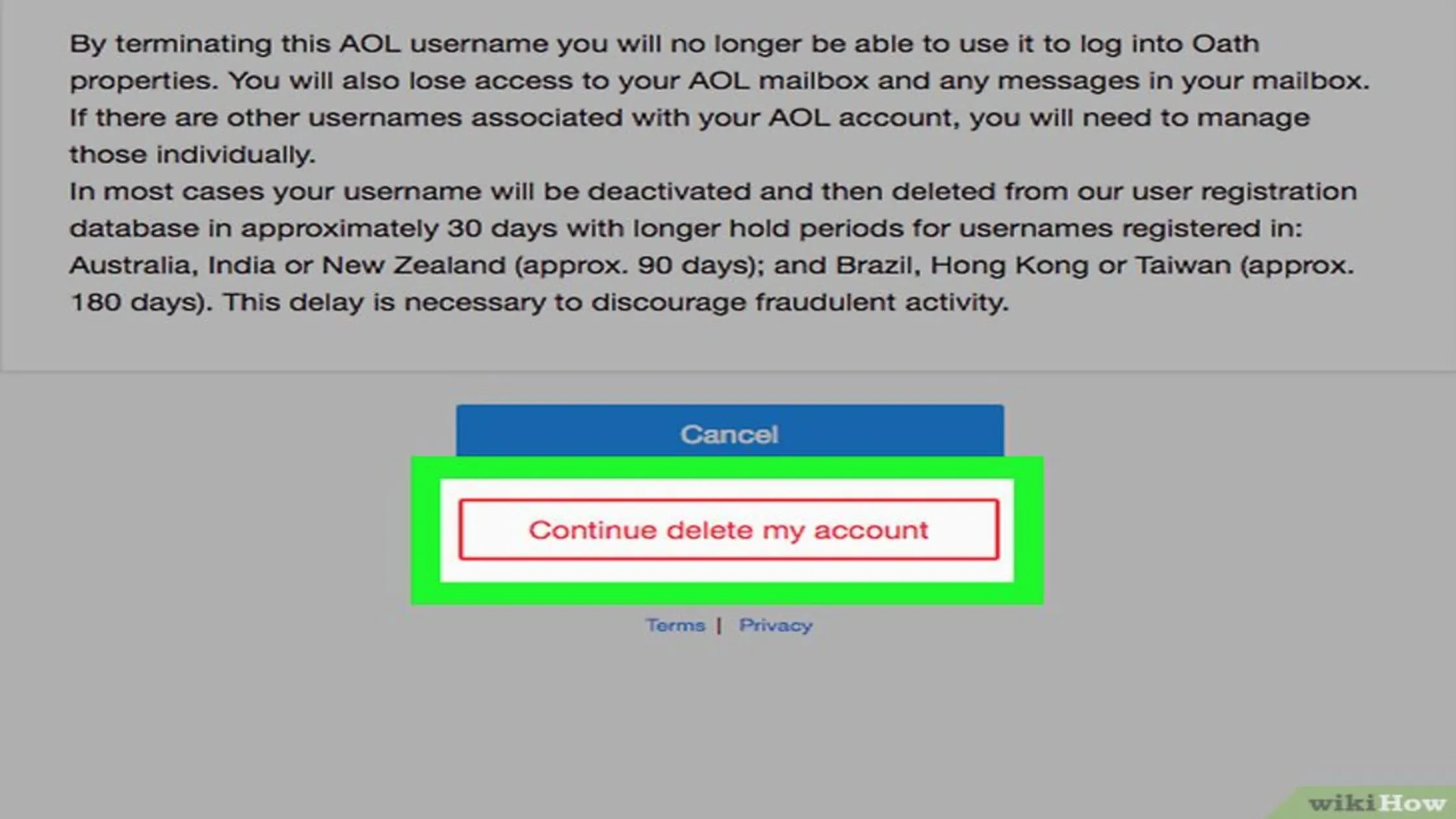
When you deactivate your AOL account, it does not disappear right away. AOL has a grace period. In the US, this is typically 30 days. The account was marked for deletion at this time, but it can still be recovered. After the grace period, the account is deleted forever. You must know your country’s specific data retention rules.
During this time, your data will still be on AOL’s servers. Knowing this timeline sets expectations for when the account is truly gone. After the grace period, the account faces a permanent AOL shutdown.
Step-by-Step Guide: How to Close an AOL Account from a Different Device
Follow these instructions based on the device you use to close an AOL account:
Desktop/Computer
Closing your AOL account from a computer is the simplest method:
- Go to the Page: Open your web browser. Go to the official AOL cancellation page.
- Log In: Complete a secure webmail AOL login using your current credentials.
- Verify: You might be asked to prove your identity. This could be a security question or a code sent to a recovery method.
- Read and Review: AOL shows a page detailing what happens if I delete my AOL account. It lists the loss of emails and services. Read this very carefully.
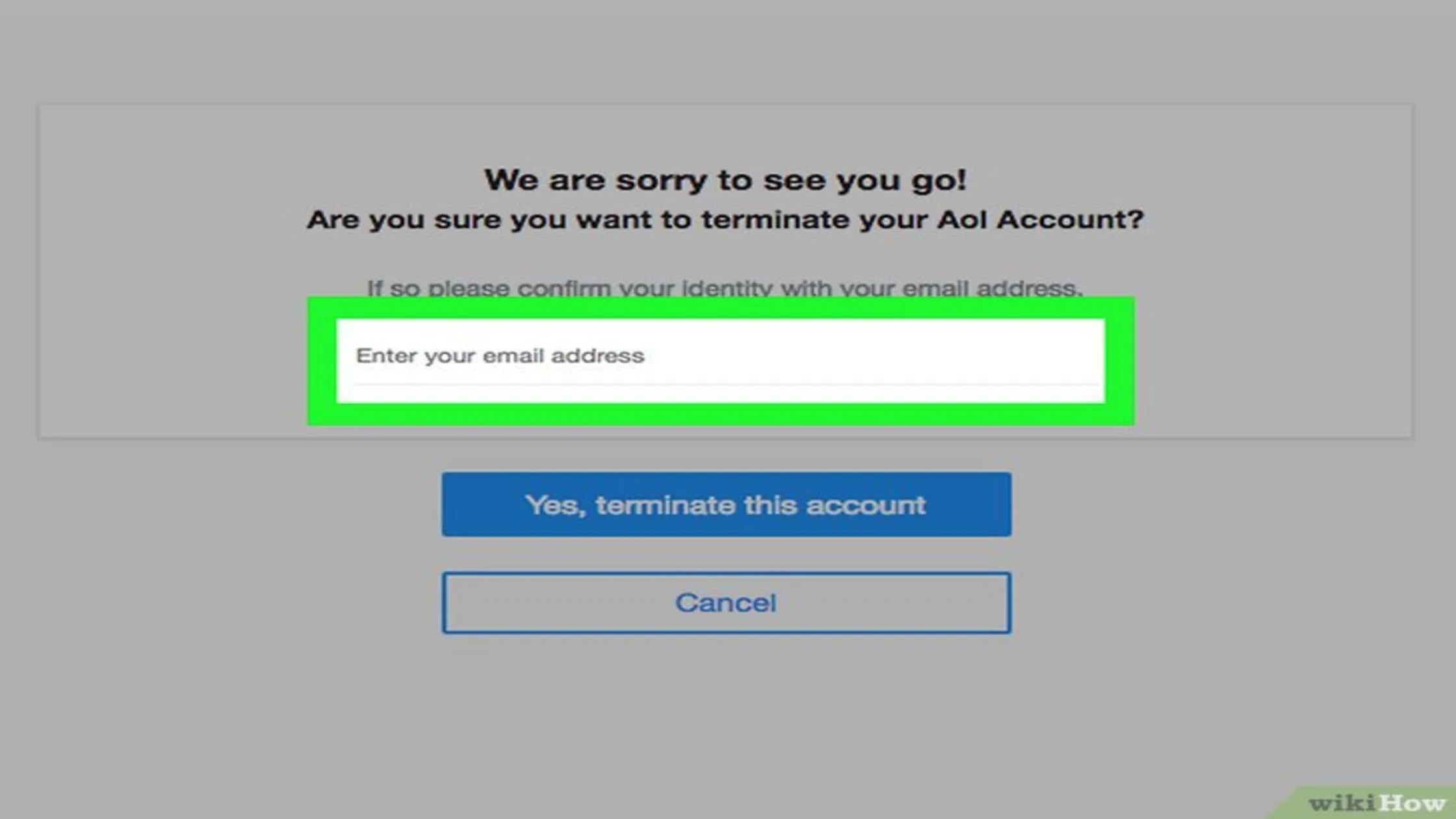
- Confirm Deletion: Click the Continue, delete my account button. You may need to type your AOL email address to confirm you want to close an AOL account. This finalizes the AOL termination page process.
- Finalize: Click Yes, terminate this account. You will see a confirmation. It says the account is now deactivated. It has entered the waiting period before permanent deletion.
Suppose you are also closing other social media profiles, such as deleting a Bigo Live account or learning to delete a Roblox account on the platform. Following those platforms’ specific deletion steps will ensure all your accounts are properly closed.
iPhone/iPad
Removing the AOL account from your iPhone’s Mail app only stops the emails from syncing. It does not permanently close an AOL account. To truly terminate the AOL account from an iOS device, you must use the web:
- Open Browser: Use Safari or Chrome on your iPhone or iPad.
- Go to Termination Page: Navigate to the official AOL account deletion URL.
- Use Desktop View: Sometimes, selecting “Request Desktop Website” helps. This ensures you see the full termination page.
- Log In and Proceed: Complete an AOL mail sign-in. Then, follow the steps outlined in the Desktop/Computer section (Steps 2-6). The fundamental process to deactivate the AOL account is the same for all web access.
If you are also deleting other mobile accounts, like an iFunny account, the web browser approach for deletion is usually the best on a mobile device.
Android Devices
Like iOS, removing the account from an Android email app only stops the service from syncing. It does not permanently close an AOL account. To entirely deactivate the AOL account on an Android device:
- Open Browser: Use Chrome or another Android phone or tablet browser.
- Go to Termination Page: Navigate to the AOL account deletion URL.
- Log In and Follow Steps: Perform your webmail AOL login. Then, follow the five steps listed in the Desktop/Computer section. You will confirm that you want to terminate AOL.
The main point for mobile users is to use a browser for permanent deletion. The steps are the same after you log in. This stops your email service completely.
Protect Your Online Privacy After Deleting AOL with TurisVPN
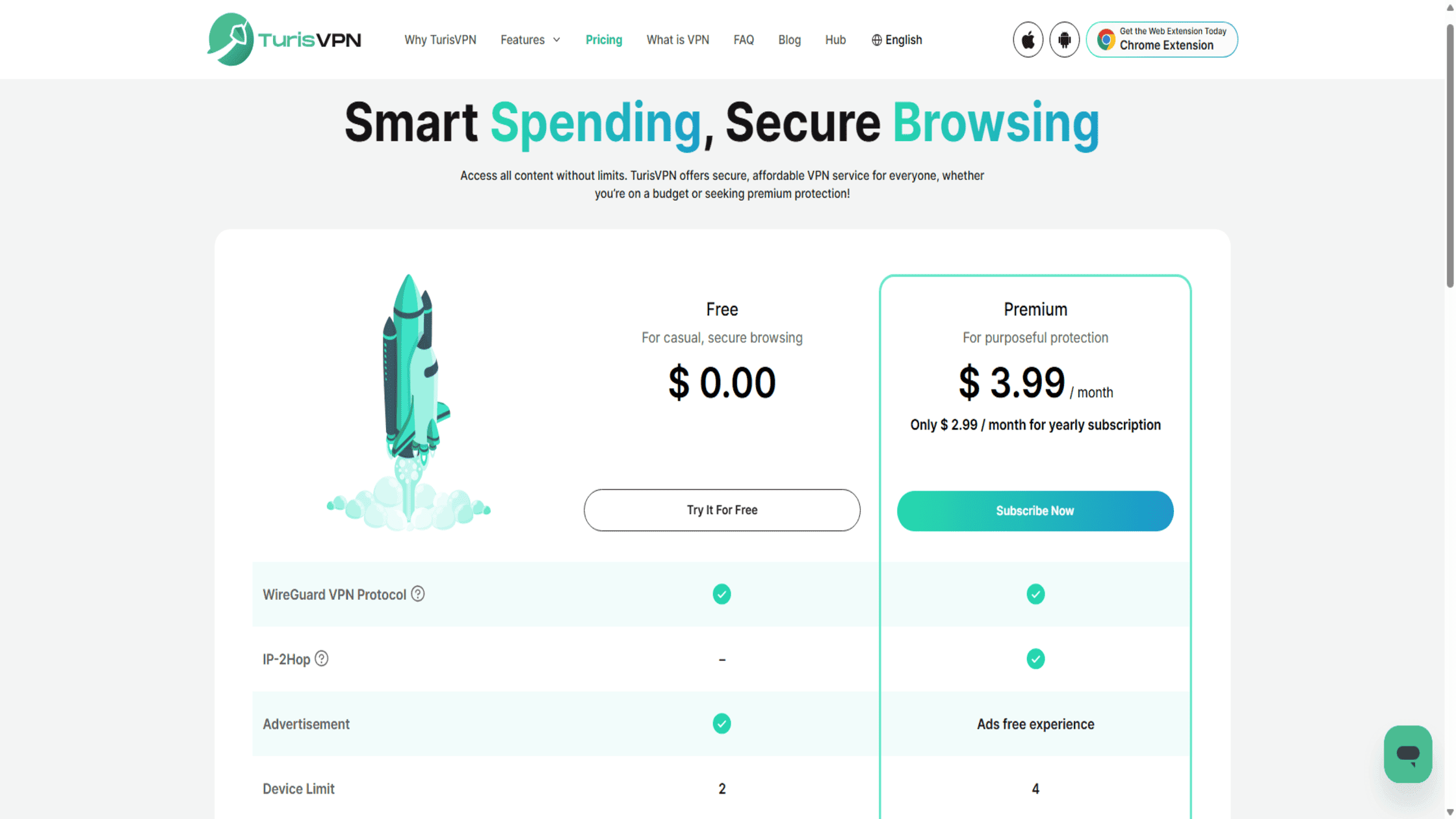
After successfully closing an AOL account, further protecting your online privacy is crucial. Using a VPN like TurisVPN encrypts your internet connection and hides your IP address, safeguarding you from trackers and snooping after leaving AOL’s services.
This is especially important if you handled sensitive data in your AOL mail or want to stay secure while switching to a new email provider. Here’s the step-by-step guide:
- Install TurisVPN on your device. Choose TurisVPN to secure your internet connection, which is available for Chrome Extension, iPhone, and Android.
- Activate the VPN before going online. Launch TurisVPN and connect to a server to encrypt your internet traffic and hide your IP address.
- Browse securely and privately. With TurisVPN, your online activity stays protected from trackers, snoopers, and hackers, which is especially important if you handle sensitive AOL mail data.
- Switch to a new email provider safely. Use TurisVPN to protect your privacy while setting up and accessing your new email service.
You should always manage your entire digital footprint, including deleting accounts from platforms like OnlyFans or a more niche service like the steps needed to delete a FetLife account. Learn more about maintaining privacy and safely deleting accounts from various platforms, such as the process of deleting a TextNow account.
Bottom Line
Knowing how to close an AOL account empowers you to control your digital footprint and protect your data. Whether you use a desktop, iPhone, or Android device, following this detailed guide ensures a smooth account termination process. Prepare thoroughly by backing up emails, notifying contacts, and canceling paid services to avoid surprises.
After closing your AOL account, enhance your safety online with TurisVPN to keep your information private and secure. Taking these steps reflects the best digital hygiene in today’s connected world.
FAQs
Q1. Can I delete my AOL email account but keep my data?
No, closing an AOL account permanently deletes all associated data. It’s essential to back up necessary emails and info before deletion. You must choose between saving the data and permanently removing the account.
Q2. Is it possible to close a free AOL account?
Yes, both free and paid AOL accounts can be terminated or deactivated following the same process via the official AOL termination page. Closing a free account is often simpler since there are no paid subscriptions to cancel first.
Q3. Can I reactivate my AOL account later?
Reactivation is generally not possible once the account is fully closed and the deactivation period has ended. However, you can recover an AOL email that was deactivated shortly after the initial request if you sign in promptly during the grace period.
Q4. What’s the difference between deleting and deactivating an AOL account?
Deactivating generally means temporarily disabling access during the 30-day grace period. During this time, the user can still log back in. Deleting an account fully terminates it and permanently removes all data after that period.
Q5. How to find old emails on AOL?
If your account is active, use the inbox search bar with a date filter or check the “Archived” folder. Older emails may be deleted per AOL’s data retention policy if inactive for a long time. Check before starting the AOL cancellation process.