Your iPhone stores your entire digital life, but new mobile threats and rogue profiles mean your data is at risk from hackers. Checking your iPhone for malware is the first step to reclaim your privacy and stop malicious scripts from running in the background.
By using TurisVPN to encrypt your traffic and following our guide on spotting red flags, you can keep your smartphone a private sanctuary. This article summarizes how to identify infections, perform deep system checks, and build a strong defense to stop future attacks.
What is iPhone malware?
iPhone malware is any malicious software, like spyware or adware, designed to compromise your privacy. Unlike PC viruses, these threats often hide in configuration profiles to bypass Apple’s strict sandboxing rules.
These digital infections aim to steal your login details or track your location without your consent. Because Apple limits how apps interact, most malware targets your behavior rather than the phone’s hardware.
Understanding these threats helps us spot when a device struggles under a hidden attack.
Signs That Your iPhone Might Be Infected with Malware
Identifying threats requires a keen eye for irregularities that disrupt your user experience. We often hear users ask how to tell if malware is on their iPhone when their phone feels slow. Recognizing these symptoms early allows us to stop a data breach before it causes permanent damage.
Unfamiliar apps
Unrecognized software on your home screen is a major sign of unauthorized access. If you see icons you never downloaded, a rogue script likely installed them. These apps often serve as a base for data harvesting or aggressive ad tools that ruin your experience.
Unexplained data spikes
A massive increase in data usage often means a hidden process is sending your data to a remote server. When you check your iPhone for viruses, always review your cellular logs to ensure no background task is stealing your bandwidth. Malicious processes need a network connection to upload your photos, leaving a clear trail in your data history.
Rapid battery drain
Malware forces your processor to run overtime, leading to a sudden, noticeable drop in battery life. If your battery percentage falls fast while the phone is idle, background malware may be active. This constant activity puts heavy strain on your battery, shortening your device’s overall lifespan.
Frequent pop-ups
Aggressive ads that appear outside of your browser are a classic sign of an adware infection. These pop-ups often use “scare tactics” to trick you into clicking links that lead to phishing scams. If you see these interruptions, a rogue script has likely hijacked your notification system.
Device overheating
Excessive heat during periods of rest suggests a rogue process is consuming high levels of system resources. iPhones warm up during gaming, but a hot phone in your pocket is a major concern. Overheating indicates a security breach and can cause permanent physical damage to your phone’s internal parts.
App performance issues
Frequent app crashes often result from malware competing with your software for processing power. When malicious code hijacks resources, your regular apps will struggle, leading to “freezing” that disrupts your day. This instability is a loud warning that something is wrong with your operating system environment.
Physical symptoms provide the first warning, but technical audits are necessary to confirm the presence of a digital intruder.
How to Check Your iPhone for Malware
Technical audits provide the most definitive answer when you need to check for malware on your iPhone by looking deep into system layers. By inspecting profiles and permissions, you can find the paths intruders use to bypass iOS security. We recommend a systematic approach that starts with high-level profiles to ensure no malicious scripts remain hidden.
1. Inspect Configuration Profiles
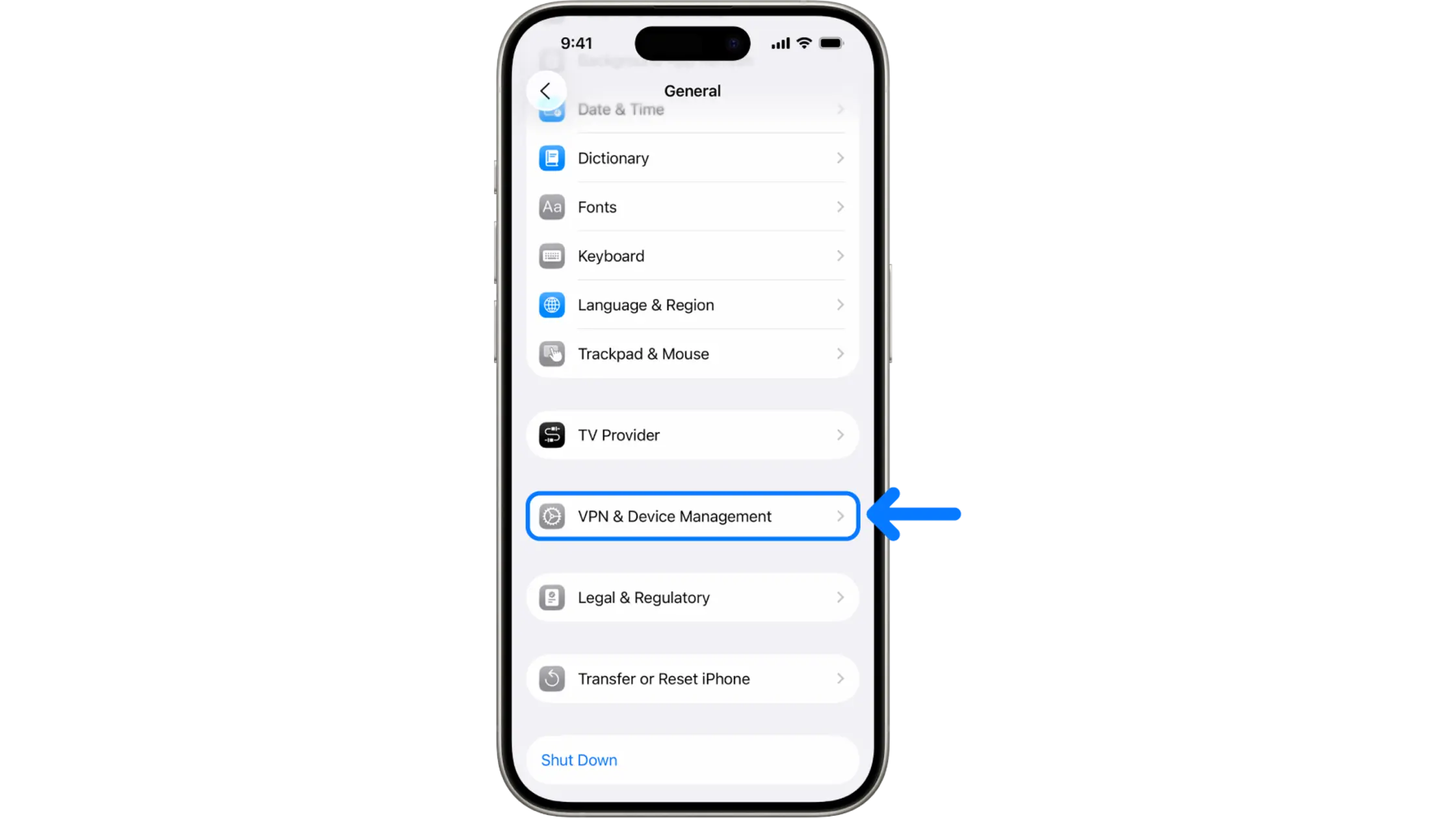
Hackers use configuration profiles to gain root access to your personal device. To find and remove these threats:
- Open the Settings app on your home screen.
- Navigate to General and scroll down to VPN & Device Management.
- Look for any profiles listed under the Configuration Profiles header.
- Tap any profile you did not install personally and select Remove Profile.
2. Audit App Permissions
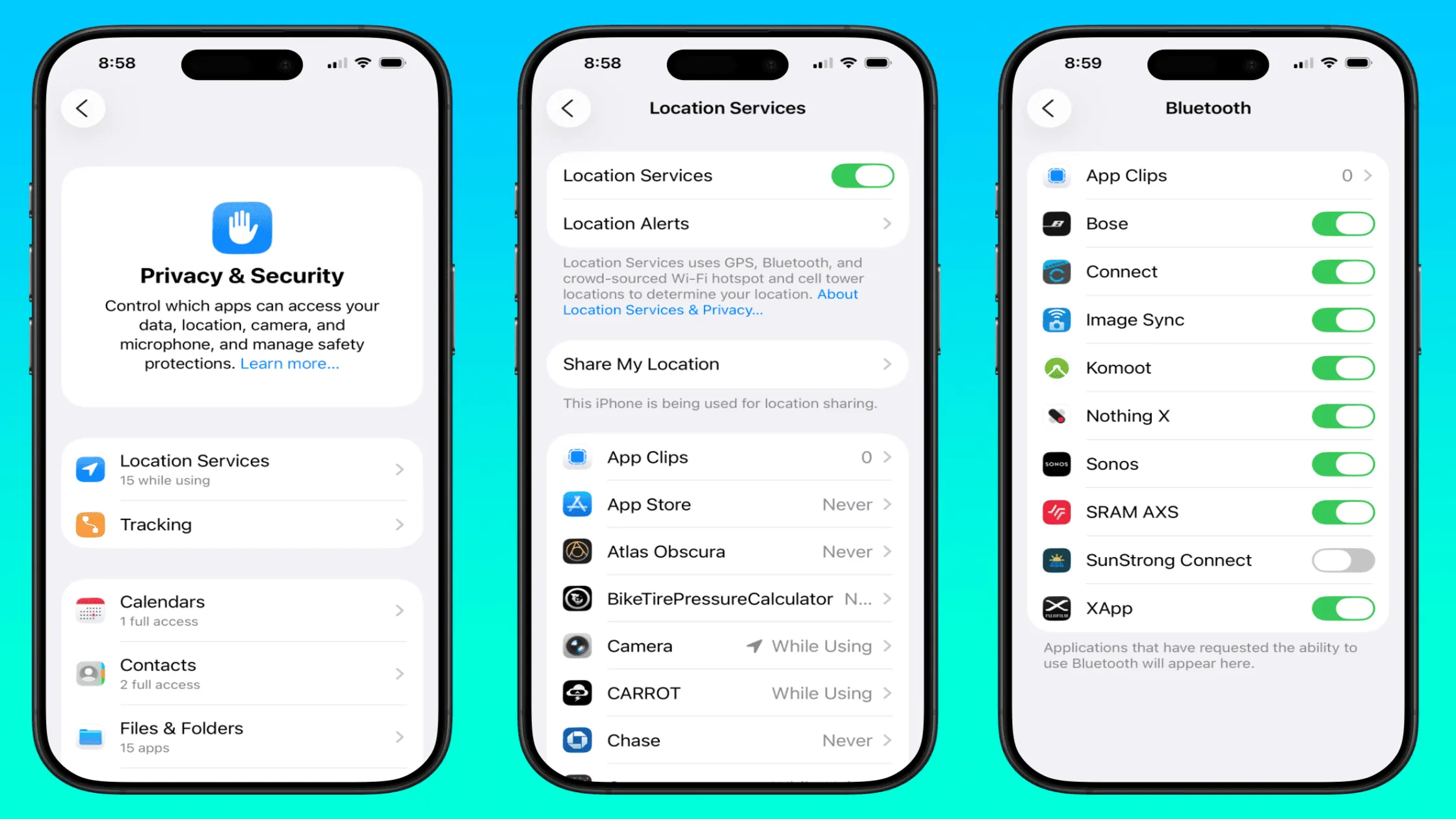
Reviewing app access to your camera and mic is a key way to check if your iPhone is secure. To audit these permissions:
- Go to Settings and tap on Privacy & Security.
- Select categories like Camera, Microphone, or Location Services.
- Review the list of apps that have requested access to these features.
- Revoke access for any app that seems suspicious or does not need that data to function.
3. Review Apple ID Device List
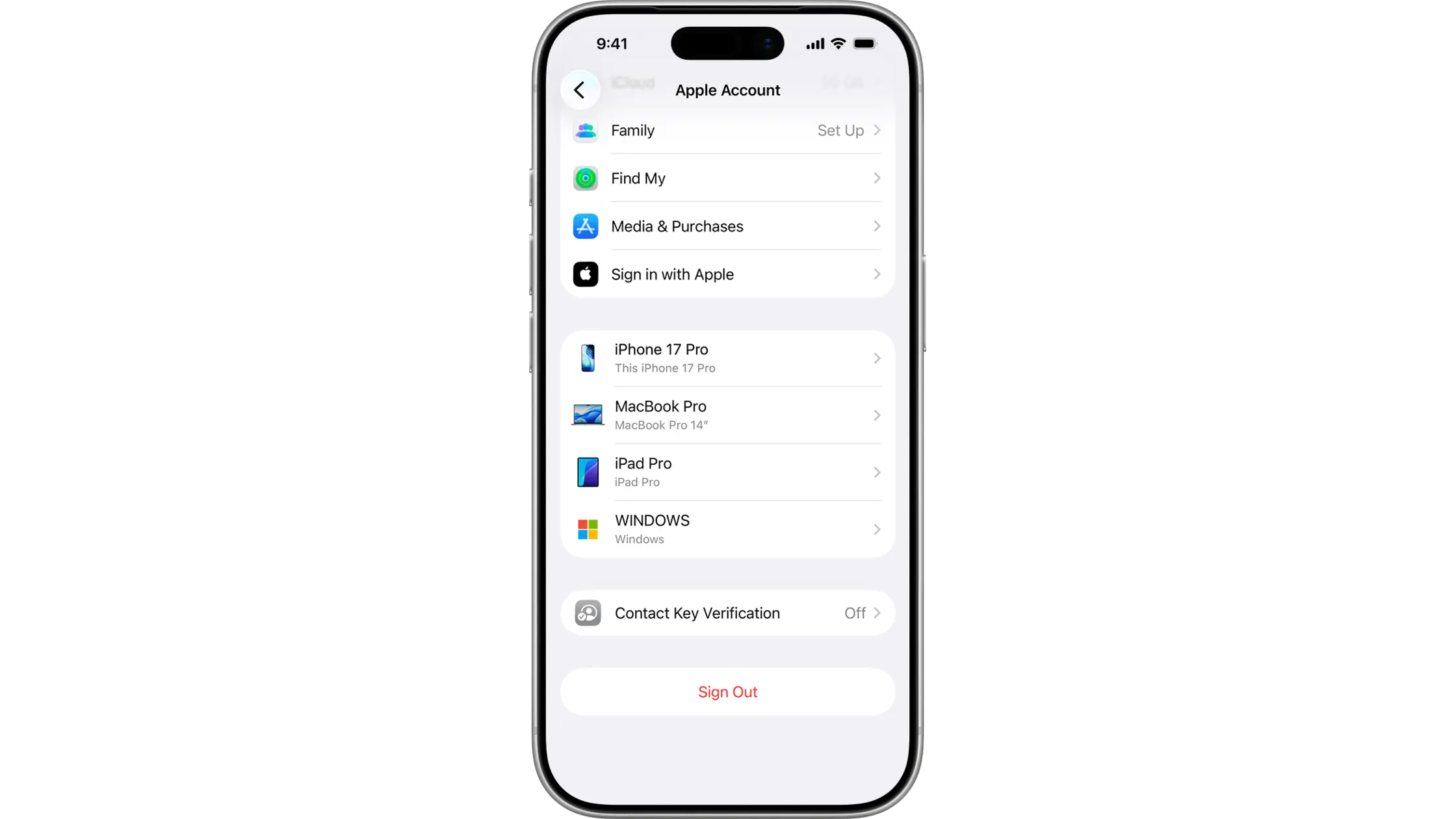
An unauthorized device on your iCloud can bypass security, making it vital to check your iPhone for viruses at the account level. To secure your account:
- Open Settings and tap your Apple ID name at the very top.
- Scroll down to see the list of all devices currently logged into your account.
- Identify any unrecognized Mac, iPad, or iPhone.
- Tap the unknown device, select Remove from Account, and immediately change your Apple ID password.
4. Check iPhone Storage for Hidden Bloatware
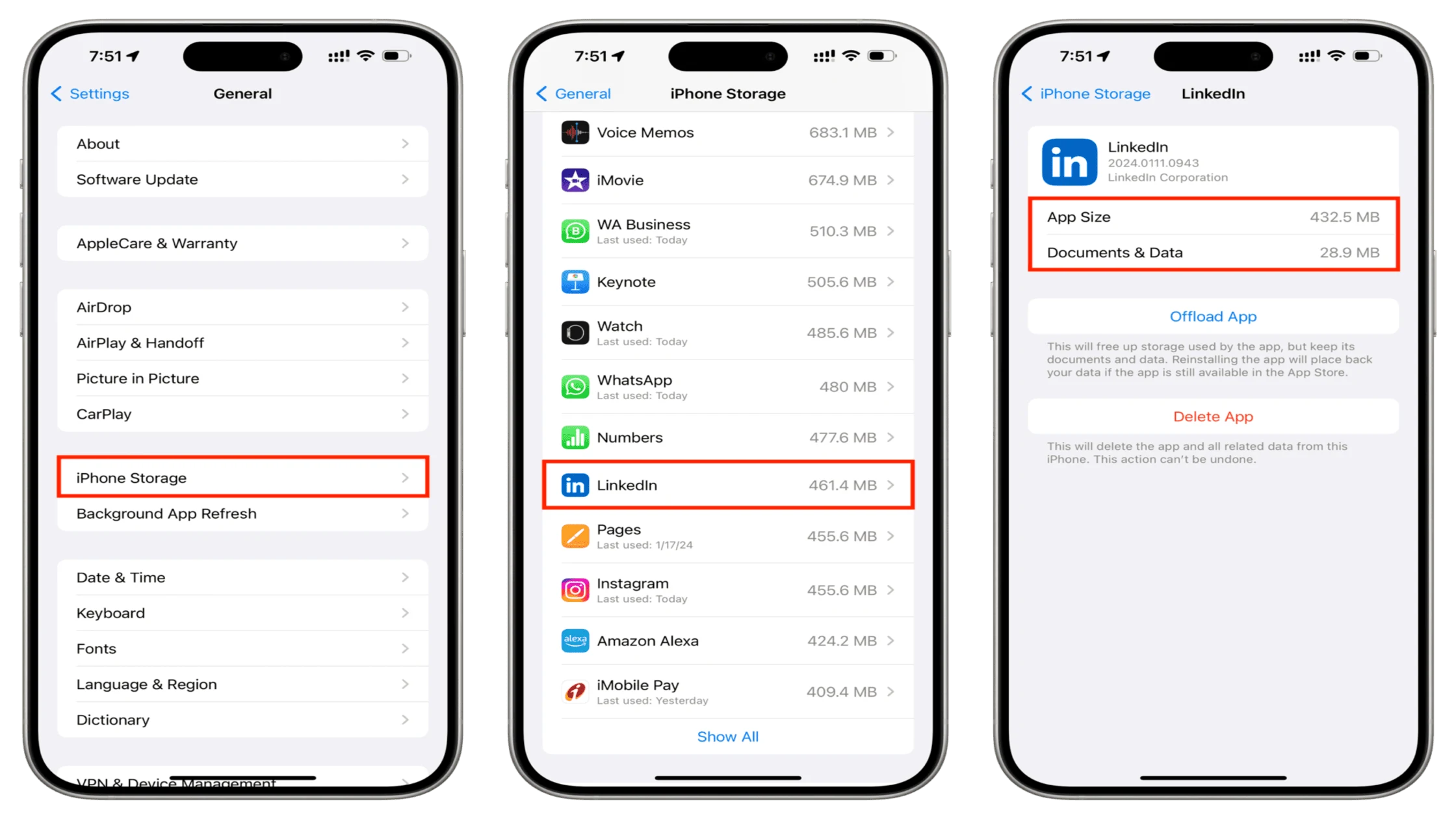
Sometimes, malicious files hide in your storage as “Other” data, slowing down your entire system. To find hidden files:
- Go to Settings > General > iPhone Storage.
- Wait for the list of apps to load and look for entries with no icons or generic names.
- Check for apps with huge “Documents & Data” sizes that don’t match their use.
- Delete any app that looks out of place or shows unusually high storage usage.
5. Verify Jailbreak Status
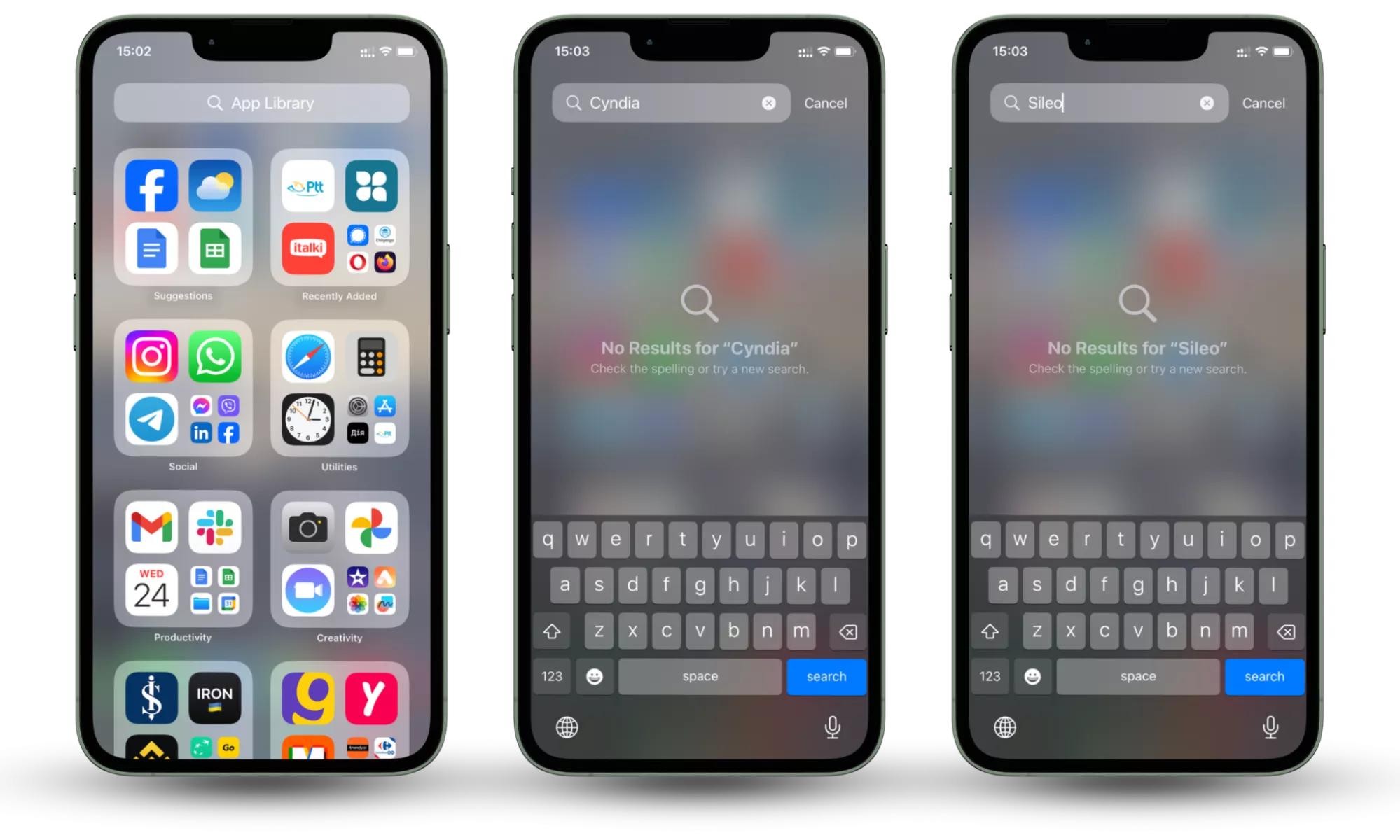
Checking whether your device is jailbroken is a key part of assessing your iPhone’s security. A jailbroken phone removes Apple’s safety walls. This allows spyware to hide more easily. Checking for malware on your iPhone must include looking for apps that allow root access. How to verify jailbreak status:
- Open the App Library on your home screen.
- Search for apps named Cydia, Sileo, or Zebra.
- Look for tools like Checkra1n or Unc0ver in your app list.
- Restore the phone to factory settings if you find these apps.
Once you find a threat, the next priority is removing the infection. We will now guide you through the recovery process to ensure your device stays permanently safe.
How to Remove Malware After Detection
Removing malware requires a structured approach to ensure no traces of the infection remain. When you see that your iPhone has a virus, your first instinct might be panic, but a professional cleanup will restore your security. We focus on total isolation to clear malicious code while keeping your legitimate data safe.
1. Immediate Isolation
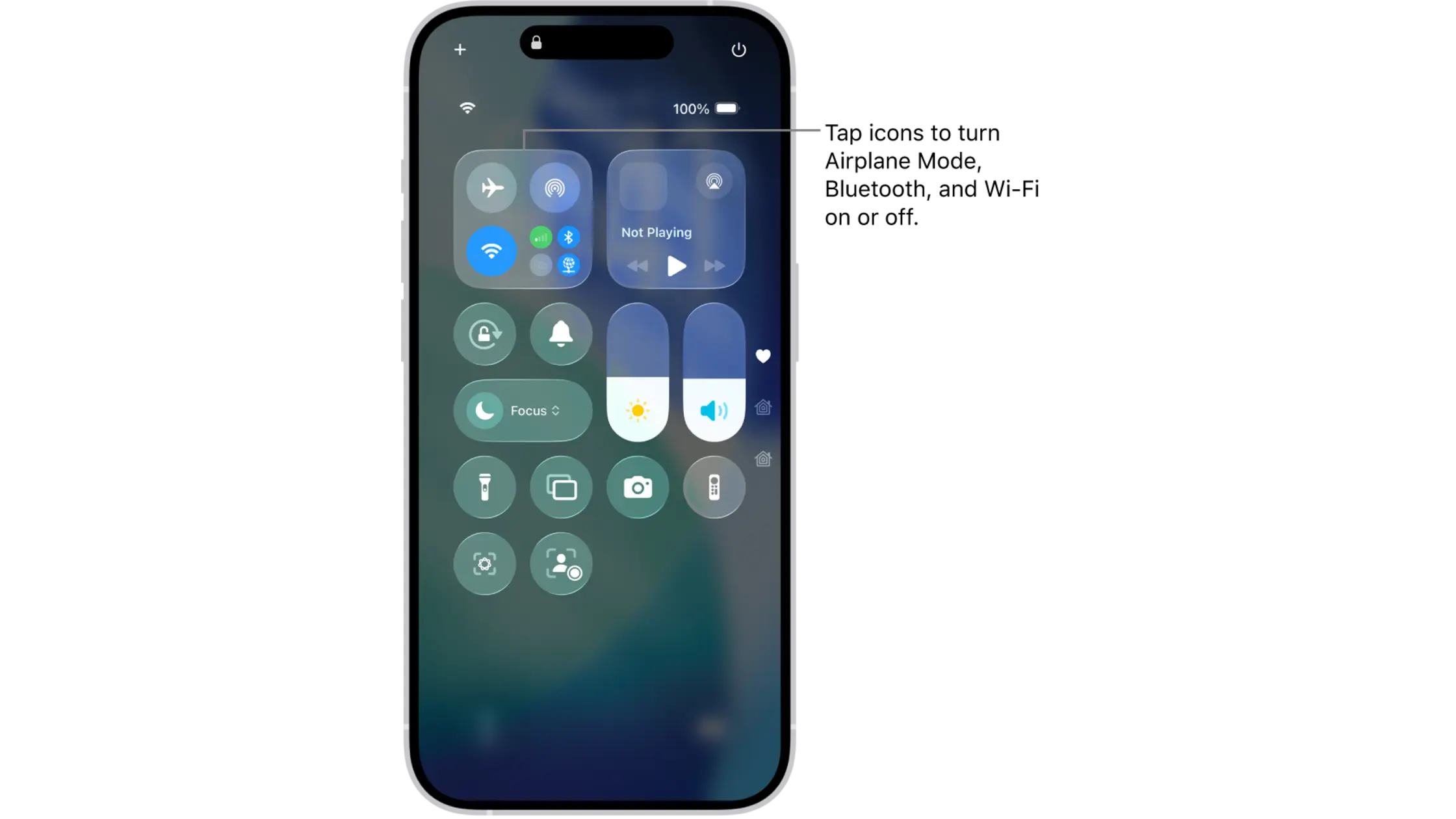
Disconnect your iPhone from all networks to prevent the malware from communicating with its remote server. This isolation is critical for a clean scan without interference from remote-access scripts.
- Swipe down from the top-right corner to open Control Center.
- Tap the Airplane Mode icon to disable all cellular connections.
- Turn off Wi-Fi and Bluetooth to ensure the device is completely offline.
2. Delete Suspicious Apps
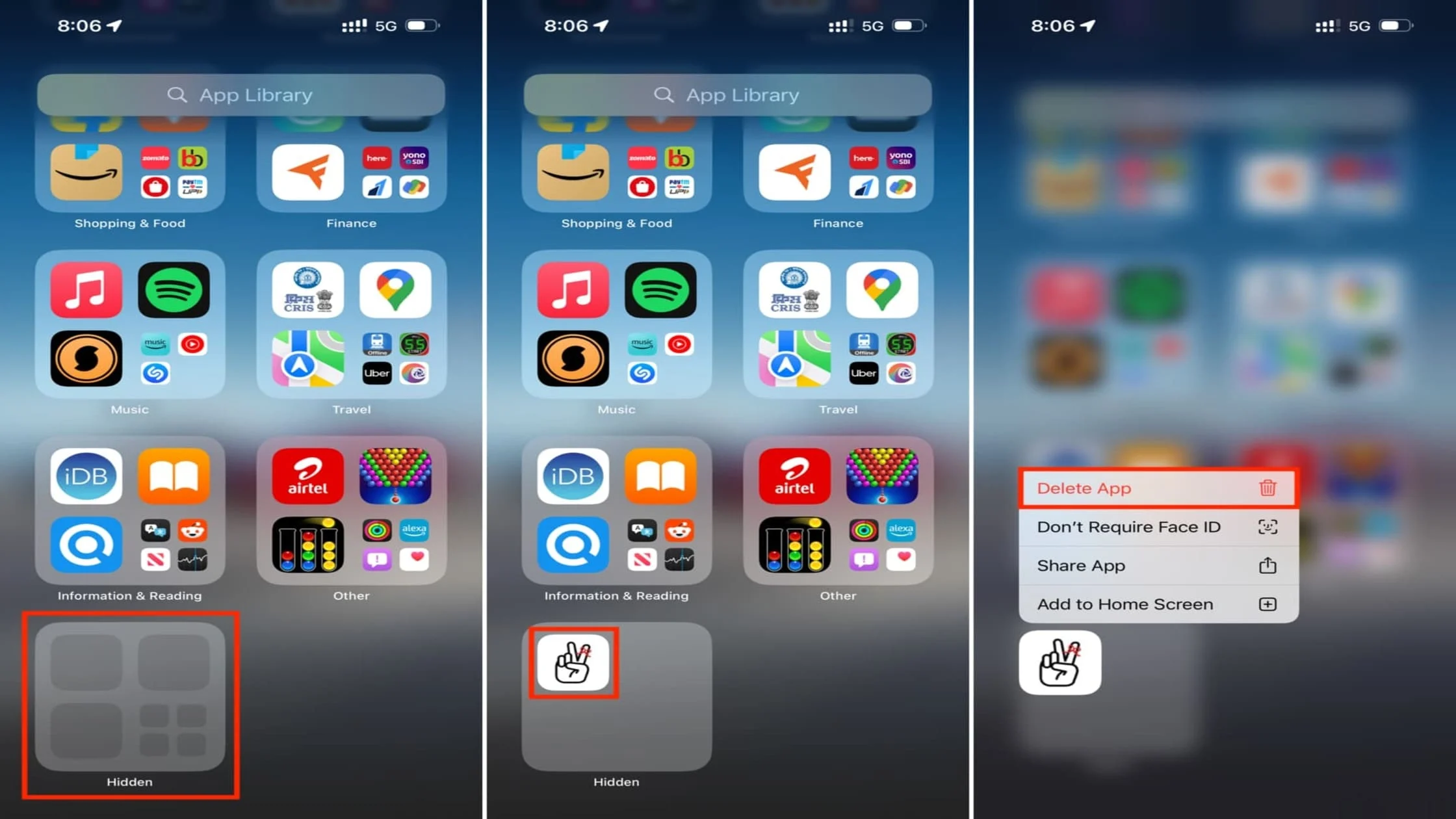
Removing the source of the infection is the best way to stop performance drain and confirm if your iPhone has a virus. To wipe malicious data:
- Long-press any unrecognized app icon on your home screen.
- Select Remove App and then tap Delete App to confirm.
- Go to Settings > Safari, then tap Clear History and Website Data to remove malicious browser cache.
3. The “Nuclear” Option (Most Effective)
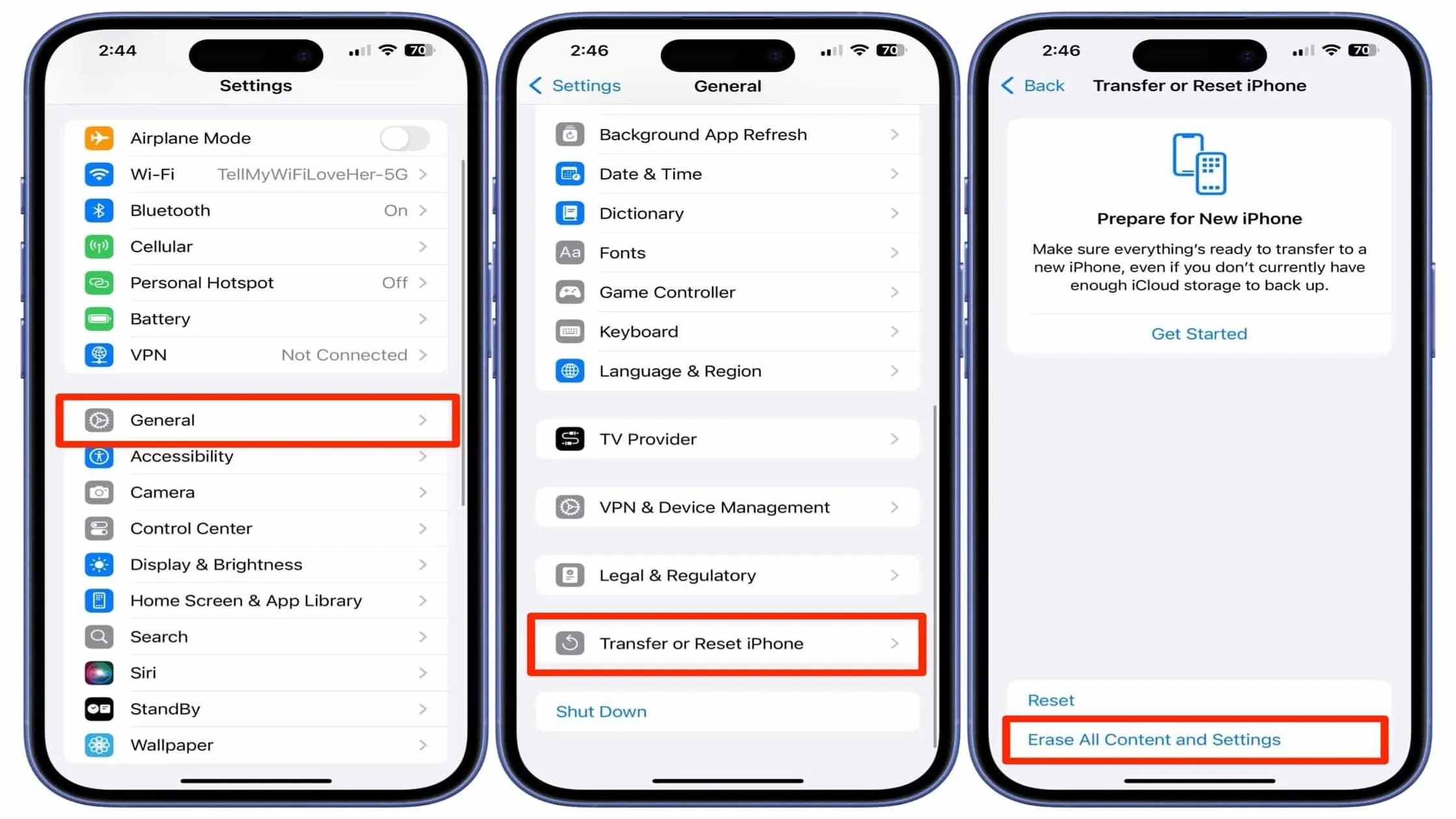
If the malware persists, a Factory Reset is the most reliable way to get a clean operating system. This erases everything, including hidden system files and malicious profiles. Here is how to perform a clean reset:
- Backup your essential photos to iCloud (ensure the backup is clean).
- Go to Settings > General > Transfer or Reset iPhone.
- Tap Erase All Content and Settings.
- Set up the phone as a new device to avoid re-infecting it with an old backup.
4. Boot Safe Mode
While iOS does not have a labeled “Safe Mode,” you can achieve a similar state to delete stubborn software.
- Restart your iPhone by holding the power and volume buttons.
- Hold the Volume Up button during the boot-up process (when the Apple logo appears).
- Delete any apps that were previously “locked” or unresponsive while in this restricted state.
5. Post-Removal Cleanup
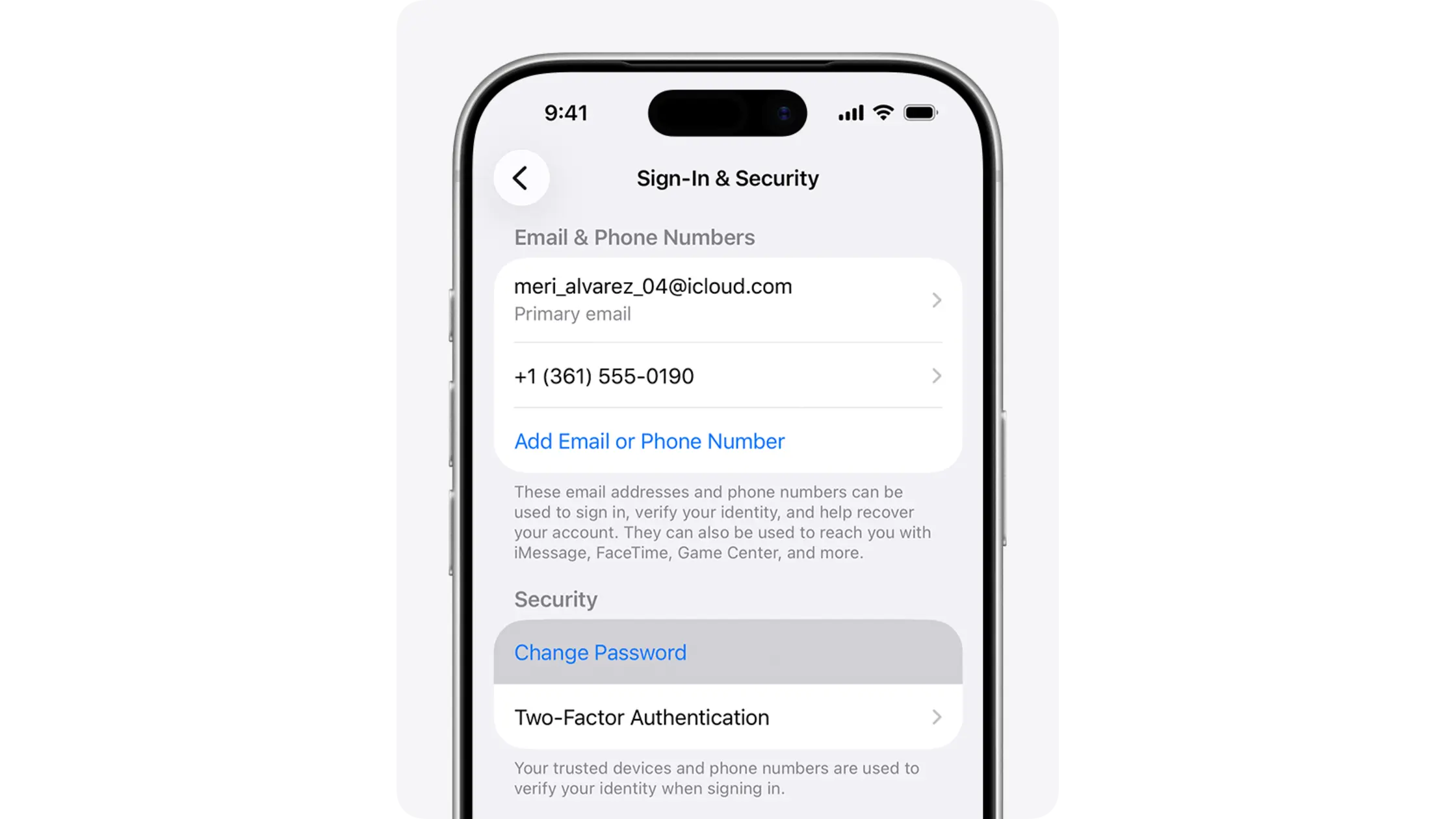
After removing the threat, you must update your security keys to prevent hackers from using stolen data. We recommend reviewing the key differences between VPNs and antivirus software to see why you still need network protection.
- Change your Apple ID password immediately.
- Enable Two-Factor Authentication (2FA) for your sensitive accounts.
- Update your banking and email passwords to create a final barrier against unauthorized access to your data.
Successfully removing an infection is a relief, but the true goal is to build a defense that prevents these issues from ever returning. Now that you know how to check if your iPhone is infected with malware, let’s look at how we can harden your device against future digital attacks.
How to Prevent Future Malware Infections on iPhone?
Prevention is the best form of security because it stops threats before they touch your data. By using a “security-first” mindset, you can stop asking how to check your iPhone for malware and enjoy a worry-free experience. We advocate for a defense strategy that includes encrypted connections and official software updates.
Use TurisVPN for Network Safety
Using TurisVPN is a primary defense against network-based attacks on public Wi-Fi. While many wonder whether a VPN protects you from hackers, the truth is that encryption stops “man-in-the-middle” attacks.
By hiding your IP address, we ensure no external actor can monitor your activity or trick your device into downloading malicious scripts. Here is how to use TurisVPN to secure your iPhone:
- Download the TurisVPN app directly from Apple Store, CH Play, Chrome Extension to ensure you are using a verified version of our software.
- Open the app and log in to your secure account.
- Tap the Connect button to start an encrypted tunnel.
- Keep the VPN active on any network you do not personally own.
Enable Automatic Updates
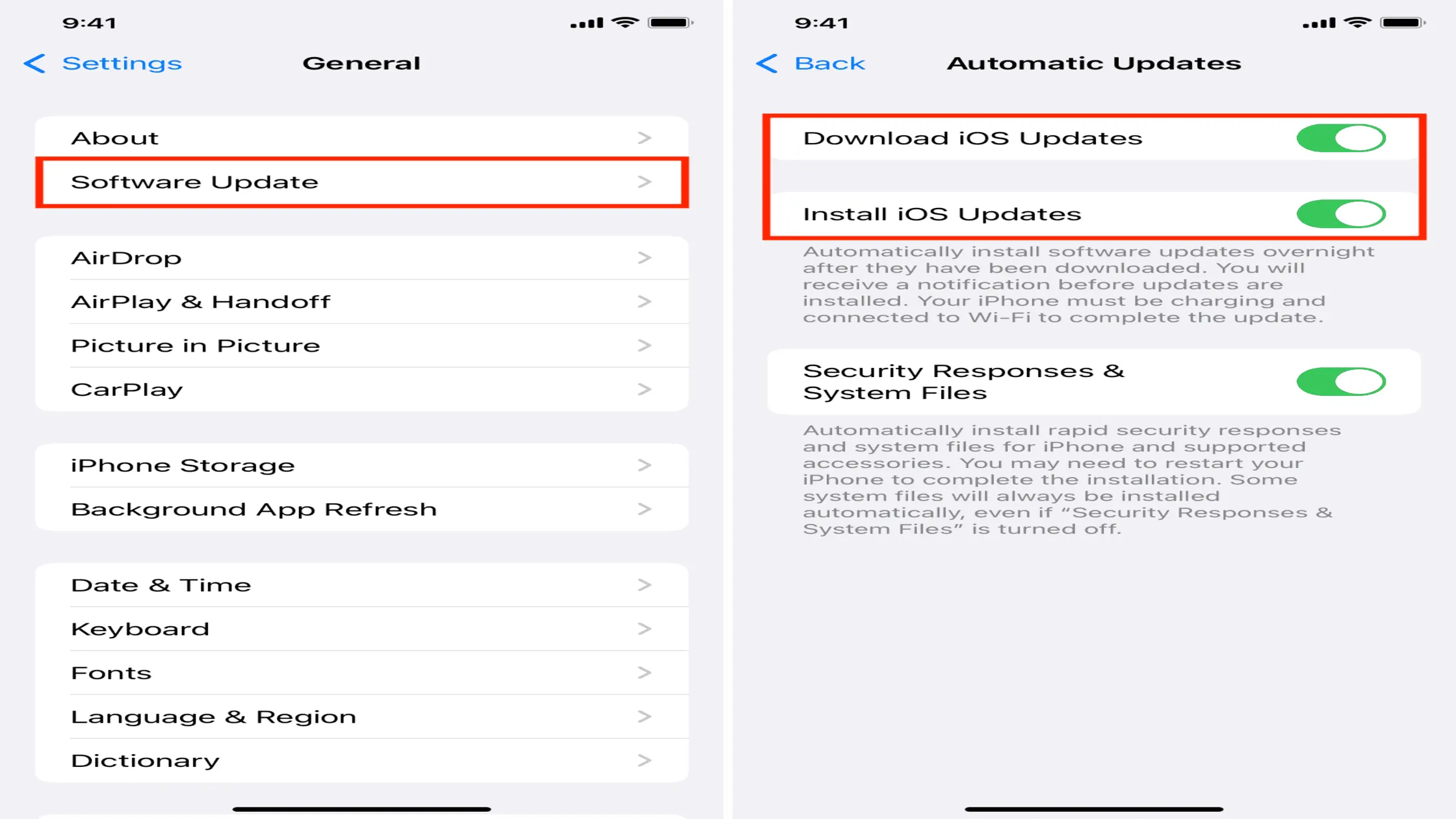
Keeping your iOS version up to date is the most important habit for a secure device. Apple regularly fixes vulnerabilities that malware exploits to bypass your lock screen. By enabling Automatic Updates, you ensure your iPhone always has the latest defenses against the newest threats. Follow this guide to enable automatic updates:
- Open the Settings app on your iPhone.
- Go to General and tap Software Update.
- Select the Automatic Updates option at the top.
- Switch on the toggles for both Download and Install iOS Updates.
Avoid Jailbreaking
Maintaining the “walled garden” of iOS is essential to prevent malware from accessing your core system. While jailbreaking offers more customization, it leaves your phone open to root-level exploits. We strongly advise staying on official Apple firmware to keep your device compatible with security features like TurisVPN. To maintain official firmware:
- Check your apps for unauthorized stores like Cydia or Sileo.
- Verify your status by going to Settings > General > About.
- Restore your phone if you think it was jailbroken by a previous owner.
- Only download apps from the official App Store to keep your system safe.
By following these preventative steps, you transition from reactive troubleshooting to a state of total digital confidence.
Bottom Line
Learning how to check an iPhone for malware is a vital skill for anyone using a smartphone for private tasks. We have seen that while iPhones are secure, they are not invincible on unsecured networks.
By staying vigilant for signs like battery drain and using TurisVPN, you can maintain a high level of privacy. Remember what VPN do is create a secure tunnel for your data, which is your first line of defense.
FAQs
Q1. How Do I Know If My iPhone Has Malware?
You can tell if your iPhone has malware by looking for physical signs, such as a hot battery or high data usage. If your device shows apps you didn’t download, background processes are likely running without your consent. We recommend checking your settings immediately to see if any unknown configuration profiles are installed.
Q2. Should I Jailbreak My iPhone?
We advise against jailbreaking because it removes the security layers that protect your data from hackers. A jailbroken device is much more vulnerable to spyware and misses the official updates that patch system flaws. Staying on the official iOS version ensures your device remains a “walled garden” that is hard to penetrate.
Q3. How Do I Remove a Malicious Profile on My iPhone?
To remove a malicious profile, go to Settings > General > VPN & Device Management. Look for any entries you don’t recognize from your work or school. Tap the suspicious profile, select Remove Profile, and enter your passcode to confirm. Removing these is critical because they can grant attackers access to your private traffic