Have you ever asked yourself how to change the download location in Chrome? Changing where your files are saved can improve your organization and free up space on your main drive. Whether you want to move your downloads to a different folder, an external drive, or a cloud location, Chrome allows you to customize this easily.
This article outlines simple, clear steps to relocate the download location in Chrome on desktop and mobile devices, provides common troubleshooting tips, and explains how tools like TurisVPN can enhance download safety. With this guide, you will learn how to set the Chrome default download location and manage your downloads smartly.
Why You Might Want to Change Chrome’s Download Location?
Changing the download destination in Chrome is more than just changing the location of files. It helps you stay organized and manage disk space better. This is especially useful if your main drive has limited storage or if you download large files often.
Here are some reasons to change where Chrome downloads go:
- Avoid Clutter: Instead of mixing downloads with other files, you can keep everything in one specific folder.
- Save Space: If your main drive is a small SSD, you can learn how to make Chrome download to a different drive, such as an external USB or another hard drive.
- Separate Work and Personal Files: Customize your Chrome download directory to keep types of downloads apart, making it easier to find things later.
- Improve System Speed: By choosing a different drive for downloads, you reduce the chance of slowing your computer.
- Better Backup: When downloads are in a clear folder, you can back up important files more easily.
- Faster Workflow: If you download lots of pictures, videos, or documents, setting a custom folder saves time searching for files.
Knowing how to enable download location change on your desktop or mobile device ensures your downloads are organized and easily accessible, and helps you save files to the exact spot you want. Whether it’s an external hard drive or a dedicated folder on your Android’s SD card.
Changing the Default Download Folder on Desktop
Chrome default download location helps you stay organized and manage storage efficiently. Whether you use Windows, macOS, or Linux, adjusting the Chrome download path is easy and lets you pick where files save automatically.
Customizing your download folder can make finding files quicker and better protect your system from running low on space.
Below, we walk through the exact steps for each desktop system to change where Chrome downloads go and show examples to make the setup clear. Finding out where Chrome download folder is currently set is the first step to better file management.
How to Update the Download Path on Windows 10/11?
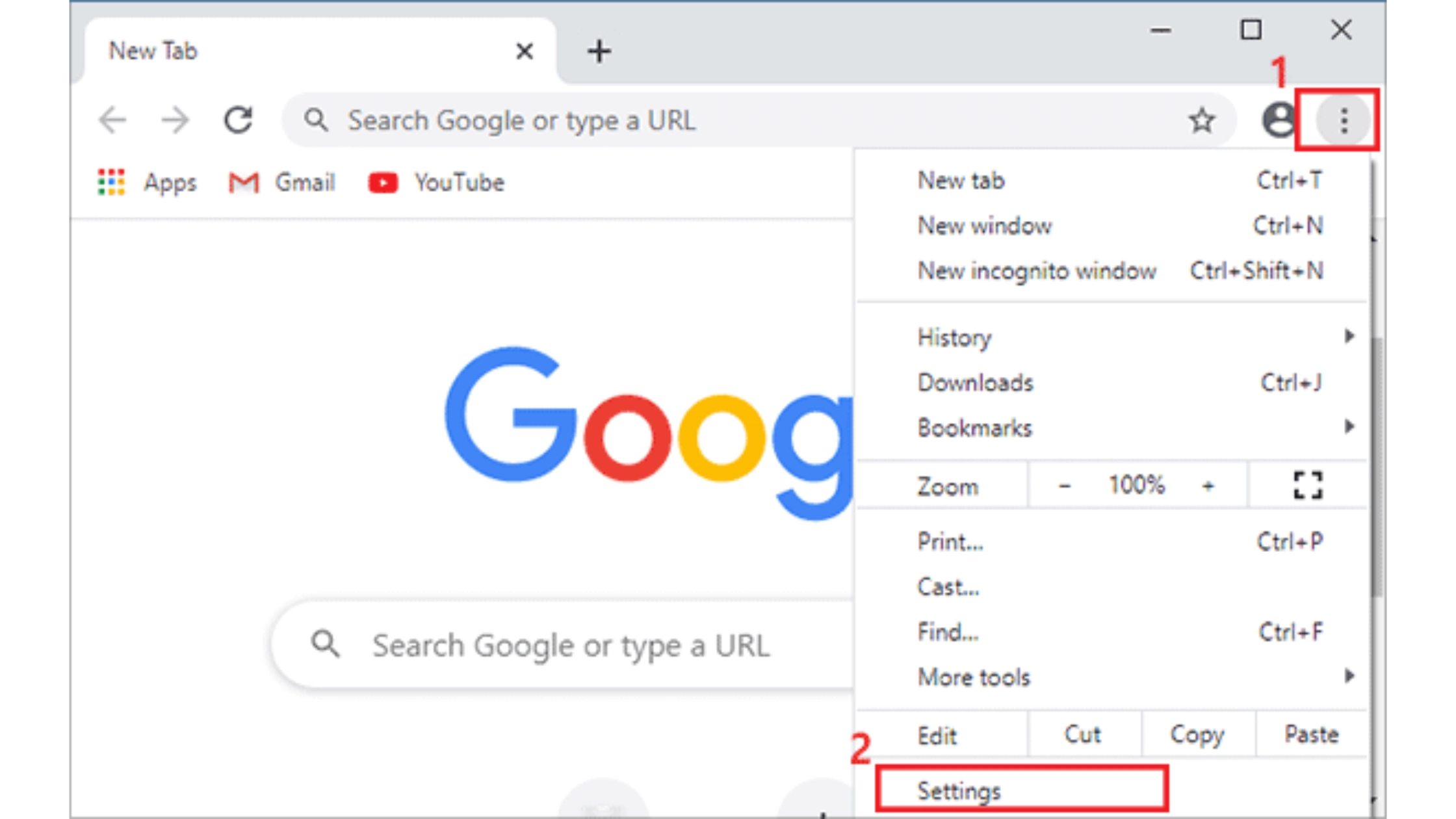
Windows users often want to move downloads to another drive or folder to organize files or avoid filling their system disk. Here is how to change the download location in Chrome on Windows:
- Step 1: Open Google Chrome.
- Step 2: Click the three vertical dots at the top right corner.
- Step 3: Select Settings from the menu.
- Step 4: Scroll down and expand the Advanced section.
- Step 5: Look for the Downloads section.
- Step 6: Click the Change button next to Location. This is where you select the download location Chrome will use for all future files.
- Step 7: Navigate to the folder or drive where you want Chrome to save files. For example, select a folder like D:\Downloads to store files on your secondary drive.
- Step 8: Click Select Folder to confirm.
- Step 9: To test, download a file and check that it saves in the new folder.
When you take these steps, Chrome will save files to your chosen location unless you manually change the folder each time. Learning how to change the download location in Windows 10 is especially useful if you want to manage storage or keep files organized by category.
How to Adjust the Download Location on macOS?
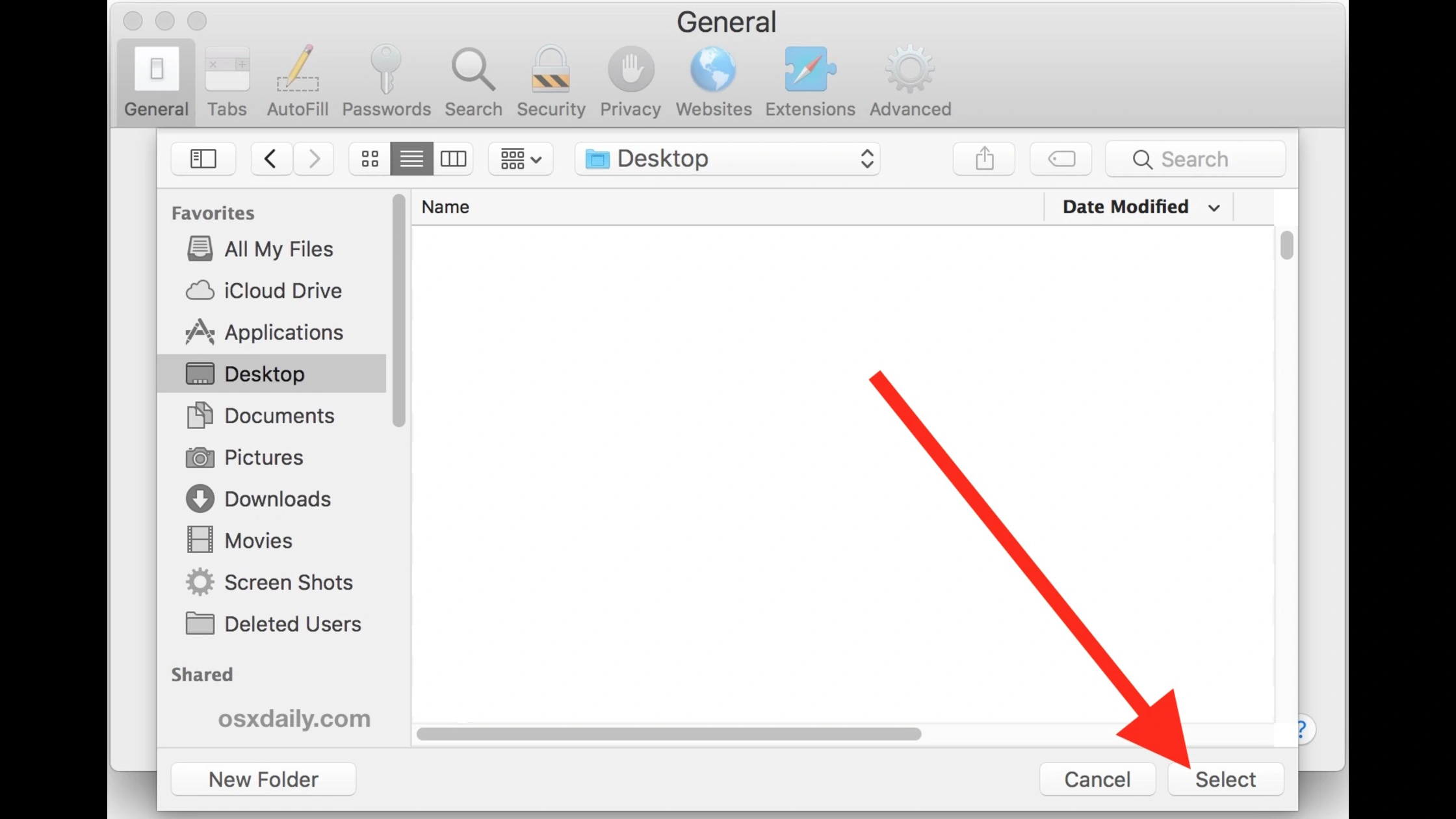
Mac users can also customize their Chrome download directory to save files where it best suits their workflow. Here’s how to change the download location in Chrome on macOS:
- Step 1: Launch Google Chrome on your Mac.
- Step 2: Click the three dots menu in the top-right corner.
- Step 3: Select Settings.
- Step 4: Scroll down and expand Advanced.
- Step 5: Find the Downloads section.
- Step 6: Click Change next to Location.
- Step 7: Choose or create the folder where you want files saved, such as Documents/Chrome Downloads or any external drive.
- Step 8: Click Open to apply.
This method lets you set a custom folder to keep downloads separate from your main documents or desktop. A clear Chrome download directory improves file retrieval, reducing time spent searching for saved items.
How to Change the Download Directory on Linux?
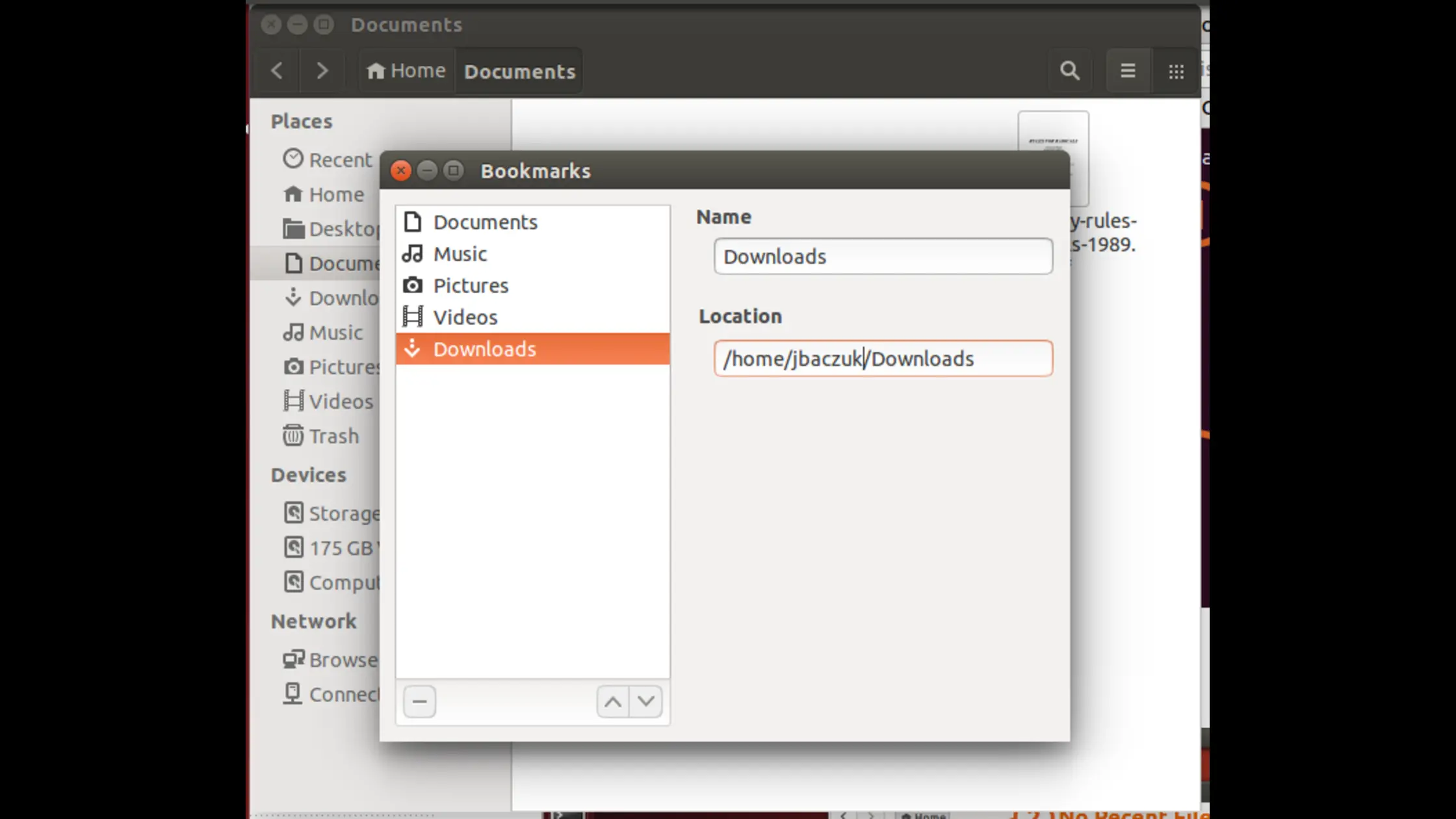
Linux users can follow similar simple steps to change the download location in Chrome:
- Step 1: Open Chrome and click the three-dot menu.
- Step 2: Go to Settings > Advanced.
- Step 3: Scroll down to the Downloads section.
- Step 4: Click Change beside the current download location.
- Step 5: Browse to your preferred folder. This can be a networked drive, external storage, or any accessible directory.
- Step 6: Confirm your selection.
Changing your Chrome download directory on Linux helps, especially if you’re working in multiple environments or using data across devices. It also optimizes how Chrome interacts with your file system, supporting tools like backups.
Additional Tips:
- Use folders named clearly, such as Chrome Downloads, Project Files, or Media, for quick sorting.
- Consider configuring Chrome to ask where to save each file under Downloads; this lets you choose per download.
- If your system has multiple users, setting personal download folders avoids mix-ups.
- External drives and SSDs can boost download speed; specify these as your Chrome download path when possible.
- Always check storage space on selected drives to prevent failed downloads.
With these methods, adjusting the Chrome default download location is straightforward on any desktop. Getting comfortable with changing Chrome’s download folder gives you greater control over your files.
For more security during downloads, apps like TurisVPN provide extra layers of safety. Check our detailed guides to also learn about how to change location on the iPhone App Store and other useful settings.
Managing Chrome Download Settings on Mobile Devices
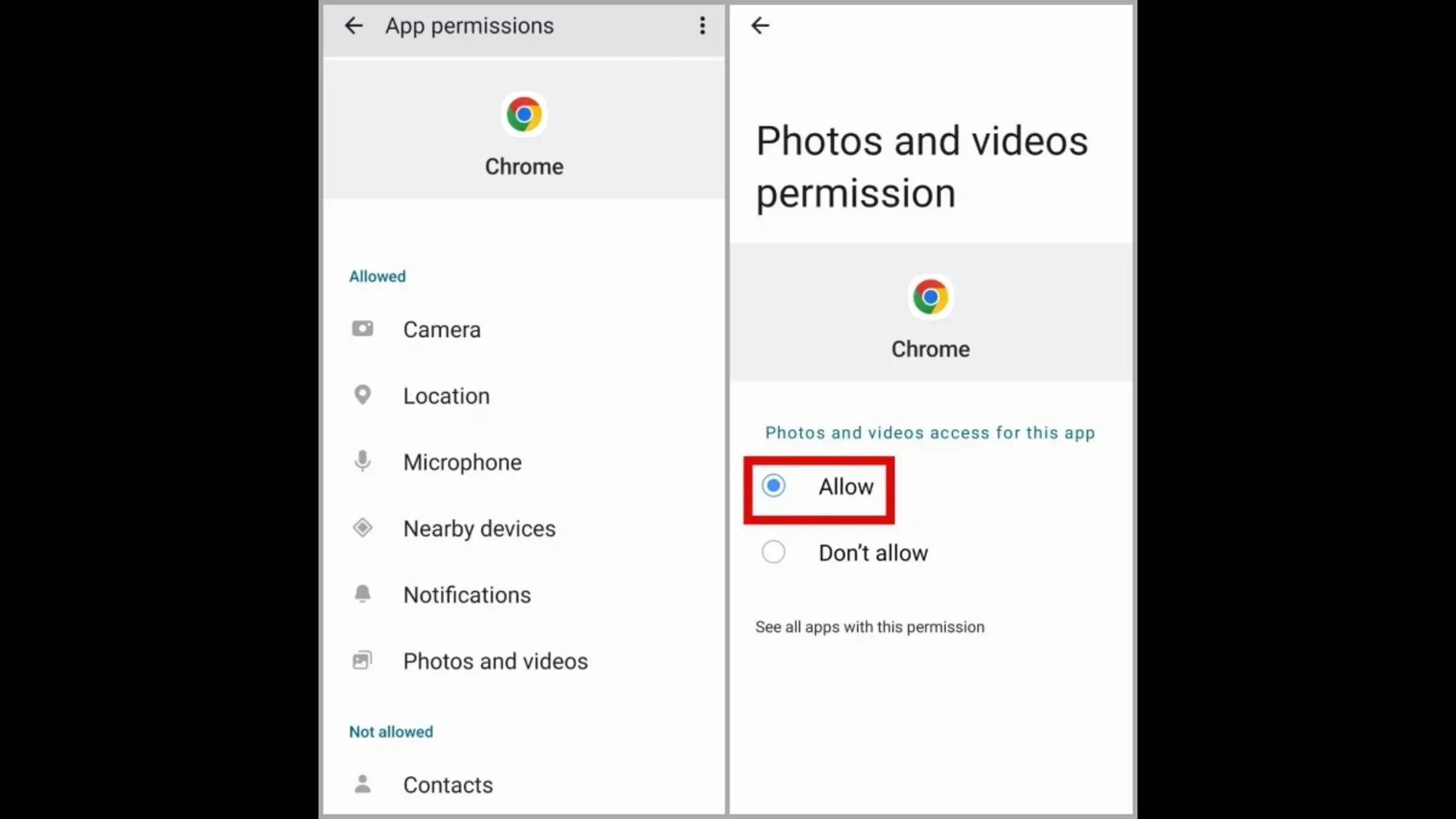
On mobile devices, how to change the download location in Chrome involves slightly different steps than on desktops. Both Android and iOS let you customize your download folders, though options differ due to system restrictions.
Here’s how to update your Chrome download directory on mobile for better file management. It is important to set the location in Chrome mobile settings to keep your device organized.
On Android Devices
Android users can choose whether Chrome downloads files to internal storage or an SD card. This flexibility helps free up space on your device or keep files organized on external storage. Follow these simple steps to change the download location in Chrome on Android:
- Step 1: Open Chrome and tap the three dots at the top right.
- Step 2: Go to Settings > Downloads.
- Step 3: Tap on Download location.
- Step 4: Select whether to store files on Internal Storage or an attached SD card.
- Step 5: Confirm your choice.
By selecting an SD card or an alternate folder, you control your Chrome download path to avoid filling your phone storage. This setup is handy if you download videos, apps, or large documents frequently. It also streamlines how you manage media and frees internal memory for apps.
On iOS (iPhone/iPad)
Apple’s iOS restricts direct folder changes but offers download organization inside the Files app system. You can specify where Chrome saves downloaded items within the iOS file structure.
- Step 1: Open Chrome on your iPhone or iPad.
- Step 2: Tap the three dots and select Settings > Downloads.
- Step 3: Tap Download location.
- Step 4: Choose a folder inside On My iPhone/iPad or your iCloud Drive.
- Step 5: Confirm and close settings.
Despite iOS limitations, this setup allows you to keep downloads in preferred folders, helping with file retrieval. You also gain better control over your Chrome download directory and can access files easily through the Files app.
Managing mobile download settings smartly makes file access faster and device storage healthier. Knowing how to enable download location change on Android and iOS ensures your downloads are where you want them, improving your overall Chrome experience.
While managing your files, you might also be sharing them, and TurisVPN offers tips on how to share your location with WhatsApp safely.
Using TurisVPN for Safer Downloads in Chrome
Alt: Where does Chrome save downloads
Changing the Chrome download directory is good, but keeping your downloads safe is key. TurisVPN helps protect your files from hackers and spies. This is very helpful on public Wi-Fi or unsafe networks. Follow these steps to stay safe with TurisVPN:
- Step 1: Sign up for TurisVPN and install the app on your device.
- Step 2: Open TurisVPN and connect to a secure server before you browse or download. It’s similar to how you must choose what location to put the VPN for unrestricted ChatGPT access.
- Step 3: Open Chrome and download files like usual.
- Step 4: TurisVPN encrypts your data. This means your downloads and online actions stay private.
Using TurisVPN along with a smart Chrome download path keeps your files safe and private. It stops others from spying or stealing your downloads. This is very important in public internet spots.
Beyond download protection, users who value their location privacy on other apps may find our guides on how to change location on Hinge and on Skout equally valuable for keeping their real-world location private.
Choose a good download destination and turn on TurisVPN for the best protection when downloading files in Chrome. This way, your downloads stay safe and you keep control over your data.
Fixing Problems With Chrome Downloads
Sometimes, Chrome does not save files in the folder you set. It may ignore the new download location or save files in the wrong place. Here is how to fix common issues with Chrome downloads.
Chrome Not Changing the Download Folder
If Chrome keeps saving files in the old folder, try these steps:
- Step 1: Restart Chrome after you change the folder. Sometimes, changes only take effect after a restart.
- Step 2: Go back to settings and check that your new folder is correctly selected under the Chrome download directory.
- Step 3: Clear Chrome’s cache and cookies to remove any stored data that may cause conflicts.
- Step 4: If the issue continues, reset Chrome settings to default. This removes settings that might block the folder change.
These actions usually fix problems when Chrome ignores your chosen download destination.
Chrome Downloading to the Wrong Location
If files download to an unexpected folder, try this:
- Step 1: Check that the folder has proper permissions so Chrome can save files there. Without write permission, Chrome will switch to a default folder.
- Step 2: Make sure no other software is changing download folders automatically. Some cleaning or security apps do this.
- Step 3: Reset the download location back to the default folder, then set your preferred folder again to refresh the setting.
- Step 4: As a last resort, uninstall Chrome and reinstall it to fix any corrupted settings.
Following these steps should solve most issues with Chrome’s download folder not working correctly. This helps you regain control over your files and organize downloads efficiently.
Bottom Line
Knowing how to change the download location in Chrome helps you control where files are saved and manage storage effectively. Whether on Windows, macOS, Linux, Android, or iOS, learning how to change the download location in Chrome is quick and easy with the right steps.
Pairing this with a VPN like TurisVPN enhances download safety, protecting your files. Properly managing your downloads keeps your system tidy and secures your data.
FAQs
Q1. Can I set Chrome to ask me every time where to save a file?
Yes, enable Ask where to save each file in Chrome’s Settings > Advanced > Downloads. You’ll be prompted with a save dialog for each download.
Q2. How do I make Chrome save to a different drive?
Go to Settings > Advanced > Downloads and Change the folder to one on your desired drive.
Q3. Can I restore the Chrome download location to the default?
Yes, reset the download location in Chrome settings or reset Chrome to default to restore the original folder.
Q4. How to change the download location on PC?
Open Chrome settings, go to Advanced > Downloads, click Change next to Location, and select your desired folder or drive.
Q5. How to save websites on Google Chrome?
Press Ctrl+S (Cmd+S on Mac), choose a save location, select “Webpage, Complete,” and save to download the site for offline use.
Q6. How to show downloads in Google Chrome?
Press Ctrl+J (Cmd+J on Mac) or click the three-dot menu and select Downloads to view your downloaded files.