
Whether you travel often or want to expand your reach, learning how to change location on Tinder in 2025 is essential to connect with people outside your current city or explore matches in another country.
This guide gives you four proven ways to virtually move your profile. We show you how to update, spoof, or set a location on Tinder. Understanding how Tinder by location works lets you match smarter and safer.
How Tinder Tracks and Updates Your Location?
Before learning how to change your location on Tinder, it’s essential to understand how Tinder determines your position. With over 75 million monthly active users worldwide in 2025, Tinder is the world’s most used location-based dating app and is designed to connect singles locally.
This means the people you see in your card stack are mostly based on the distance you choose from your current spot. When you open the app, Tinder collects data from:
- Your device’s GPS signal: This provides your precise, real-time position. It is the primary way Tinder finds you.
- Wi-Fi or mobile network data: If your GPS signal is weak, Tinder uses your network to get a general idea of your city or region.
- Linked social profiles (like Facebook, if used for login):This serves as a backup to check your declared home city against your detected GPS location.
- Manual update: You can adjust Tinder’s location permissions and refresh your “Show Me on Tinder” status, which sometimes forces the app to update to your current spot if it’s stuck or inaccurate.
This data automatically updates your distance radius and suggested matches. This system ensures you meet people who are truly local and easy to meet in person.
But when does Tinder update your location? Tinder differs from some apps that constantly track your location. It only updates your location every time you run the app. If you move to a new area, it will check the new GPS spot the next time you open it. The app will then update the Tinder location right away.
If you feel like you have the wrong Tinder location, it is often due to a technical error. It can also happen if you have moved but have not opened the app in your new spot yet.
Why Do People Change Their Tinder Location?
Knowing how to change location on Tinder lets you plan or remain discreet. Users want control over their dating app location for several reasons:
- Travel and relocation: People moving to a new city often update their Tinder location. They do this to meet locals before they arrive.
- International dating: Those seeking matches abroad use it to explore connections globally.
- Privacy: Some people prefer to hide their actual address. This keeps their location discreet.
- Testing the app: Content creators and social marketers often test how Tinder by location affects user engagement.
This flexibility empowers users to take control of their dating experience, allowing them to search where and when they want.
Best Ways to Change Location on Tinder
You can change your location on Tinder using four methods. These steps range from official features to external tools. This guide will teach you how to change location on Tinder easily.
Method 1: Use Tinder Passport (Best Option)

Tinder Passport is the official feature within Tinder Plus and Gold subscriptions that allows you to swipe anywhere in the world virtually. Passport mode on Tinder means you can drop a “pin” in any city you choose, as if you are physically there. Once you select the city, Tinder updates your coordinates instantly.
You can change location on Tinder Passport based on these steps:
- Open Tinder and click on the profile icon.
- Go to Tinder location settings.
- Look for Discovery Settings, then select “Add a new location”.
- Tap “Switch to This Location.” Your new matches will now appear from that area.
Using Tinder Passport complies with Tinder’s Community Guidelines, meaning there is zero risk of a profile shadow-ban or suspension. However, a Passport may not be ideal if you want to change your location on Tinder for free since it’s a paid feature.
Method 2: Use a VPN (Free to Paid, Moderate Risk)

Users who want to explore how to change their Tinder location for free can still update their Tinder location using a VPN. VPNs hide your real IP and reroute it through another country, allowing the app to see you as being there. The steps include:
- Choose a reliable VPN (like TurisVPN)
- Connect to a desired country or city server.
- Open Tinder and check the updated Tinder location function.
VPNs do work on Tinder, but results vary depending on how your phone caches GPS and app data. A strong VPN like TurisVPN provides steady routing without leaks, giving Tinder a consistent “fake” address.
To learn similar configuration techniques, refer to our guide on how to change location in the iPhone App Store, since both rely on modifying device-region settings effectively.
Method 3: Use a Third-Party GPS Spoofer (Risky)
Another option for a fake Tinder location is using GPS mock apps. These apps manually set your GPS to another city or region. You can follow these steps:
- Install a trusted GPS spoofer app such as PoGoskill Location Changer, Gmocker then install it from your official app store.
- Enable Developer Mode.
- Pick a “mock location” to set manually.
- Open Tinder to see your “new” matches.
However, this method carries a high detection risk. If the system flags your spoof attempt, the wrong location glitches or bans may occur. To reduce this risk, avoid switching locations too frequently and make sure your GPS and IP address locations match by using a VPN alongside the GPS spoofer.
By following these precautions, you can minimize the chance of being flagged while changing your Tinder location. Yet, we do not recommend using GPS spoofers for long-term use.
Method 4: Update Facebook Location (Inconsistent)
Logging in via Facebook, Tinder synchronizes data, including your region, from that profile. Updating your Facebook city sometimes fixes the “Tinder has my location wrong ” error. However, this doesn’t always work in real time. To attempt this, you would:
- Log in to Facebook and tap Edit profile.
- Edit your ‘Places Lived’ section and set a new ‘Current City’.
- Log out, then reopen Tinder.
- Allow GPS permissions again.
This method depends on app sync frequency and may not guarantee permanent changes. It’s less reliable but worth trying if you want free adjustments without external tools.
Other Ways to Change Location on Tinder
Besides the main four steps, there are other tricks involving manual settings or desktop alternatives to change location on Tinder. These can work if your GPS fails or you’re using Tinder on a Mac or PC.
Adjusting Tinder Location Settings Manually
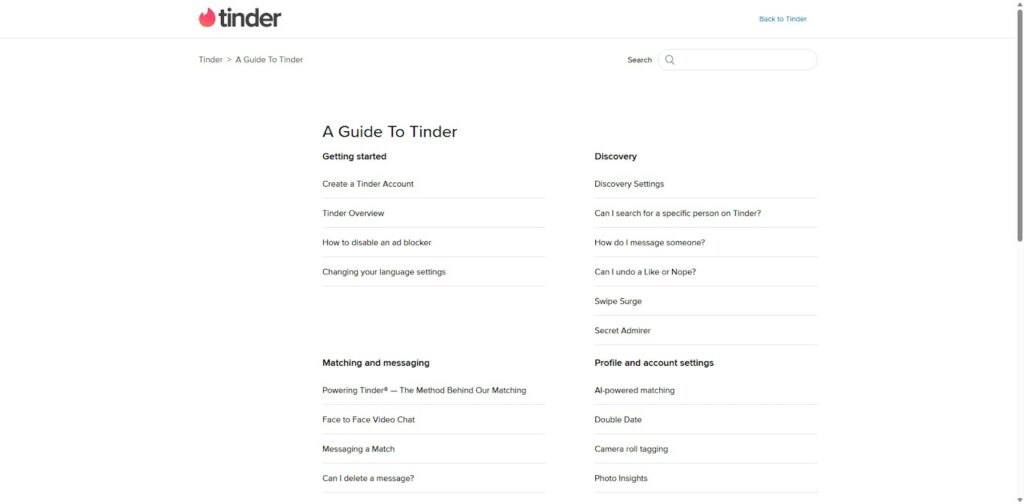
Adjusting Tinder location settings manually helps when Tinder fails to detect your coordinates. Here’s how to change location on Tinder by adjusting settings:
- Go to your device settings and open the “Apps” section.
- Find Tinder in the list, then open it and tap on “Permissions.”
- Toggle location access to “Always Allow.”
- Reopen the app and check the Show me on Tinder button.
- If it’s off, turn it on so Tinder can refresh your distance metrics.
Manually managing your location settings improves accuracy and may prevent glitches where Tinder has your location wrong. To understand similar app permissions, you can also explore how to share location with WhatsApp, a guide that explains mobile GPS permission control in depth.
Also, many users ask, “How to change my Tinder name?” This is not a location setting. You cannot change your name inside the app once you set it. You must delete your account and create a new one. Or, you must change the name on your linked Facebook or Google account.
Using Proxy Servers or Mac/PC Solutions
If you use Tinder on a Mac device, adjusting your browser or app permissions can help. Desktop versions rely on browser location, not mobile GPS. You can modify your area by:
- Connecting through a proxy or VPN
- Changing browser region settings
- Clearing cached coordinates
Proxy servers can sometimes trick Tinder into showing regional match suggestions, but VPNs remain the most efficient and secure tool. Those exploring apps across devices can also review steps in our article on how to change location on Hinge, as the navigation process resembles Tinder’s setup.
Boosting Privacy & Security with TurisVPN
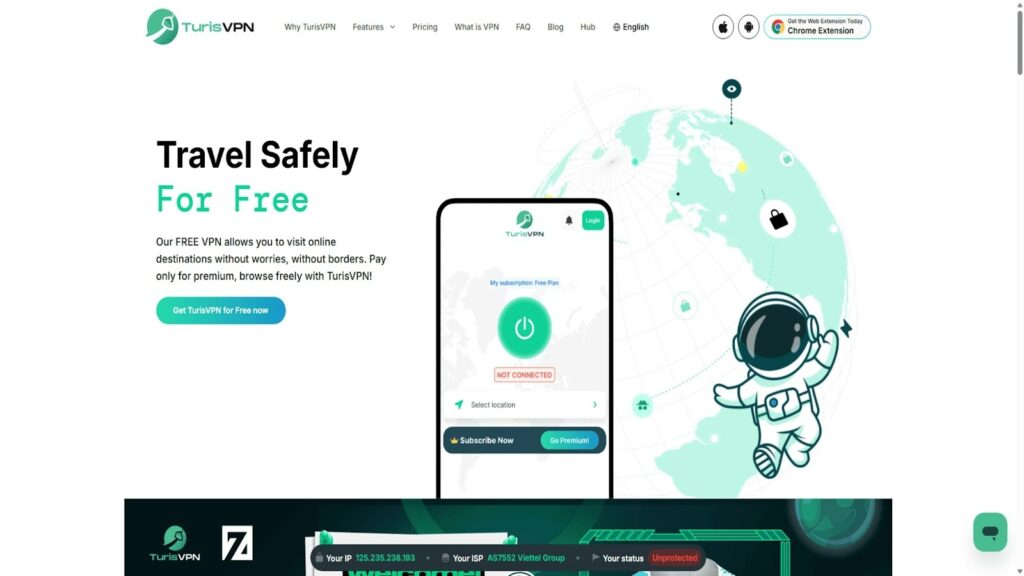
When you modify your digital footprint, privacy becomes critical. TurisVPN helps protect your data while letting you control location visibility on dating apps.
Why TurisVPN Is Recommended for Tinder Users
TurisVPN supports stable IP masking and region-hopping features, which are ideal for apps that depend on accurate coordinates like Tinder. Our servers are optimized to prevent leaks that could trigger Tinder’s wrong location alerts. Unlike public proxies, our service provides:
- Encrypted traffic protection
- Multi-device coverage (Android, iPhone, Mac)
- Built-in DNS leak prevention:
- Bypassing Network Blocks
A VPN gives vital protection even when scrolling profiles and changing your distance on Tinder by location. We suggest using TurisVPN not just for Tinder. Use it for other apps that care about location, too. If you use other dating apps like Skout, we also provide guidance on how to change locations on Skout to help across different dating networks.
How to Use TurisVPN Step-by-Step for Tinder
Using TurisVPN to change your location on Tinder is fast and straightforward. It gives you peace of mind and flexibility right away. Here are easy steps to change Tinder location while keeping your data safe:
- Download and Install: Get a TurisVPN plan. Download the app on your phone (Android or iOS).
- Connect to a Server: Open the TurisVPN app. Look through our long list of server locations worldwide. Choose the city or country you want virtually “travel” to on Tinder.
- Verify Connection: Check that the VPN status says “Connected.” You now have a new IP address for that location.
- Launch Tinder: Open the Tinder app. If you are a paid user, turn on the Tinder Passport feature now. Choose the same city as your VPN server. If you are not a premium user, you can use a GPS spoof and ensure your GPS spoofer is set to the exact location.
For users wanting to learn broader privacy techniques, our detailed breakdown of where to put a VPN for unrestricted ChatGPT offers insights into selecting ideal servers for all online interactions.
Bottom Line
Learning how to change location on Tinder is a common need for travelers who want to find more potential partners. No matter which method you pick, the smartest choice is to protect your online privacy with a high-quality service like TurisVPN.
By hiding your real IP address and encrypting your data, TurisVPN keeps you safe while you look for new profiles and find the perfect match, no matter where they are.
FAQs
Q1. Can I change my Tinder location for free?
Yes, you can. Free methods include using VPNs or changing Facebook data. However, an official Passport is the most reliable option.
Q2. Is Tinder location-based?
Yes, it uses real-time GPS to match you with nearby users, making your region central to your match results.
Q3. How often does Tinder update your location?
Tinder refreshes whenever you open the app or move significantly. GPS or VPN tools can influence these updates.
Q4. Is it better to use Passport or a VPN?
Tinder Passport is safer since it’s official, while VPNs like TurisVPN offer a free and flexible way if used carefully.