Cross-site tracking is everywhere, from the ads that follow you online to the “recommended for you” suggestions. The tracking is also hidden analytics scripts running across websites. These trackers collect data about your browsing habits, building detailed profiles of who you are.
In 2025, browsers are stepping up with smarter privacy tools to help users prevent cross-site tracking and regain control over their data.
In our blog post, you’ll learn how to prevent cross-site tracking on major browsers like Google Chrome, Safari, and Firefox with the latest settings and updates. You’ll also discover how TurisVPN can add an extra layer of privacy protection by hiding your digital identity and blocking trackers more effectively.
Key Takeaways
|
What is cross-site tracking?
Cross-site tracking is the process of tracking a user’s behavior across multiple websites to gather information used for personalized ads, analytics, or content recommendations.

Over time, this information is combined to create a detailed profile about you including your interests, browsing behavior, location, and even shopping habits. This profile helps advertisers target you with personalized ads and recommendations, which is why you often see the same product ad appear on completely different websites.
In short, cross-site tracking allows third parties to connect your activity across the web, often without your full awareness or consent.
How does tracking work across websites?
Websites use several technologies to track users across different domains. These tools help advertisers and analytics platforms identify you, even if you move from one site to another.
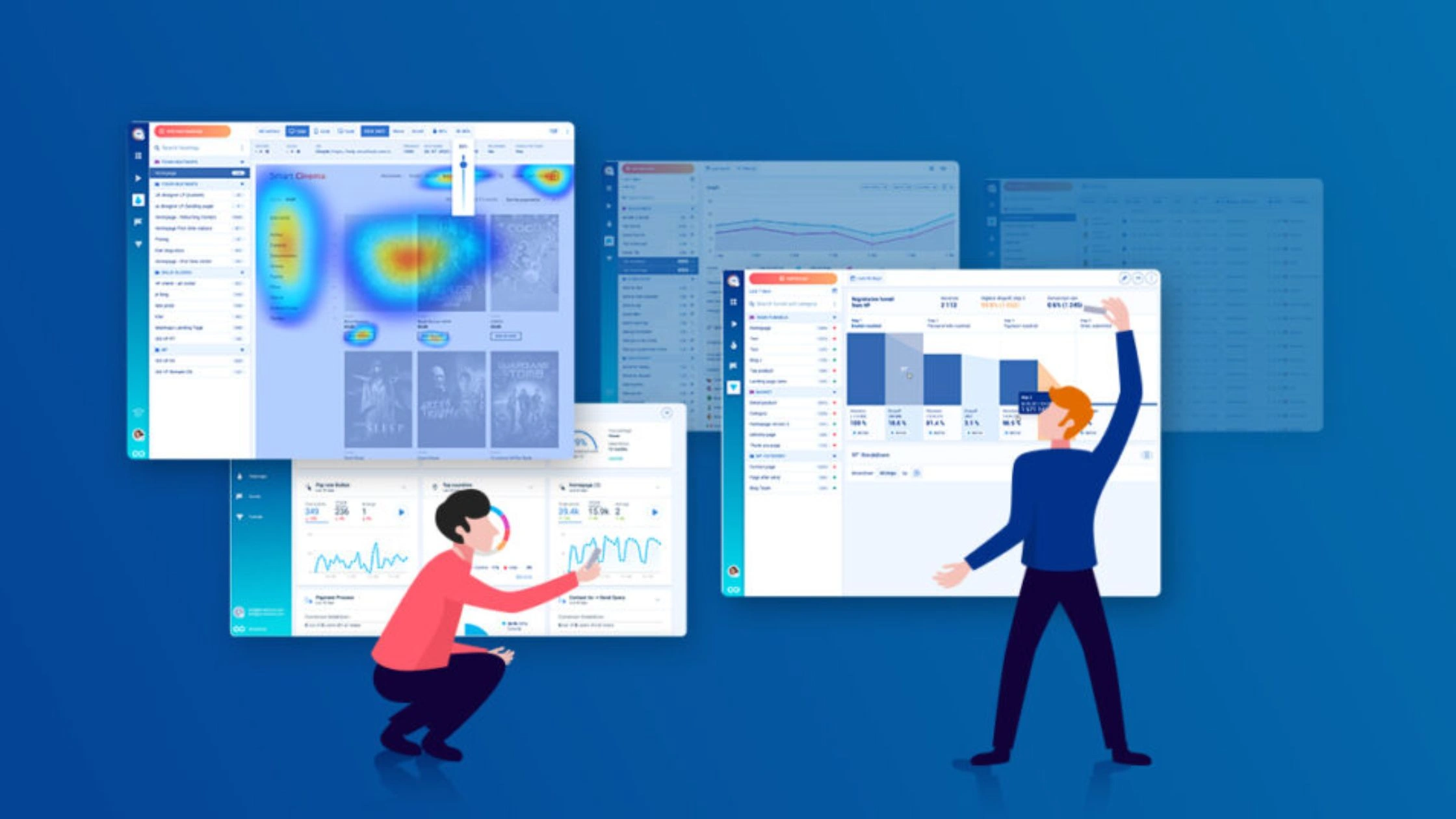
Below are the most common tracking methods you should know about:
Tracking cookies
Tracking cookies are small text files stored in your browser when you visit a website. While first-party cookies help websites remember your login or preferences, third-party cookies are used by advertisers and analytics providers to follow your activity across multiple sites.
For example, if you view a product on one shopping site and later see ads for the same item on another website.
Web beacons & pixels
Also known as tracking pixels, web beacons are tiny invisible images or snippets of code embedded in web pages and emails.
When the page loads or the email is opened, the beacon “pings” a remote server with your data such as IP address, browser type, and the exact time you viewed it.
This technique lets marketers and platforms monitor engagement and measure how users interact with ads or campaigns, often without users realizing it.
Browser fingerprinting (canvas, device ID, etc.)
Your browser and device reveal unique information that can be used to identify you. This method is called browser fingerprinting. It collects details like your screen resolution, installed fonts, time zone, browser version, system language, and even how your browser renders graphics (known as canvas fingerprinting).
When combined, these small bits of data create a unique “fingerprint” that can track you across different websites even in private or incognito mode.
Why Browsers Use Cross-Site Tracking?

Cross-site tracking wasn’t created just to invade privacy. The tracking makes the web more connected, personalized, and profitable.
Browsers and websites use tracking technologies to collect user data that can enhance experiences, improve performance, and drive targeted advertising.
1. Personalization and User Experience
Tracking helps websites remember what you searched for, which products you viewed, or the content you prefer. This allows platforms to deliver personalized recommendations, targeted ads, and faster browsing experiences.
For instance, your favorite shopping site can show you items similar to what you’ve recently viewed, or YouTube can suggest videos that match your watch history.
2. Advertising and Monetization
Cross-site tracking helps advertisers reach the right audience at the right time, improve ad effectiveness, and increase click-through rates.
For businesses, this data drives profits. For users, it explains why you often see the same ad everywhere.
3. Analytics and Performance Monitoring
Websites use trackers like Google Analytics, Meta Pixel, or Adobe Analytics to understand how visitors use their sites. These tools measure engagement, identify popular pages, and detect errors to improve site performance and usability.
4. Syncing and Cross-Platform Functionality
Some tracking also supports syncing across devices and platforms. For example, when your browsing activity on a laptop influences recommendations on your phone.
In short, browsers allow cross-site tracking because it helps businesses personalize content, measure performance, and generate revenue.
Pros & cons of browser tracking for users and businesses
Browser tracking has both benefits and drawbacks. While it helps businesses understand their audience and improve marketing, it also raises serious privacy concerns for users.

Pros of browser tracking include:
For Users:
- Personalized experience: Tracking helps websites remember preferences, such as language, location, or shopping history.
- Relevant Ads: You see ads for products or services you might actually be interested in.
- Convenient login and syncing: Cookies and trackers make it easier to stay logged in and sync preferences across devices.
For Businesses:
- Targeted Marketing: Businesses can deliver ads to specific audiences based on behavior and interests, improving engagement and sales.
- Data-Driven Insights: Tracking helps companies understand how visitors use their websites, which pages perform best, and where users drop off.
- Customer Retention: Behavioral tracking enables retargeting, reminding past visitors about products they viewed or abandoned in their carts.
Cons of browser tracking include:
For Users:
- Loss of privacy: Cross-site tracking lets companies follow your online activity, often without clear consent.
- Ad fatigue: Seeing the same ads repeatedly can feel intrusive or annoying.
- Data vulnerability: The more data collected, the higher the risk of leaks or misuse if companies fail to protect it properly.
For Businesses:
- Regulatory pressure: With stricter privacy laws (like GDPR and CCPA), companies face penalties for improper data handling.
- Reduced trust: Overly aggressive tracking can damage brand reputation and drive users to privacy-focused competitors.
- Ad Blocker impact: More users now block trackers entirely, making data collection less effective.
Browser tracking helps create a more personalized web but at the cost of user privacy. Businesses benefit from detailed insights, but users must decide how much personal data they’re willing to trade for convenience.
That’s why TurisVPN now focuses on helping you control and prevent cross-site tracking more effectively.
When Cross-Site Tracking Becomes a Problem
Cross-site tracking turns invasive when it collects more data than necessary or follows you across unrelated sites without your consent:

Here are the most common situations where cross-site tracking becomes a problem:
1. You’re targeted across many unrelated websites
If you notice the same ads or recommendations appearing on completely different sites, that’s a sign of aggressive cross-site tracking. It means third-party advertisers have linked your activity across multiple platforms to create a unified behavioral profile.
When you search for running shoes on one site and then see the same ads on a news page, recipe blog, and weather app, that’s aggressive cross-site tracking. Advertisers have linked your activity to build a shared profile across platforms.
2. You see overly personalized or invasive ads
Ads that seem to “read your mind” for instance, promoting something you searched for only once. The sign indicates that trackers are sharing your data between sites. This level of targeting can feel intrusive and even manipulative.
Imagine looking up baby products once, then getting ads for parenting items for weeks. The ads feel like they “know” you, showing how deeply connected the tracking networks are.
3. You’re browsing sensitive topics (health, finances, or personal issues)
When tracking extends to sensitive areas such as medical research, banking, or personal matters, it raises ethical and security concerns. Even anonymized data can reveal private details when aggregated.
For example, you research symptoms or financial help programs and then receive related ads later, that’s tracking in action. Even anonymized data about your visits to medical or financial sites can reveal private information.
4. You’re in regions with weak data protection laws
In countries without strict privacy laws like the GDPR (EU) or CCPA (California), companies can collect and use your data more freely. This exposes you to higher risks of data misuse or unauthorized sharing.
5. The same tracker appears on hundreds of sites
Large advertising and analytics networks like Google Ads, Meta Pixel, or DoubleClick. They are embedded across millions of websites. This allows them to aggregate massive amounts of data and build detailed user profiles that go far beyond a single browsing session.
Google Ads, Meta Pixel, or DoubleClick are embedded on countless websites. Visiting just a few pages can expose your habits, interests, and device details, allowing companies to map your digital footprint across the internet.
Step-by-Step: How to Block Cross-Site Tracking in Major Browsers
Different browsers have different privacy tools, but each now includes built-in options to help you prevent cross-site tracking. Follow the guides below for Chrome, Safari, and Firefox to protect your privacy effectively in 2025.
Prevent Tracking in Google Chrome (Desktop & Mobile)
Google Chrome has improved its privacy controls in recent updates, but preventing cross-site tracking still requires manual setup.
On Desktop (Windows & Mac):
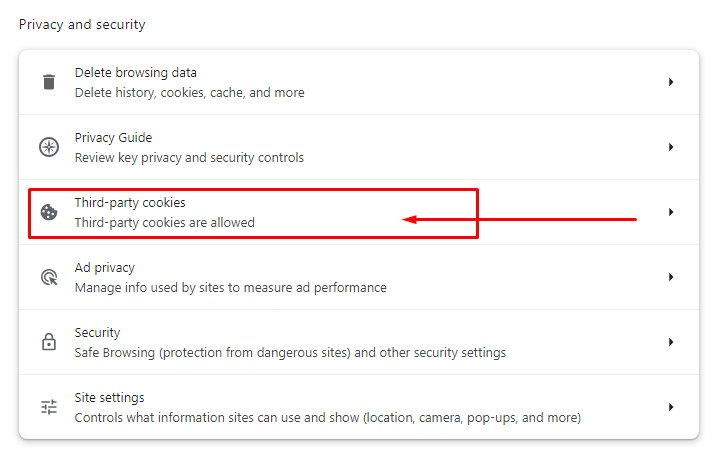
- Open Chrome and click the three dots (⋮) in the top-right corner.
- Go to Settings → Privacy and Security.
- Click Cookies and other site data.
- Select “Block third-party cookies.”: This stops advertisers from tracking you across different websites.
- Scroll down and enable “Send a ‘Do Not Track’ request with your browsing traffic.”
- To add more protection, go to chrome://flags and enable Privacy Sandbox Ad Topics (optional), which limits how Chrome handles ad personalization.
On Mobile (Android & iOS):
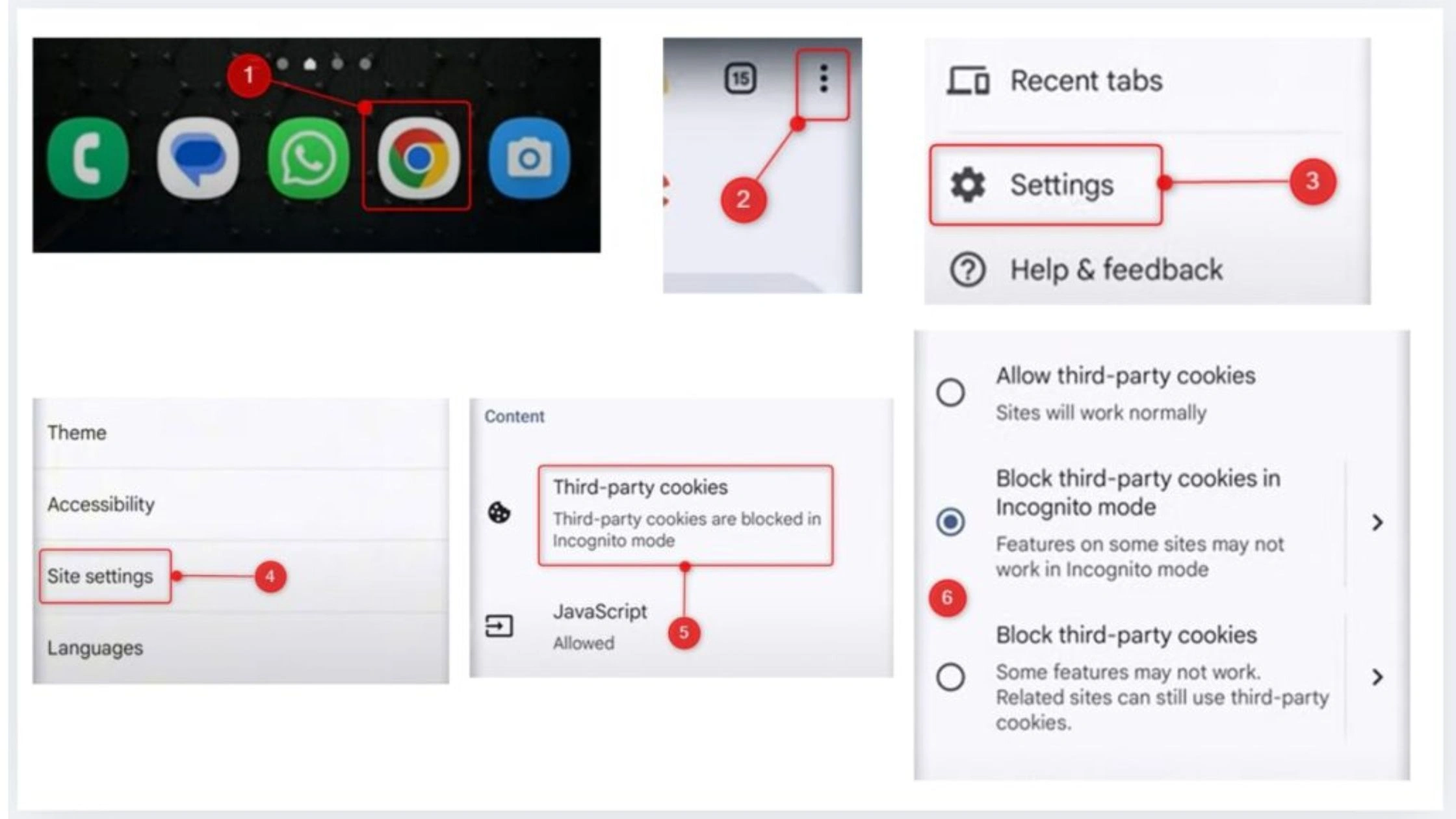
- Open the Chrome app.
- Tap the three dots → Settings → Site settings.
- Select Cookies → choose Block third-party cookies.
- Go back and open Privacy and security → Do Not Track.
- Turn on the toggle to send a Do Not Track request.
Stop Cross-Site Tracking in Safari (Mac & iPhone/iPad)
Safari is one of the most privacy-focused browsers to prevent cross-site tracking, with Intelligent Tracking Prevention (ITP) built in by default. It automatically blocks many third-party cookies and limits fingerprinting.
On Mac (macOS):
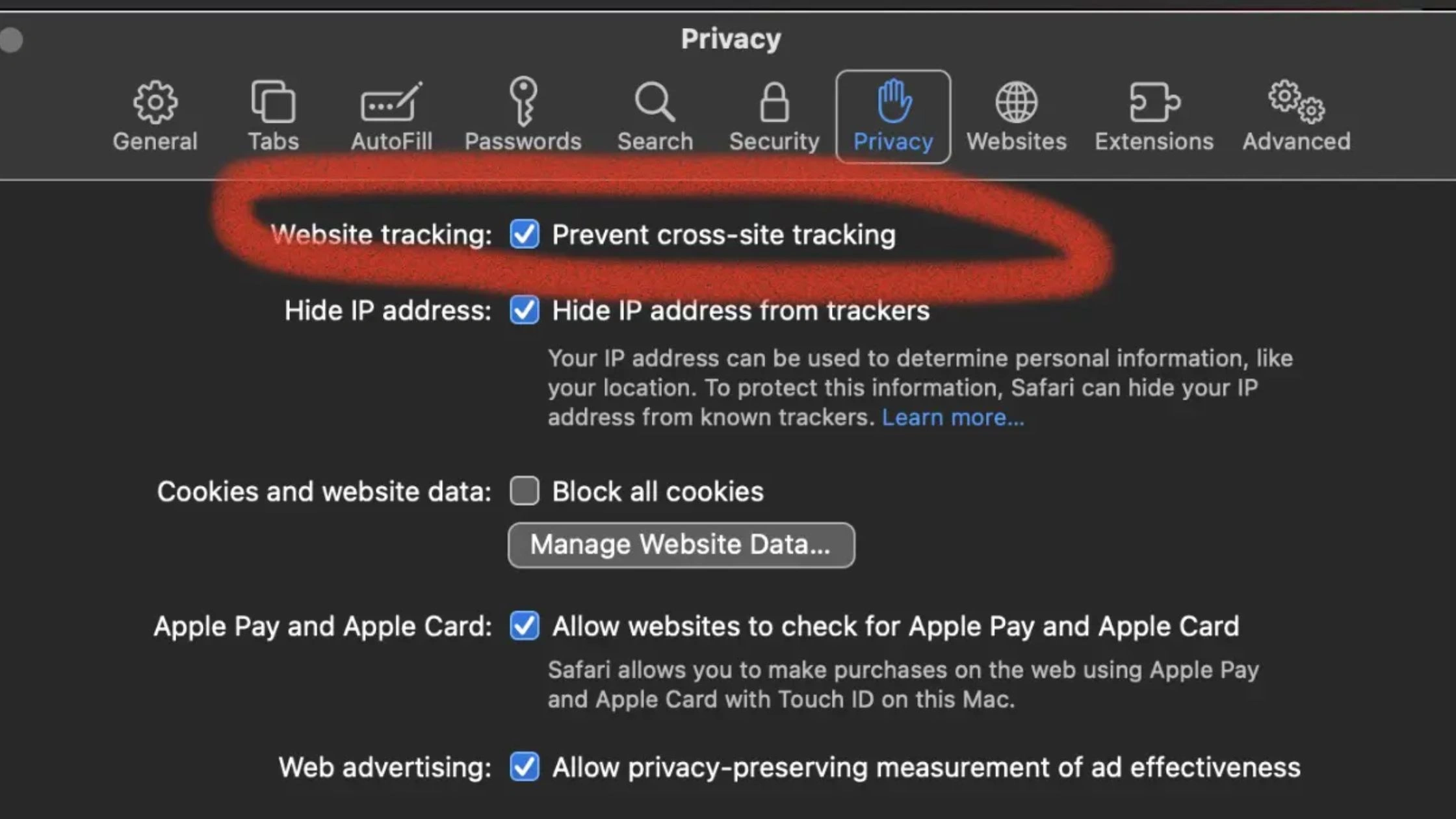
- Open Safari.
- In the top menu, click Safari → Settings (or Preferences).
- Select the Privacy tab.
- Check the box for “Prevent cross-site tracking.”This ensures Safari blocks cookies and scripts that track your activity across sites.
- Optionally, enable “Hide IP address → From Trackers.” This feature conceals your IP address from known trackers and advertisers.
- You can also clear existing trackers by clicking Manage Website Data → Remove All.
On iPhone or iPad (iOS/iPadOS):
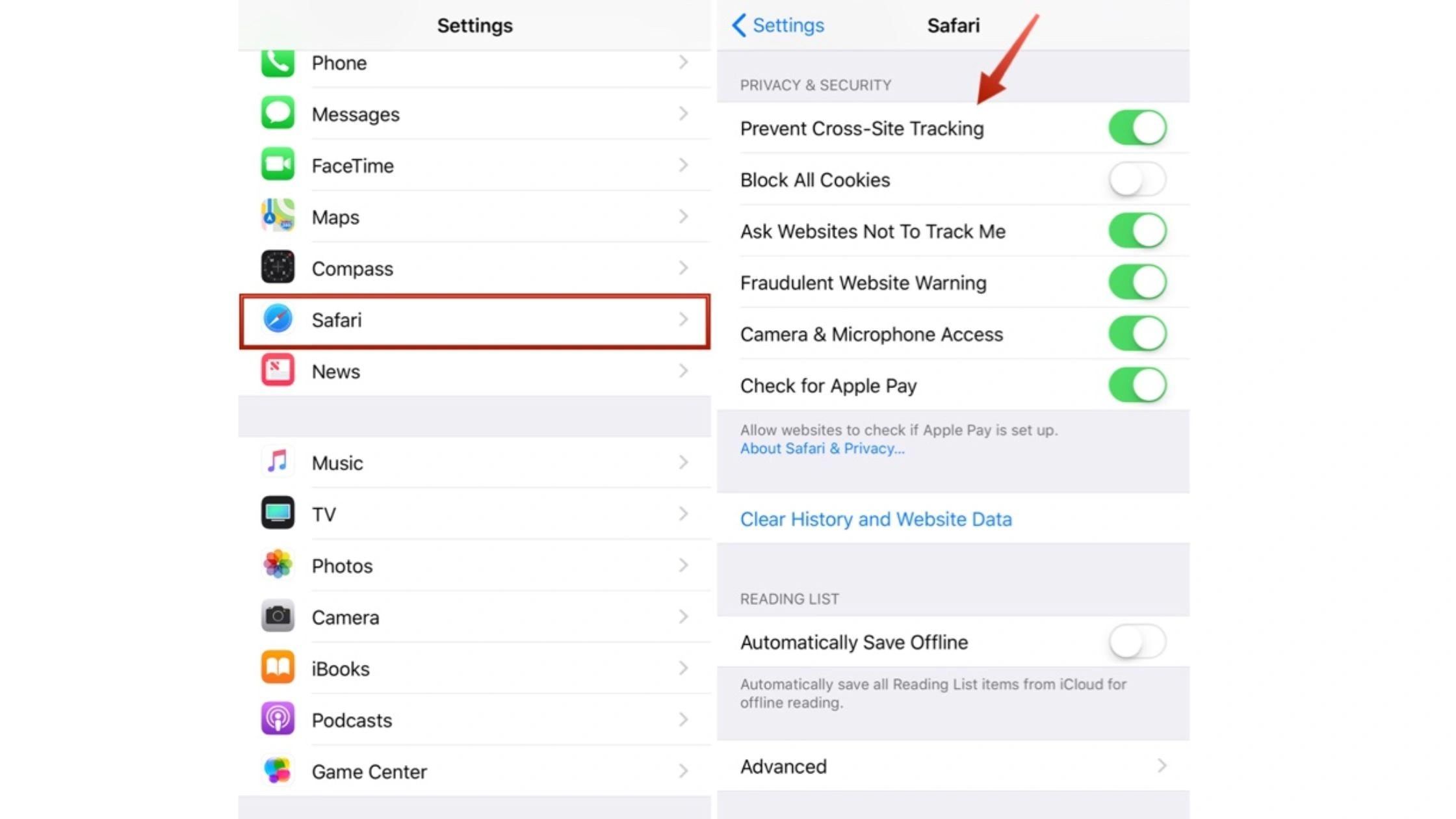
Here are steps on how to turn off cross-site tracking on iPhone:
- Open Settings → Safari.
- Scroll to the Privacy & Security section.
- Turn on Prevent Cross-Site Tracking.
- Enable Block All Cookies (optional, but may affect site logins).
- Turn on Hide IP Address → From Trackers.
- For a full refresh, scroll down and tap Clear History and Website Data.
Disable Cross-Site Tracking in Firefox (Windows & Mac)
Firefox offers one of the strongest built-in tracker protection systems, called Enhanced Tracking Protection (ETP), and supports the new Global Privacy Control (GPC) signal.
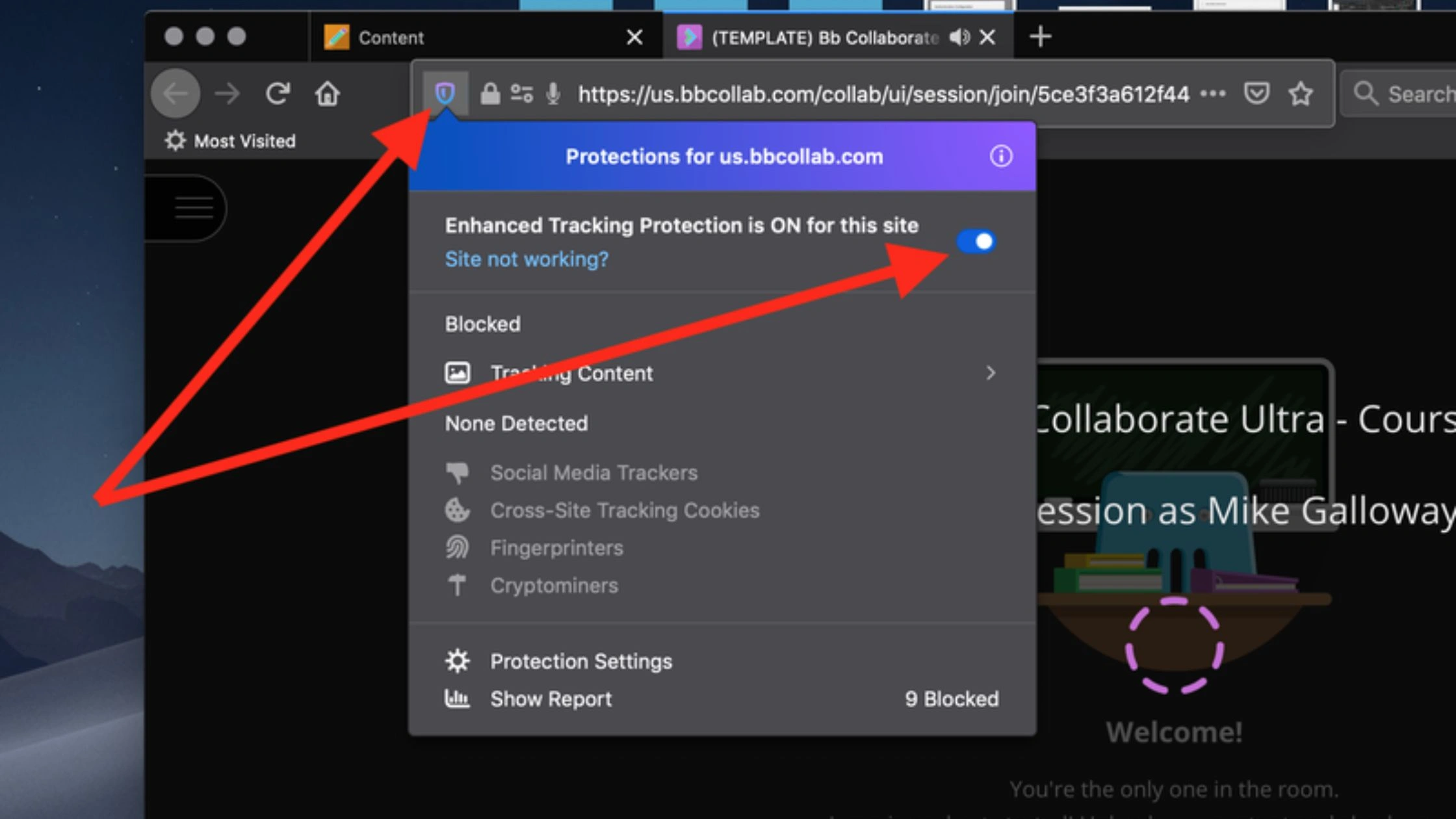
On Desktop (Windows & Mac):
- Open Firefox.
- Click the menu (≡) → Settings → Privacy & Security.
- Under Enhanced Tracking Protection, choose:
- Strict for the highest protection, or
- Custom to manually block Cross-site cookies and Trackers.
- Scroll to Cookies and Site Data → click Manage Data to remove old trackers.
- Turn on Send websites a “Do Not Track” signal (under Privacy section).
- Enable Global Privacy Control (GPC): Visit globalprivacycontrol.org and test that it’s working.
On Mobile (Android):
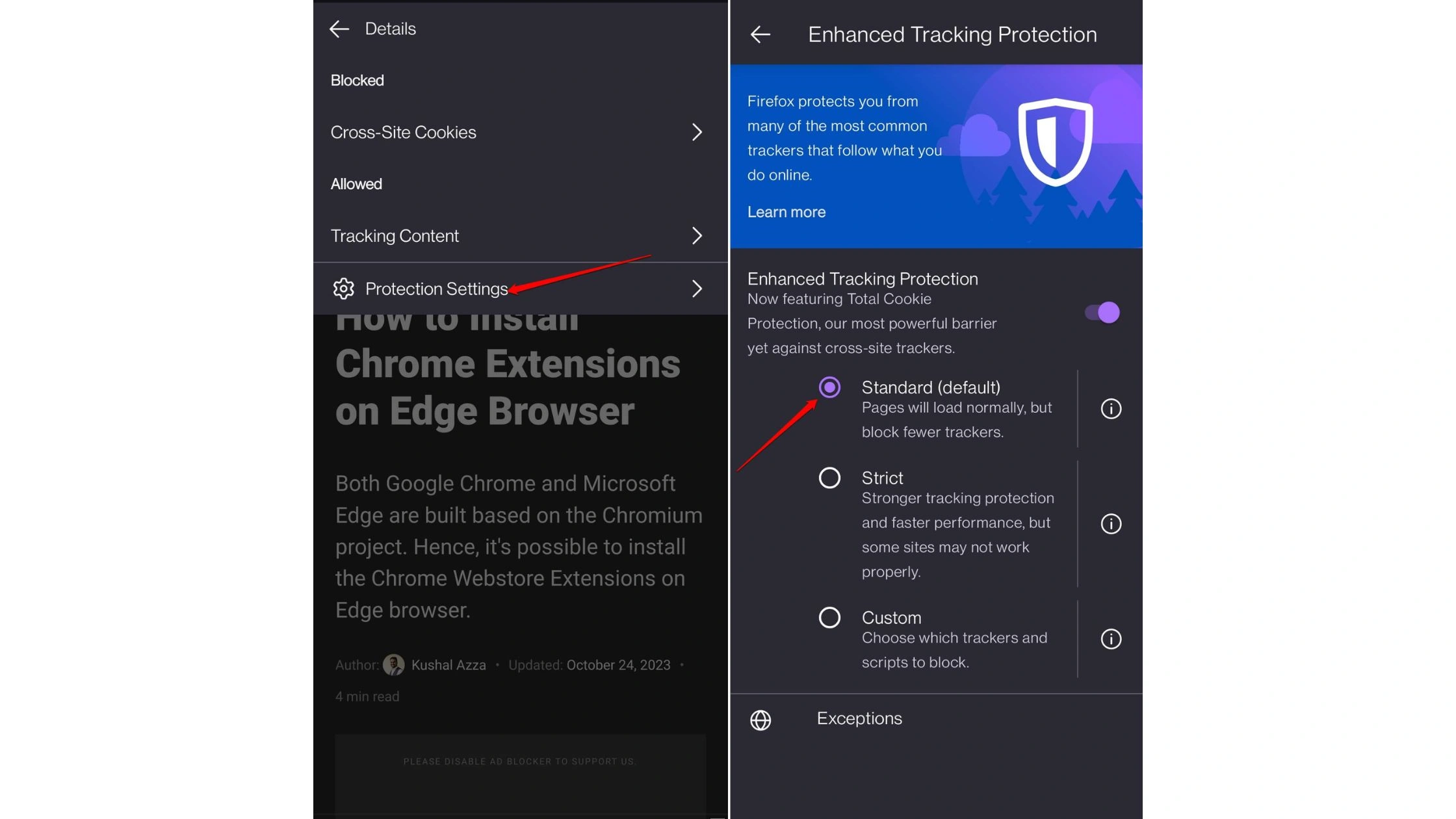
- Open Firefox Mobile.
- Tap the three dots → Settings → Enhanced Tracking Protection.
- Choose Strict or Custom.
How TurisVPN Helps Block Trackers?
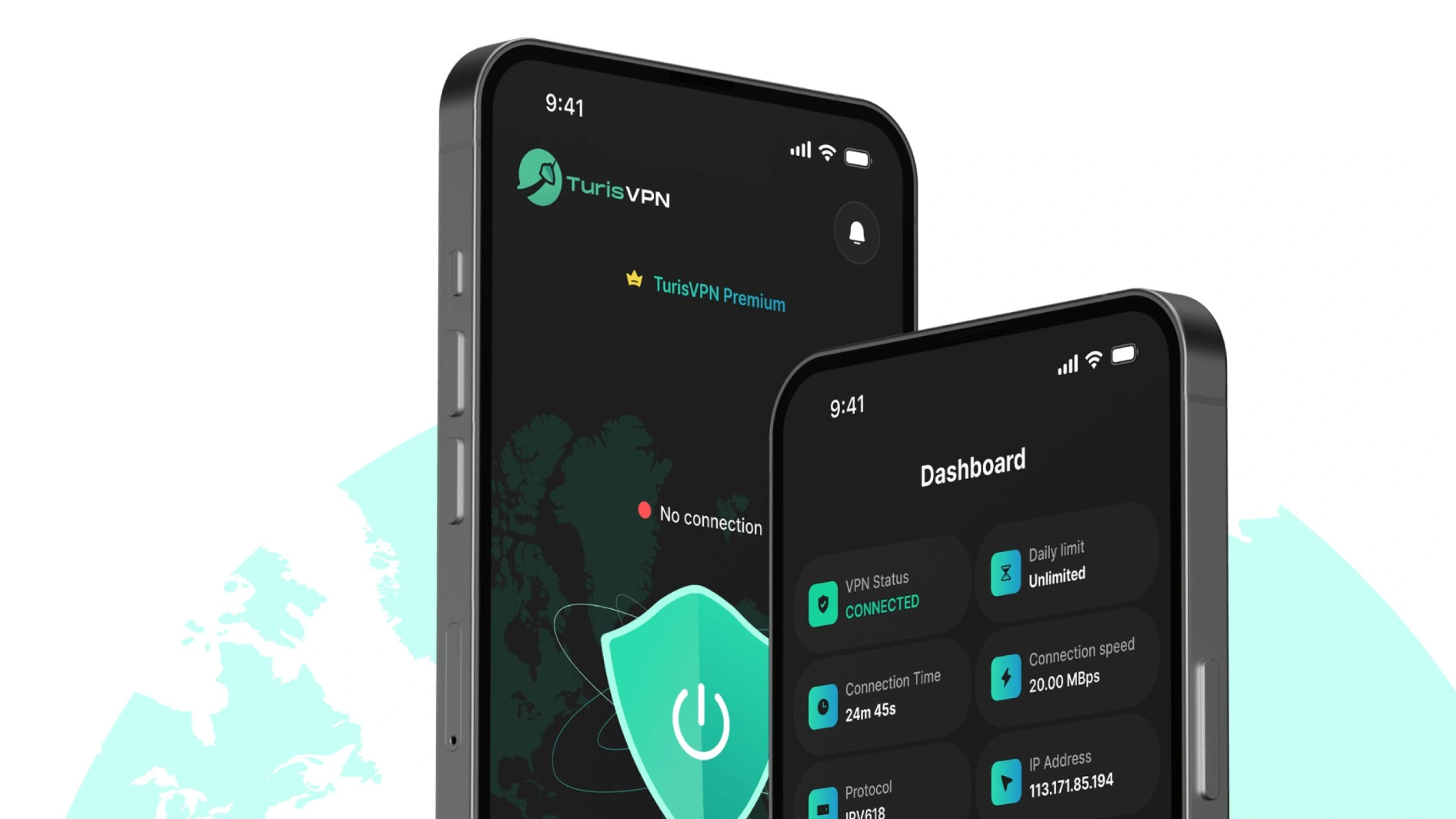
TurisVPN hides your real IP address and encrypts all your internet traffic. So, advertisers, analytics tools, or hackers are impossible to trace your activity.
When you connect to a TurisVPN server, your data travels through a secure tunnel, blocking trackers and preventing websites from building a unified profile of you across different sites.
Step-by-Step: How to Use TurisVPN to Block Trackers
- Step 1: Download & Install TurisVPN: Get the app from the official TurisVPN website for your device (Android, or iOS).
- Step 2: Sign In: Log in or create a new account.
- Step 3: Choose a Server: Pick a secure server location to hide your real IP address. (e.g Singapore VPN)
- Step 4: Connect & Browse: Tap Connect, then browse safely.
Cross-site tracking is one of the main ways advertisers and analytics tools follow your online activity across websites. Chrome, Safari, and Firefox now include built-in tools to help you prevent cross-site tracking. Pairing them with TurisVPN gives you even stronger protection.
FAQs
Q1. Should I turn off “Prevent Cross-Site Tracking”?
No, you should keep “Prevent Cross-Site Tracking” turned on. It stops websites and advertisers from sharing your data across different domains. Only turn it off if a specific website needs cross-site access to function properly.
Q2. Does Apple automatically prevent cross-site tracking in Safari?
Yes, Safari’s Intelligent Tracking Prevention (ITP) is turned on by default on both macOS and iOS. It automatically limits cookies, blocks known trackers, and hides your IP address from advertisers.
Q3. Does Google Chrome have built-in tracking prevention?
Partially. Chrome lets you block third-party cookies and send a “Do Not Track” request, but it’s less strict than Safari or Firefox. You can boost protection by enabling privacy settings, using extensions, or combining Chrome with TurisVPN.
Q4. What does “Allow cross-website tracking” mean on iPhone?
When you allow cross-website tracking, you give apps and websites permission to track your activity across other sites and apps. Turning it off (by enabling “Prevent Cross-Site Tracking”) keeps your browsing activity private and limits data sharing between platforms.