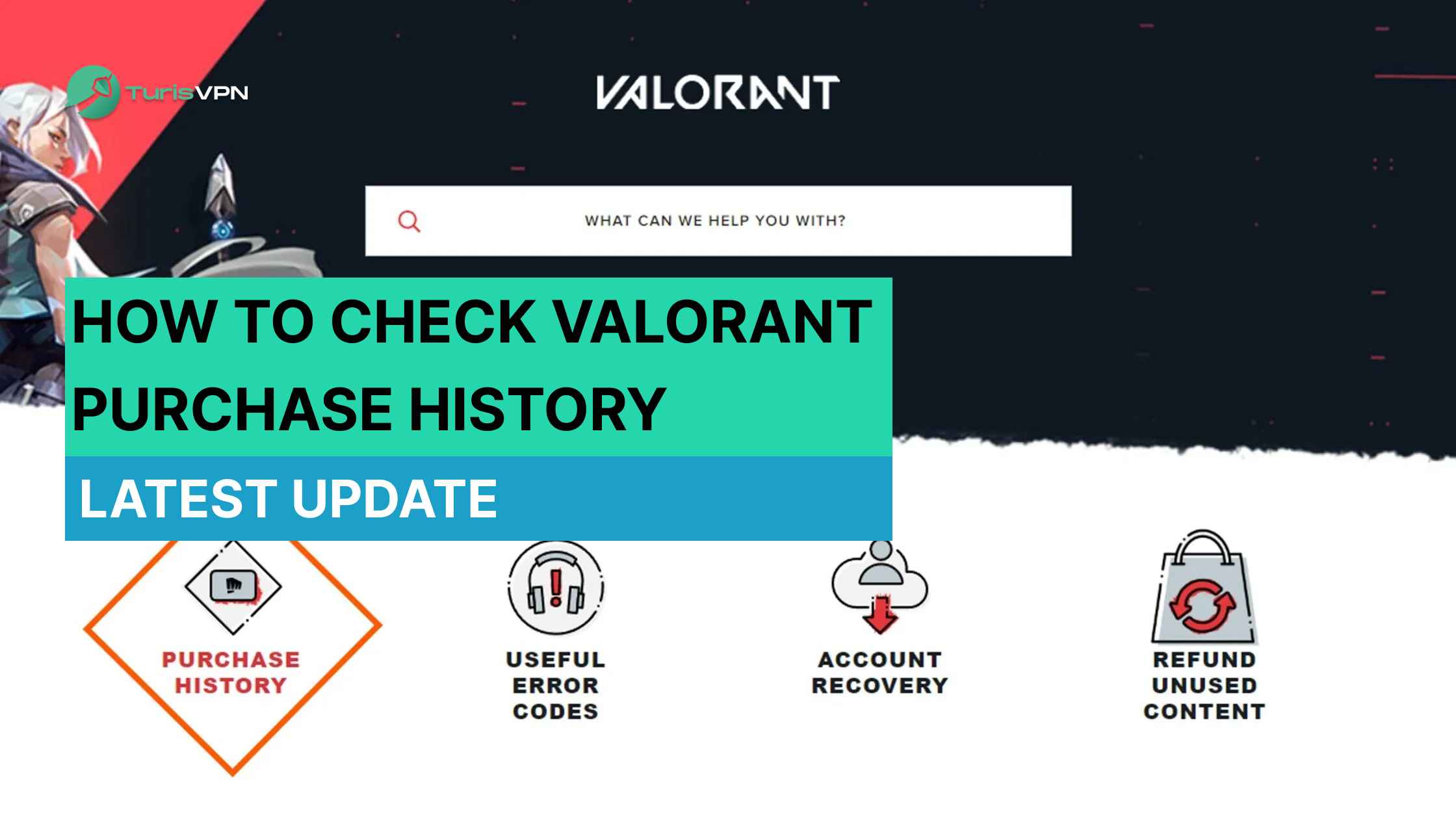
How to check Valorant purchase history? Riot’s 2025 update makes tracking your purchases easier than ever, so you can finally see where all those hard-earned Riot Points (RP) or Valorant Points (VP) went. Let’s break down the newest way to see your full Riot games transaction history (or at least know exactly what you’re flexing on your squad)! It’s all linked to your Riot account.
What Is Valorant Purchase History and Why It Matters?
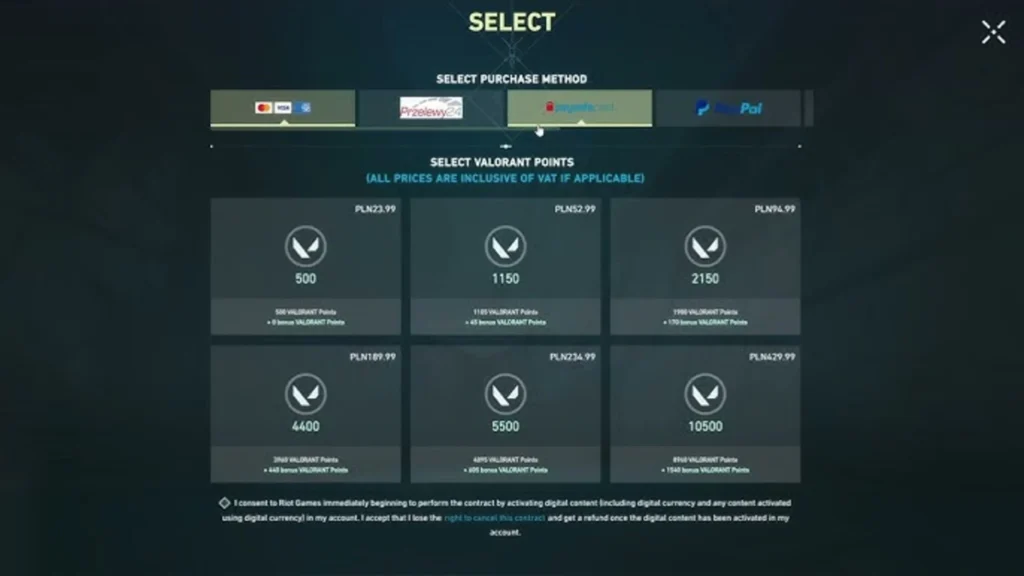
Valorant’s purchase history is a feature that lets you see everything you’ve bought in the game. You can check all your transactions, like buying Valorant Points (VP), skins, bundles, or battle passes. It’s a handy way to keep track of what you’ve spent, double-check payments, and manage your in-game purchases.
Why should you care? Because it’s really easy to lose track of your spending in games with microtransactions. One day you’re grabbing that awesome Phantom skin, the next you’re wondering where all your Riot Points (RP) or Valorant Points (VP) went.
Having access to your transaction logs helps with account management and financial planning in-game. You can see exactly what you bought and when. It also adds transparency to your transactions. For example, if you buy a bundle but it doesn’t show up in your inventory, Riot Support will usually ask for proof of purchase. Your purchase history is that proof.
How to Check Valorant Purchase History?
How do I view my history? Keeping track of your purchase history is a good way to manage your spending on microtransactions and verify your transaction logs.
Riot’s 2025 update actually made this whole thing easier. You can check Valorant purchase history in a few simple steps.
Step 1 – Log in to your Riot Games account
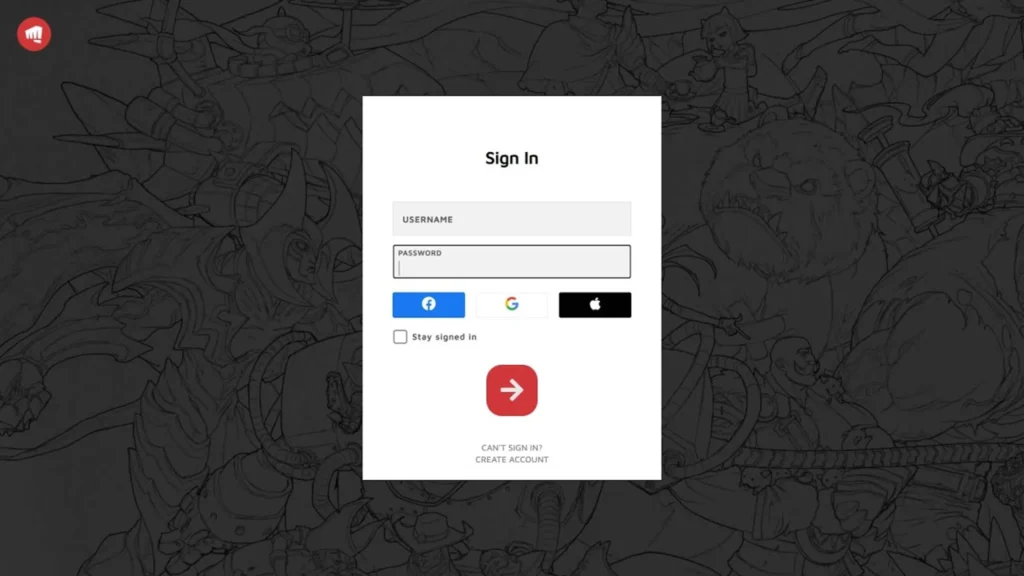
Go to Riot’s official website. Click “Sign In” and use your normal Riot account details. Make sure you use the account where you made your Valorant purchases.
Don’t overthink this step, it’s just your regular Riot login. But be smart and do it somewhere safe (not on sketchy public Wi-Fi).
Step 2 – Go to the Purchase History section
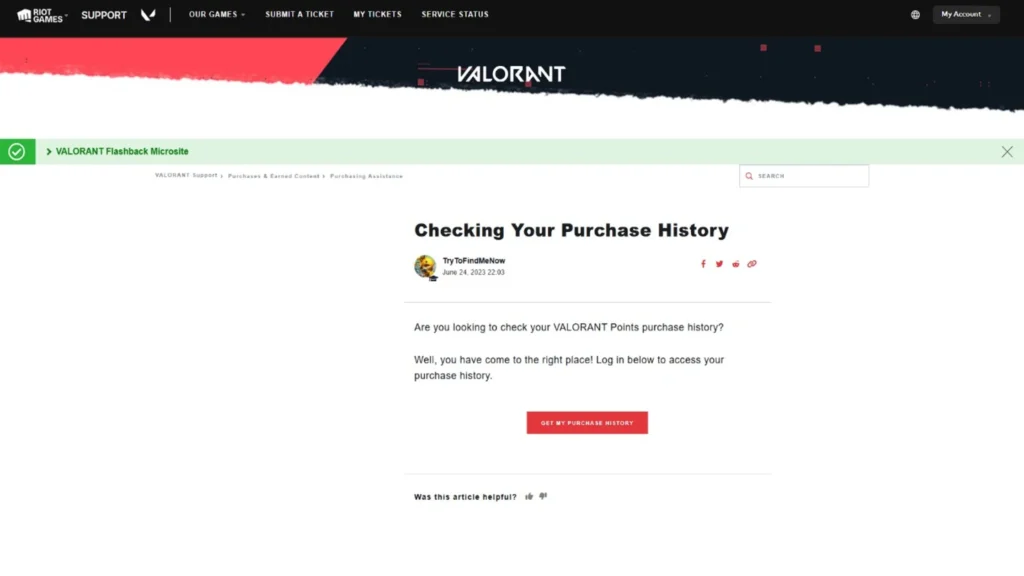
Once you’re logged in, head to your account settings or profile page. Look around for “Purchase History” or “Transaction History.” Riot usually keeps it under billing or payment settings.
Click on it.
Step 3 – Review all your transactions
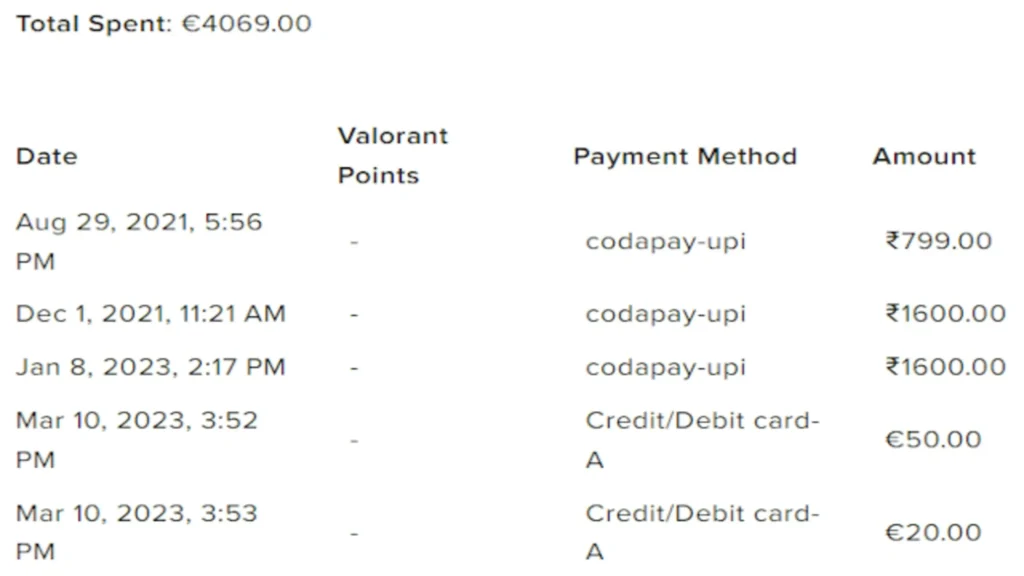
Now you’ll see your entire list of purchases. You’ll get details like:
- Date you bought it
- Item name (e.g. Reaver Bundle, Gaia Vandal)
- Amount of VP spent
- Payment method
It’s actually pretty straightforward. You’ll see the exact VP you used for each Valorant skins or bundle. It’s kind of fun (or depressing) to see just how much you’ve spent over time.
Example: You might spot that you bought the Ion Phantom on October 2 for 1,775 VP.
Step 4 – Download or save for reference
This part is handy if you want to keep records or need proof for support.
- Some accounts have an export or download button—grab that and save the file.
- Otherwise, just screenshot the page.
It’s good to have a copy, especially if something doesn’t show up in-game or you’re trying to sort out a billing issue with Riot.
Extra Tip: Check your transaction history once in a while. It’s a good way to keep your spending in check.
How Much Do You Spend on Valorant?
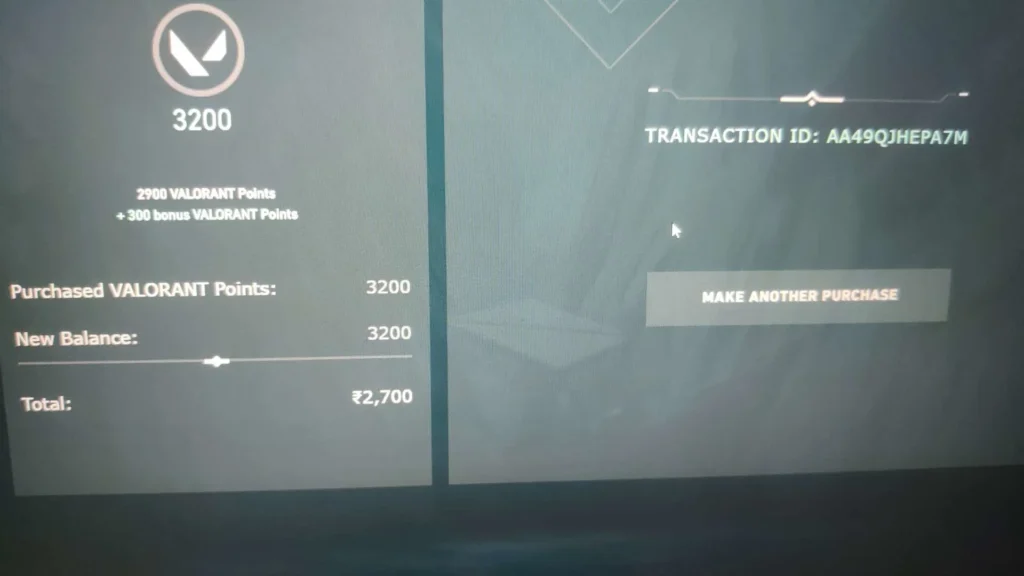
This is the part a lot of us are scared to see, honestly. When you check your Valorant purchase history, you can pretty much add up everything you’ve spent in VP.
Riot doesn’t show a total automatically, but you can see each transaction’s cost. Just scroll through your Riot purchase history and add them up.
You might see:
- Prime Vandal: 1,775 VP
- Battle Pass: 1,000 VP
- Reaver Bundle: 7,100 VP
Add those numbers and you’ll know exactly how much VP you’ve burned. If you really want to see your real money spent, you can also check your payment method receipts (like your card or PayPal account).
How to Get a Refund on Valorant Purchases?
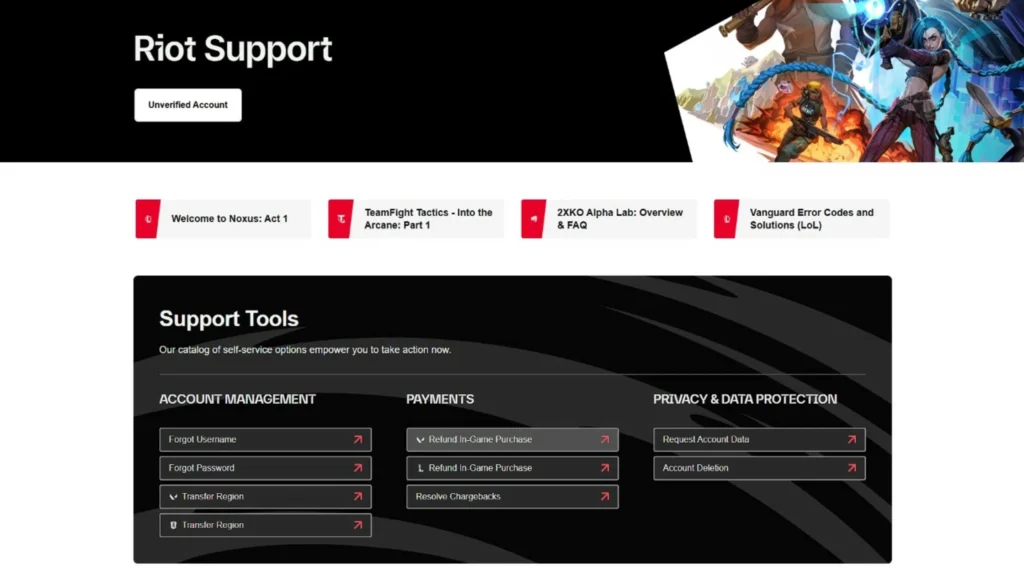
Riot does have a refund system, but it’s a little strict.
What is Valorant’s refund policy?
Riot’s refund policy is pretty straightforward but has limits:
- You can get a refund for unused content only.
- Refunds must be requested within 14 days of purchase.
- Used content (anything you equipped or played with) can’t be refunded.
If you bought a skin but never equipped it, you’re good to go. But once you load into a match with it, it’s yours forever.
Which items can be refunded?
Riot allows refunds for:
- Unused weapon skins
- Unused gun buddies
- Unused sprays
Riot doesn’t refund:
- Used content
- Battle Pass tiers
- Weapon skin levels (like upgrades)
- Radianite Points
You can refund Magepunk Vandal skin. However, if you’ve used it even once, in the practice range, there’s no refund.
How to submit a refund request to Riot Games?
Follow these steps below:
- Go to Riot’s official support site (support-valorant.riotgames.com).
- Log in with your Riot account.
- Find the “Purchase History” section.
- Look for the “Refund” button next to eligible items.
- Click it and confirm.
That’s it. Riot will process your refund for VP. Note that they don’t give real money back; you’ll just get your VP refunded.
How long does a Riot refund take?
It’s usually fast.
- For VP refunds, it can be almost instant or take up to a few hours.
- You’ll see the refunded VP in your account soon after you confirm.
For anything weird (like errors or payment issues), you might have to wait 1–3 ACC refund schedule days or work with Riot Support directly.
How to Secure Your Valorant Account Anywhere With TurisVPN?
Nobody wants their Riot account hacked. Therefore, whenever using public Wi-Fi or while traveling, you can use free VPN service to secure it.
TurisVPN helps you stay safe by encrypting your internet connection so no one can snoop on your data or steal your login. Plus, VPNs like TurisVPN can help you change servers in Valorant. You can play with friends in other regions or test different matchmaking pools.
Here’s how to use TurisVPN for Valorant:
- Step 1: Download and install TurisVPN on your device.
- Step 2: Log in to your TurisVPN account.
- Step 3: Pick a server (our top pick is the Singapore VPN. It’s reliable for gaming and often helps you get cheaper V-Bucks too).
- Step 4: Connect to the VPN.
- Step 5: Launch Valorant as usual
Now your connection is protected! VPNs won’t make you a pro overnight, but they will keep you safe from prying eyes.
How to Spend Less on Valorant (Without FOMO)
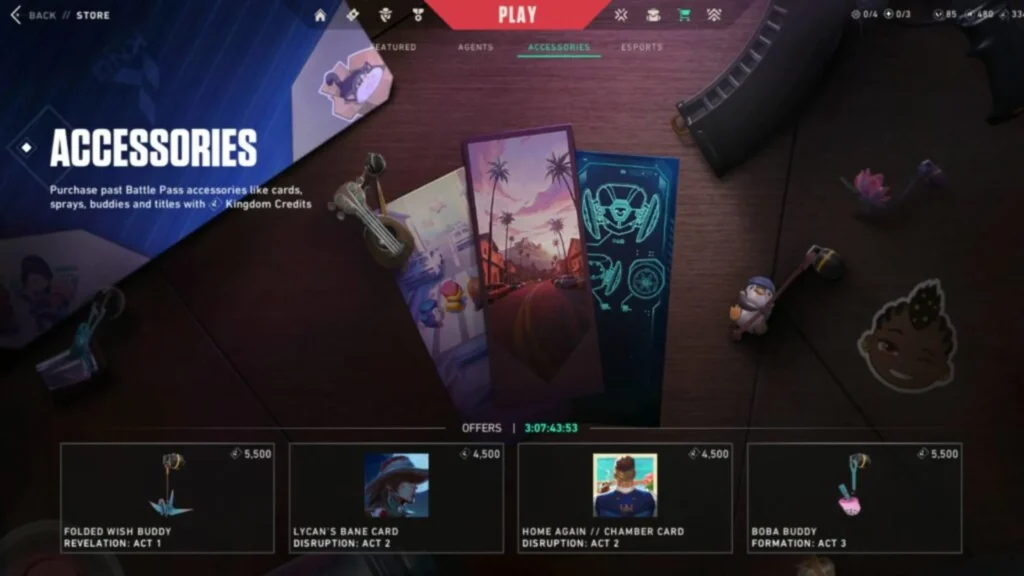
Look, we all know Riot is way too good at tempting us with shiny skins and bundles. However, you can still enjoy the game without blowing your entire paycheck on VP.
We’ve listed some good ways below.
1. Set a Monthly Skin Budget
Decide how much you’re comfortable spending each month on Valorant, then stick to it. Maybe it’s $10, $20, or even $0 if you’re in a tight month. Once you hit that limit, you’re done buying until next month.
Treat it like any other budget (food, bills, gaming skins). It helps keep you from going wild every time a new bundle drops.
2. Communicate and Coordinate with Your Team
It sounds weird, but talk to your squad.
If you play with friends, maybe you all agree to buy one skin line together instead of chasing every new release. That way you still match (for the flex) but you’re not each dropping hundreds.
Plus, coordinating skins is actually kinda fun and gives you an excuse to trash-talk enemy teams when you roll in matching sets.
3. Avoid Impulse Spending on Cosmetics
We’ve all been there: you see a new skin, hit “Buy Now” without thinking.
Try waiting 24 hours before buying anything. Often, the hype fades, and you realize you don’t really need that new knife.
Also, remember that using it in the store preview is free, so test it there to scratch the itch without spending.
4. Use Riot Purchase History to Track Spending
Check it regularly to see exactly what you bought and when.
You might realize you spent 10,000 VP in a single month without even noticing. That’s your cue to slow down and plan better.
5. Focus on Gameplay Improvement
At the end of the day, no skin will make you a better player.
If you’re on a budget, focus on learning lineups, practicing aim, and playing smarter.
Bottom Line
How to check Valorant purchase history is your key to staying in control of your in-game spending. It’s easy, quick, and gives you a clear picture of every skin, bundle, and battle pass you’ve picked up. Additionally, remember to use TurisVPN when playing Valorant in public Wifi!
FAQs
Q1. Can I sell my Valorant account?
Technically, Riot’s terms say you’re not allowed to sell or trade your Valorant account. It’s against their rules and could get your account banned. Plus, selling accounts is risky. Buyers might scam you or the new owner could get banned. So, it’s best to keep your account to yourself and enjoy the game!
Q2. How to check total time spent on Valorant?
Riot doesn’t show your total playtime directly in Valorant or your Riot account. But you can check it through third-party apps or platforms like Steam (if you play through Steam) or use Windows’ Xbox Game Bar on PC.
Q3. How to check Valorant shop on mobile?
You can check your Valorant shop through Riot’s official website on your phone’s browser by logging into your Riot account. Some third-party apps claim to show shop info, but be careful and avoid anything that asks for your login details outside Riot’s official sites.