Have you ever wondered if your iPhone has more to it than meets the eye? The answer is yes. It’s hidden in iPhone secret codes. These are not just random numbers. They are powerful tools. You might be wondering, what’s the secret code to unlock all this?
In this article, we explore 25 vital iPhone hidden codes you can use to unlock these features with TurisVPN. Whether you want to check your IMEI, control call forwarding, or perform hardware tests, these secret dialer codes give you deeper control and insight into your iPhone.
What Exactly Are iPhone Secret Codes?
iPhone secret codes, or USSD codes, are commands you type into your phone’s dialer. They are not like regular phone numbers. They send a command to your mobile network’s computer or start a hidden function on your iPhone. These hidden codes iPhone users can access are a mix of asterisks (*), pound signs (#), and numbers.
These codes fall into two categories: manufacturer-driven codes to access hardware or software diagnostics and USSD codes that communicate with your network for account or service info.
For example: The classic *#06# reveals your iPhone’s IMEI, a unique hardware ID. Codes like 3001#12345# open the Field Test Menu, showing detailed cell signal data, while others check call forwarding or activate network functions.
These iPhone secret codes for network services are a powerful way to manage your phone’s connection. They give you access to things not in the main Settings app. They offer a more direct way to control parts of your phone service, providing a powerful list of iPhone features not readily available.
How to Enter and Use iPhone Dialer Codes Safely?
Using iPhone secret codes, text messages, and other dialer codes requires caution. For example, if you manage privacy settings on your iPhone, knowing how to turn off private browsing in iPhone can be a helpful step in controlling your online footprint. This guide walks you through the process of using iPhone dial codes safely and well.
Use Official and Trusted Codes Only
- Only use well-known, proven safe codes.
- Avoid random codes found online that might damage your device or service.
- Always verify new codes with your carrier or trusted tech sources before use.
Open the Phone App and Select the Keypad
- Launch the standard Phone app on your iPhone.
- Tap the “Keypad” tab to enter secret codes.
- Codes only work when typed in the keypad; do not enter them via text messages or browsers
Dial the Code Exactly
- Type the code exactly as given, including asterisks (*), pound signs (#), and numbers.
- Mistakes may cause errors or run unintended commands.
Avoid Pressing Call on Codes That Don’t Require It
- Some iPhone keypad codes (e.g., *#06#) show results instantly after entering the last character.
- For these, do not press the green “Call” button; pressing it may trigger errors.
- Other codes (especially iPhone USSD codes) require pressing “Call” to send commands to the network.
- Always read directions carefully for each code.
Backup Your Device Before Using Reset Codes
- Before using codes that reset settings or make major changes, back up your device.
- Factory reset codes can delete all your data.
- Back up your iPhone using iCloud or a computer to restore if needed.
Test on Secondary Devices, If Possible
- If you have an old iPhone, test unfamiliar or new secret codes on it first.
- This prevents risk to personal data on your primary device.
Check Carrier Compatibility
- Some iPhone secret codes only work on specific carriers.
- A code working on Verizon may not work on T-Mobile or others.
- Confirm your carrier supports the code before using it.
- This is a key step to avoid issues
When adjusting your device’s geographic settings or wanting to access region-locked apps, follow the secure steps to change location in the iPhone App Store to avoid disruptions and maintain security.
List of iPhone USSD and Hidden Codes (2025)
This year, many old and trusted iPhone USSD codes are still used. They help you manage your device and service. Here is a list of some of the most useful codes. They give you a strong way to access iPhone hidden menus and information.
| Number | iPhone Secret Code | Description |
|---|---|---|
| 1 | *#06# | Display your iPhone’s IMEI number. |
| 2 | 3001#12345# | Open Field Test Mode, showing detailed cell signal data, a great iPhone secret code for signal strength. |
| 3 | *#21# | An iPhone secret code to check whether text messages or call forwarding are diverted. |
| 4 | *#62# | Show forwarding number for unreachable calls. |
| 5 | *#67#: | Display the call forwarding number when the line is busy. |
| 6 | ##002# | Cancel all call forwarding and conditional redirects. This is one of the most effective iPhone secret codes to unlock your call forwarding settings. |
| 7 | *#31# | Check or hide your outgoing caller ID per call. |
| 8 | *#43# | Check the Call Waiting status. |
| 9 | *43# | Activate Call Waiting. |
| 10 | #43# | Deactivate Call Waiting. |
| 11 | *#33# | Check the status of the call barring. |
| 12 | #50057672# | Display SMS service center number. |
| 13 | *#225# | Check postpaid billing status. |
| 14 | *#777# | Show prepaid account balance. |
| 15 | *#61# | Check the number of missed calls. |
| 16 | *#76# | Check the connected line presentation status. |
| 17 | *#3282# | Check usage information. |
| 18 | *#3370# | Enable Enhanced Full Rate (EFR) mode to improve call quality, with higher battery use. |
| 19 | #3370# | Disable EFR mode to conserve battery. |
| 20 | #500586# | Show voicemail mailbox settings. |
| 21 | *646# | Querie data usage and call minutes (AT&T specific). |
| 22 | *#07# | Display the Specific Absorption Rate (SAR) of your device |
| 23 | *#0228# | Check battery status and temperature. |
| 24 | Sysdump iPhone | Trigger system dump logging for advanced diagnostics |
| 25 | Emergency dialer codes like 911 | Preset emergency numbers for quick help |
These iPhone secret codes include hidden menus such as Field Test Mode, iPhone keypad codes to verify caller ID, and network-related setups, such as call forwarding control. Always use them cautiously, as some may affect device operation or reset settings.
Can You Reverse or Disable iPhone Secret Codes?
Yes, you can reverse or disable some iPhone secret codes, but it depends on the type of code used. Most secret codes only display information or open hidden menus and can be exited simply by closing the app or restarting your iPhone.
However, codes that change settings like call forwarding, call barring, or network configurations (for example, the code ##002#) can be reversed by dialing the corresponding complementary reset codes or manually adjusting settings via the iPhone’s Settings app.
Steps to disable or reverse changes made by certain secret codes:
- Open the Phone app and enter the complementary cancellation code (e.g., use ##002# to disable all call forwarding).
- Manually go to Settings > Phone and adjust any altered call forwarding, call barring, or network settings.
If changes made by secret codes cause issues that cannot be resolved manually, performing a reset will set the device to its original settings.
- Go to Settings > General > Transfer or Reset iPhone
- Tap Erase All Content and Settings
- Enter your passcode or Apple ID password when prompted
- Confirm and wait for the iPhone to reset
Many network-related secret codes affect your device’s connection and content availability. When making regional app changes, such as accessing geo-blocked apps on your phone, learning the practical steps to change location in the iPhone App Store with VPN assistance proves highly beneficial for users wanting the widest app access.
Why People Use iPhone Secret Codes in 2025
Even with all the options and settings on new iPhones, people still find iPhone secret codes useful. Users leverage these codes to:
- Quickly check device info such as IMEI or cellular status.
- Troubleshoot connectivity via USSD codes and field test menus.
- Detect unwanted monitoring or hacking with a code to check if your iPhone is being monitored.
- Access hidden iPhone activation codes or unlock networks. This is a key step in taking charge of your security.
- Run hardware or software diagnostics using iPhone hardware test code.
- Save time accessing advanced features usually buried in menus.
Stay Safe Online: Why TurisVPN Complements iPhone Secret Codes?
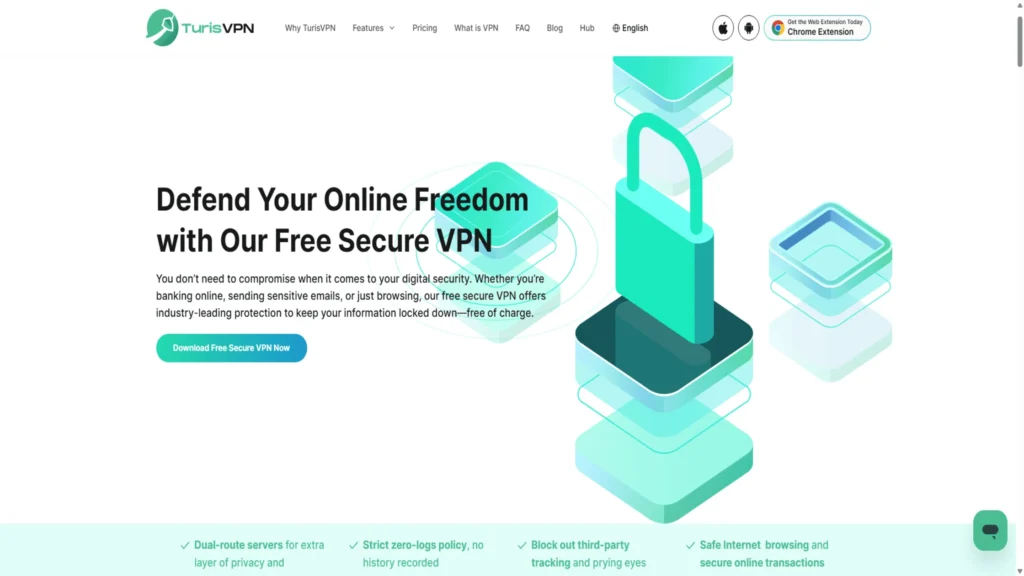
While iPhone secret codes unveil many hidden settings, protecting your privacy requires broader tools. TurisVPN secures your online activity, shields your data from tracking, and prevents location-based restrictions that may affect network features accessed by these codes. Here are short step-by-step instructions with TurisVPN:
- Step 1: Verify the iPhone secret code is official and safe to use.
- Step 2: Open TurisVPN and connect to a secure VPN server for privacy.
- Step 3: Back up your iPhone data before making changes.
- Step 4: Open the Phone app and select the keypad.
- Step 5: Enter the secret code exactly as provided, including * and # symbols.
- Step 6: Press Call only if the code requires it; some codes run automatically at the last digit.
- Step 7: Use TurisVPN’s location features if the code relates to region or network settings.
- Step 8: After using the code, monitor your phone for any suspicious activity.
- Step 9: Disconnect TurisVPN once finished, if desired, but keeping it on increases security.

A VPN can also address concerns about whether private browsing can be traced on an iPhone, and adds another layer of security to your browsing habits.
Bottom Line
Learning iPhone secret codes opens a wealth of knowledge hidden within your device, from network diagnostics and hardware checks to security audits. Using these codes carefully, backed by data backup and knowing your carrier’s compatibility, allows smarter device management.
Enhance your phone’s privacy and safety by pairing these codes with TurisVPN’s powerful protective tools. Unlocking these secrets empowers you to take full control of your iPhone in 2025.
FAQs
Q1. Can iPhone secret codes show if my phone is hacked?
Yes, codes such as *#21# or iPhone codes to see if hacked can indicate suspicious forwarding or monitoring, helping identify hacking attempts.
Q2. What does ##002 do on iPhone?
The code ##002# cancels all types of call forwarding and conditional routing on your iPhone, restoring normal call behavior.
u003cp class=u0022cta-heading mid:text-left text-center z-[10]u0022u003eStay Safe, Stay Free with TurisVPNu003c/pu003enu003cdiv id=u0022gtx-transu0022 style=u0022position: absolute;left: 312px;top: 54.8pxu0022u003enu003cdiv class=u0022gtx-trans-iconu0022u003e u003c/divu003enu003c/divu003e
Get TurisVPN for Free Now