Have you ever wondered, “Why is Call of Duty so laggy?” while in the heat of battle, only for everything to stutter, frames to drop drastically, and your opponent to easily take you down? It’s really frustrating, especially after spending hours practicing and improving your skills.
In this article, we will explore the main causes of lag in Call of Duty and provide a comprehensive guide on how to fix Call of Duty lag, including effective VPN usage.
What Causes Lag in Call of Duty?
Lag in Call of Duty can be caused by many factors such as: unstable internet connections, high ping, server congestion, outdated drivers, and overheating hardware. Whether you’re dealing with Modern Warfare lagging but internet is fine, or Warzone lagging on Xbox, understanding the reasons is the first step to fixing it.
Let’s break down the most common reasons why Call of Duty is lagging so badly for many players.
1. Poor or Unstable Internet Connection
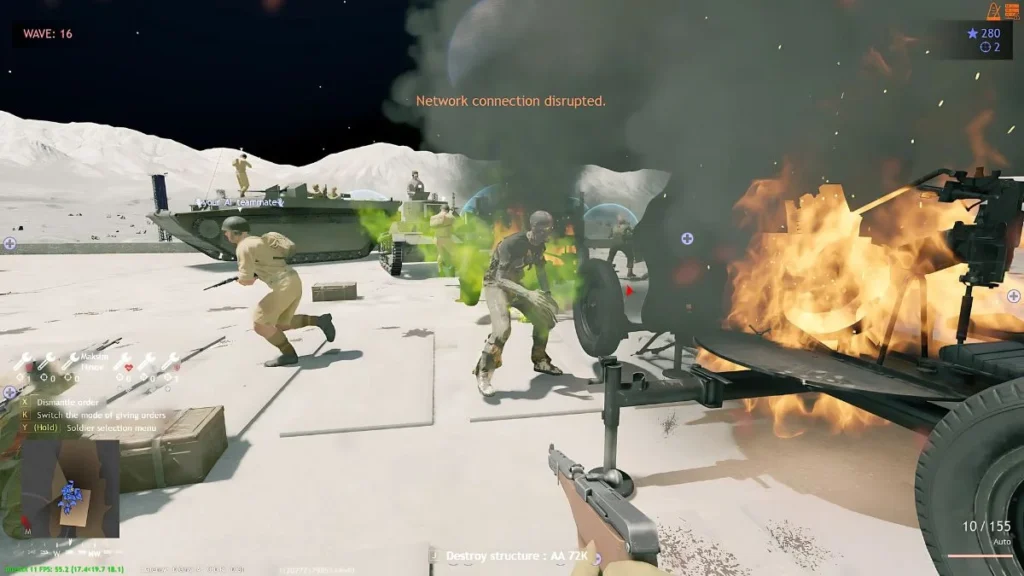
One of the biggest reasons behind COD lagging is your own internet connection. Lag happens when data packets between your device and the game servers are delayed, dropped, or slowed.
This is the most common culprit behind lag in all online games, including Call of Duty:
- Slow internet speed (less than 50 Mbps): If your internet speed isn’t sufficient for the game’s requirements, you’ll likely experience warzone servers lagging or high ping.
- Unstable WiFi connections: Packet loss or high latency due to an unstable connection will severely degrade your gaming experience.
- Wi-Fi Network congestion at home: While convenient, Wi-Fi is often less stable than a wired connection. Wi-Fi signals can be interfered with by other electronic devices, walls, or distance from your router.
2. Server-Side Issues or Maintenance Downtime
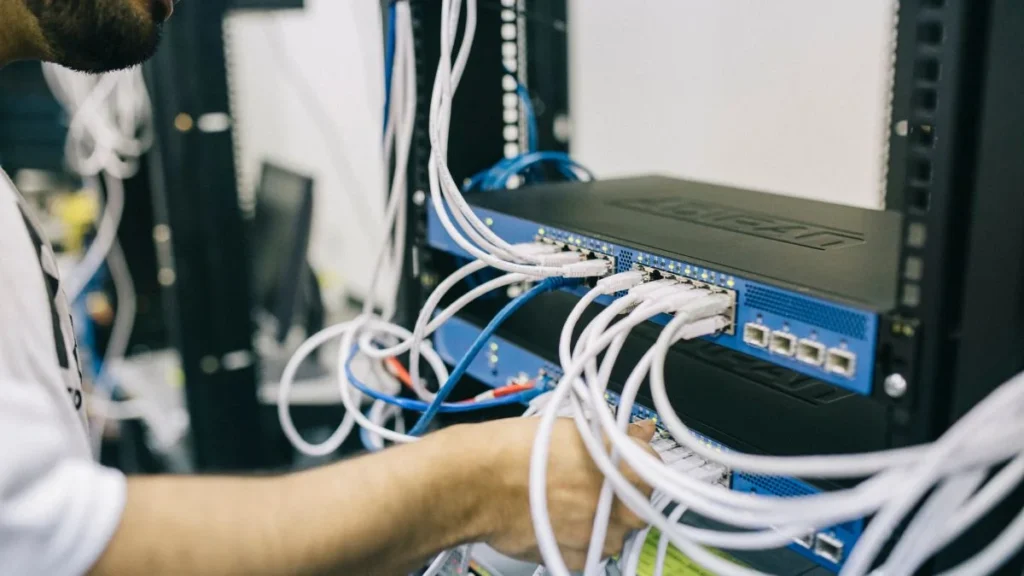
Sometimes, the problem isn’t on your end but with the game servers themselves. The issue comes from Activision’s servers, causing you to wonder is Warzone lagging right now?
- Server Overload: When too many players access the servers simultaneously, they can become overloaded, causing Warzone lagging right now for everyone.
- Servers are under maintenance or Technical Glitches: Game developers frequently perform server maintenance to ensure optimal performance. During these times, the game might lag or become inaccessible.
- High ping/ latency: When there’s a significant delay between your input and the game server’s response, ping occurs. This can result in your game character stuttering, delayed shooting, or missed actions during intense firefights.
→ It’s worth checking Activision’s server status page or community forums when Call of Duty lag issues seem worse than usual.
3. ISP Throttling or High Ping to Server
If you’re playing Call of Duty regularly, your internet provider might limit your connection speed through ISP throttling. This often happens during peak hours or when your gaming activity exceeds a certain data threshold. Throttling can be triggered by bandwidth limitations on your plan or inefficient routing by your ISP to the game servers.
When throttling occurs, it can result in noticeable packet loss, where data fails to reach the server entirely. This is one of the leading causes of lag spikes, stuttering, and actions not registering properly in-game.
High ping is another common side effect of throttling or it may happen independently when you’re connected to a game server that’s physically far away from your location. This could be due to automatic matchmaking, lack of nearby servers, or poor routing decisions made by your ISP. As a result, you may experience:
- Delayed shooting or movement
- Enemies appearing out of nowhere
- Rubberbanding (your character snapping back to previous positions)
4. Hardware Bottlenecks or Overheating
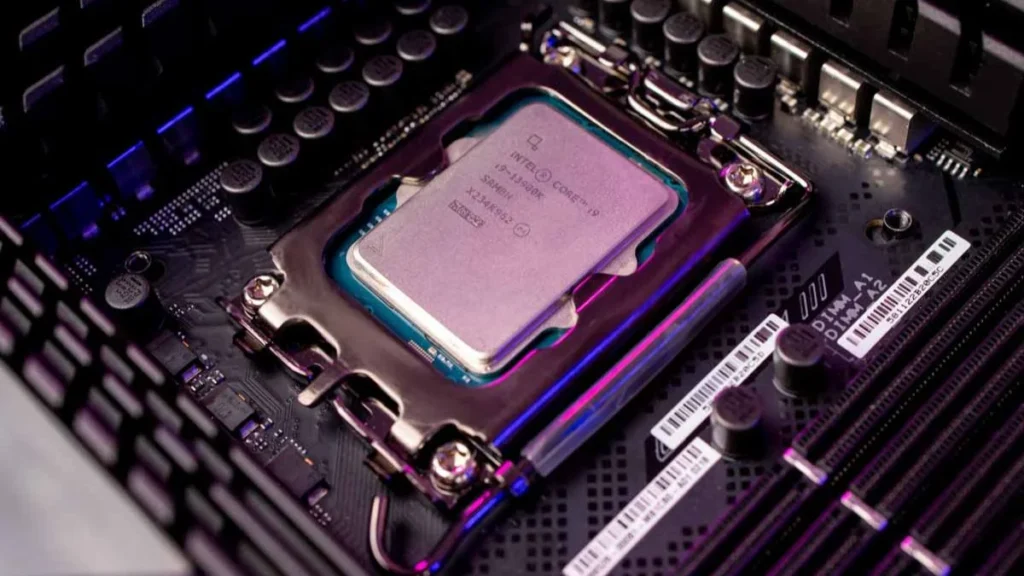
Warzone lagging PC problems often come from hardware limitations. Here are the most common causes:
- Insufficient hardware resources: Older or lower-end systems may not meet the minimum requirements for Call of Duty. A weak GPU, CPU, or low RAM can’t handle intense gameplay, leading to frame drops and input delays.
- High graphics settings: Running the game on ultra or high settings without proper hardware support will reduce FPS, screen stuttering, and increased load times.
- Overheating: When your CPU or GPU gets too hot, your system will throttle performance to prevent damage. This thermal throttling causes immediate lag, frame skipping, and possible crashes mid-game.
- Background applications: Apps running in the background like Chrome, Discord, or system updates can eat up valuable memory and processing power,
5. Background Apps and OS-Level Network Interference
You may have the best setup, but background programs can consume many system resources and reduce lag. Common issues you may face include:
- Sudden lag spikes when Windows runs updates or cloud backups in the background.
- Reduced FPS due to overlays from apps like Discord, Steam, or GeForce Experience.
- Network interference from software like VPNs or bandwidth-hungry browser tabs, causing high ping or packet loss.
- Stuttering gameplay when RAM or CPU is tied up by background processes.
Common Lag Issues Across Call of Duty Platforms
Lag can manifest differently depending on the platform you’re playing on. Let’s look at how Call of Duty lagging shows up on PC, console, and mobile.
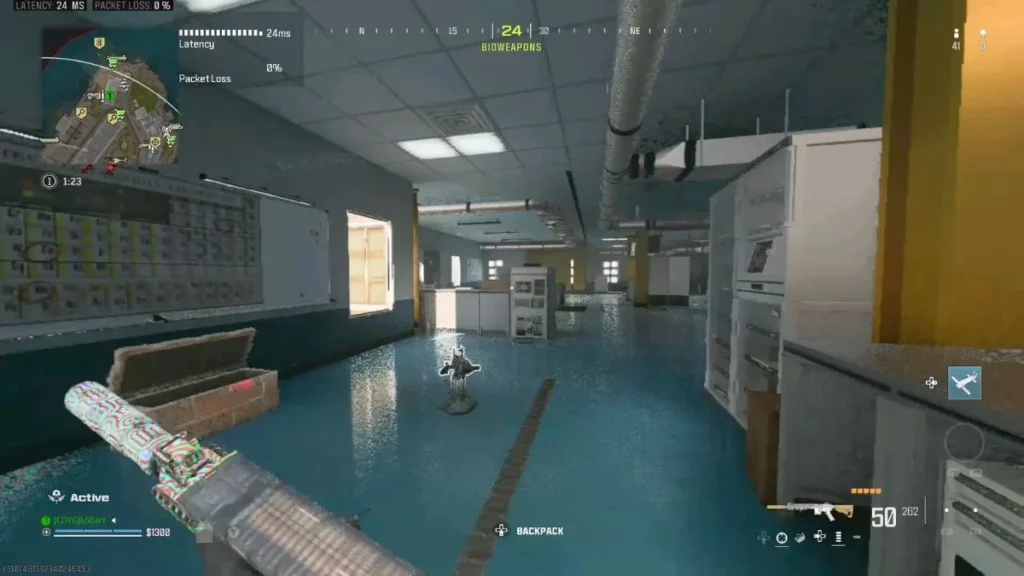
PC: Stuttering, VRAM Overload & Lag in Warzone
On PC, common lag issues include:
- Stuttering from background apps: Frequent short pauses in the game.
- VRAM Overload: When the graphics card lacks sufficient video memory, especially in Warzone-lagging PCs with detailed graphics.
- Sudden FPS Drops: Frames per second drop sharply to unacceptable levels.
Consoles (Xbox One & PS5): Warzone Lag & Frame Drops
Console players also suffer from lag:
- Xbox One Warzone lag: Older console generations may struggle more with processing Warzone’s graphics.
- PS5 players sometimes experience rubberbanding during intense moments
- Frame Drops: The number of frames per second (FPS) suddenly decreases, making the game less smooth.
Mobile (iOS/Android): FPS Drops from Throttled Connections
On mobile, lag usually appears as:
- Sudden FPS Drops: Often occur due to an unstable mobile network connection or an overheating device.
- Throttled Connections: Your mobile carrier might reduce internet speed after you’ve used a certain amount of data.
- Network lag icon appearing when switching from WiFi to 4G/5G
How to Use TurisVPN to Reduce COD Lag
Did you know a VPN can help fix lag in Call of Duty? TurisVPN is designed to improve gaming stability by optimizing your connection.
Why Use a VPN to Improve Gaming Stability
Here’s how TurisVPN can help you improve gaming stability in several ways:
- Bypass ISP Throttling: TurisVPN encrypts your traffic, making it difficult for your ISP to identify and throttle your gaming bandwidth.
- Connect to low-ping servers: By connecting to a VPN server geographically closer to the game server, you can potentially reduce ping and improve connection speed.
- Reduce Packet Loss: TurisVPN can reroute your connection through more stable and secure tunnels, helping to minimize packet loss.
- Fix warzone lagging PC or console issues by reducing packet loss
Many players see smoother gameplay when they route through gaming-optimized VPN servers.
How to Set Up TurisVPN for Gaming
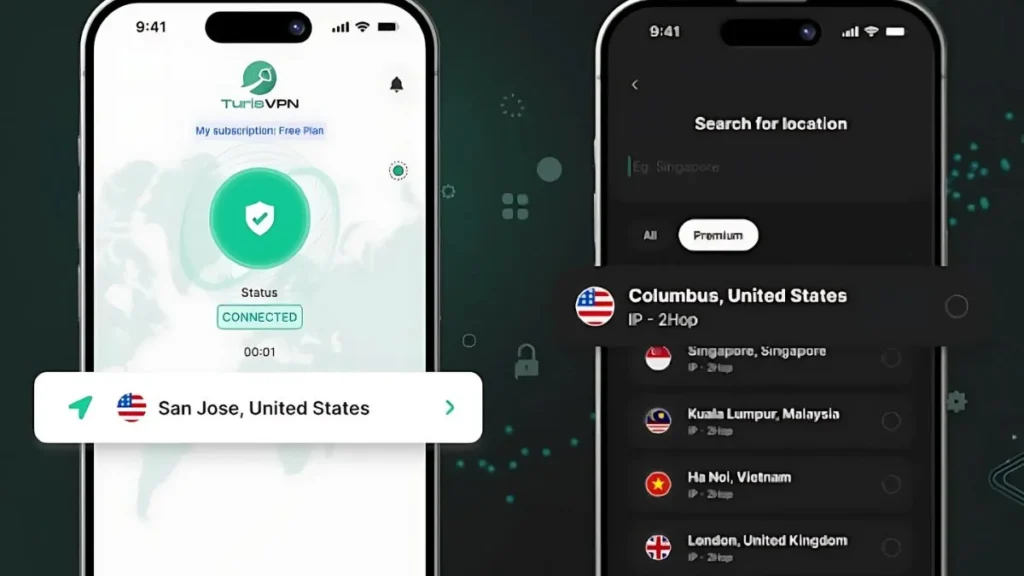
Setting up TurisVPN for gaming is straightforward:
- Download TurisVPN on your mobile device and install the application.
- Log In or Sign Up: Open the app and log in with your TurisVPN account. If you don’t have one, you can sign up for a new account.
- Choose a Server: Select a VPN server that is geographically close to the Call of Duty game server you are playing on. For instance, if you’re playing on an Asian server, choose a TurisVPN server in Singapore VPN or Malaysia VPN for the best ping.
- Launch Call of Duty, and enjoy reduced lag!
How to Fix Call of Duty Lag: Full Troubleshooting Guide
There’s no single magic fix for Call of Duty lag. Every gamer’s setup is a little different, which means you may need to try a few solutions to see what works best for you. Below is a complete troubleshooting checklist to help you reduce lag and enjoy smoother gameplay.
1. Optimize Your Network Connection
Start with your internet connection since it’s often the biggest culprit behind lag.
- Whenever possible, play on a wired Ethernet connection. It’s much more stable than WiFi.
- If Ethernet is not an option, use 5 GHz WiFi instead, which has lower interference and faster speeds than 2.4 GHz.
- To fix any small network issues, restart your router on a regular basis—at least once a week.
- You can also contact your ISP to upgrade your internet speed or troubleshoot high ping issues.
If you frequently switch servers in games like Valorant, check out this guide on how to change servers in Valorant for extra tips on improving connection stability.
2. Select the Most Reliable Server
Lag can occasionally occur when connecting to a distant server.
- You can choose the nearest server region in Call of Duty by using the in-game network options.
- Avoid being placed in cross-region lobbies by random matchmaking.
- Always keep an eye on the ping display in the main menu; a higher ping usually denotes more lag.
If you enjoy other online games, you might also be interested in how to change your region in League of Legends, which follows similar steps to reduce ping.
3. Tune In-Game Settings
Lowering graphics settings can go a long way, especially if you’re on older hardware.
- Reduce your render resolution for smoother performance.
- Turn off motion blur—it adds lag without improving visuals.
- Lower shadow details for extra FPS.
- Disable Ray Tracing unless you have a high-end graphics card.
4. Keep Software Up to Date
Many hidden lag problems are caused by outdated software.
- Make sure your Call of Duty game is always updated to the latest version.
- Keep your graphics drivers current—NVIDIA and AMD release regular updates that improve gaming performance.
- If you play on console, check for system firmware updates to avoid unexpected bugs or slowdowns.
5. Use Optimization Tools
Your connection can be stabilised and system resources cleaned up with a few easy tools.
- When gaming on a PC, Razer Cortex can be used to automatically end background processes.
- To connect to optimised game servers and avoid ISP throttling, use a Free VPN.
- To give your game priority for system resources on Windows or Xbox, turn on Game Mode.
6. Hardware and Device Care
Lag can also be hardware-related, especially if your device is overheating.
- Clean dust from your PC or console every few weeks.
- If you notice overheating, invest in external cooling fans.
- Replace older hard drives with a solid-state drive (SSD)—you’ll notice much faster loading and fewer stutters.
If you follow gaming trends, you might be wondering if Black Myth Wukong is cracked. Just like any other game, good hardware maintenance will make sure your system runs it smoothly when it comes out.
7. Minimize Software Conflicts
Background programs often eat up bandwidth and CPU power without you realizing.
- Before launching COD, close apps like Netflix, Discord, and Chrome.
- Disable background recorders like Xbox Game Bar or NVIDIA ShadowPlay.
- Turn off any cloud sync services, like OneDrive or Google Drive, while gaming.
Extra Tips to Boost Performance in Call of Duty
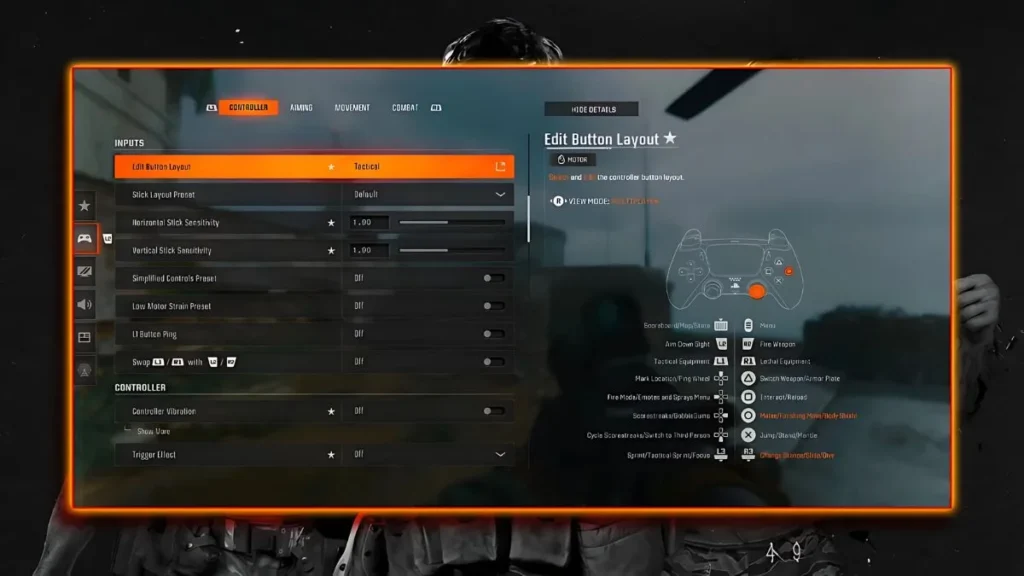
Here are some additional tips to optimize performance and address issues like “why is call of duty so laggy”:
Play Wired Instead of WiFi
Using wired Ethernet can cut ping by 30-50% compared to WiFi, especially on consoles where warzone lagging on Xbox is common.
Turn Off Background Recording/Overlay Tools
Software for background recording like Xbox Game Bar, NVIDIA ShadowPlay, AMD ReLive, Discord Overlay, or OBS can consume significant resources. Therefore, you should turn off these apps before playing Call of Duty.
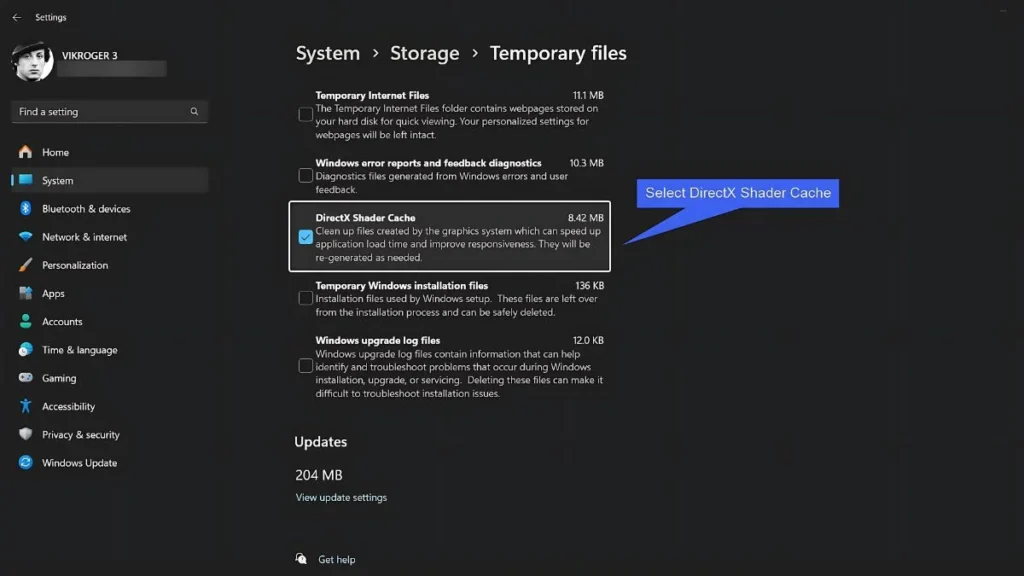
Clear Shader Cache Regularly
Clearing your shader cache can resolve visual glitches and stuttering that sometimes occur due to corrupted or outdated shader files.
Reset it every few weeks to prevent lag spikes: Go to Settings → Graphics → Restart Shader Compilation.
Bottom Line
If you’ve been wondering why is Call of Duty so laggy, this guide covers everything from fixing your internet connection, adjusting game settings, optimizing your hardware, to using TurisVPN for more stable gameplay.
Next time you experience lag, come back to this guide and fix it quickly – so you can get back to enjoying smooth, competitive COD action.