







High ping on Fortnite feels like a constant battle against your internet connection. Every shot, every movement, seems delayed, and the frustration is real. Luckily, there are a few simple tricks on how to reduce ping in Fortnite that can help you minimize lag. Let’s dive into how you can finally play the way you were meant to!
What is Ping and How Does it Affect Your Gameplay?
Why is Fortnite lagging?
Occasionally, Fortnite’s servers can experience issues, leading to widespread lag and high ping for players. These problems are usually temporary and get resolved quickly by the game’s developers. Check Fortnite’s official channels for updates, or use social media to see if other players are experiencing the same issue.
How To Get Low Ping On Fortnite With TurisVPN?

How to get less ping in Fortnite?
If you’re looking for a simple and effective way to reduce your ping in Fortnite, using a free VPN like TurisVPN can help. VPNs can connect you to servers closer to any game servers (especially good for games like Fortnite or PS Plus) or bypass traffic bottlenecks.
1. Download and Install TurisVPN
First, download and install the TurisVPN application on your device. It’s easy to install and set up, and it works across multiple platforms, including mobile and Web Extension. Once installed, open the app to begin the process of lowering your ping.
2. Connect to the Nearest Server
Open the TurisVPN app and choose a server location that’s closest to your region or the Fortnite server you want to connect to.
3. Restart Your Fortnite Game
After connecting to the server, restart your Fortnite game to ensure that the connection routes through the VPN. This will help to maximize your connection speed and minimize Fortnite server lag in the game.
4. Test Your Ping
Once you’re in the game, check your ping to see how much it’s improved. With TurisVPN, you should notice a reduction in ping and a smoother overall gaming experience. If your ping is still high, try connecting to a different server or contact TurisVPN support for further assistance.
Another Way to Get Low Ping on Fortnite: Proven Techniques
Below, we’ve listed some proven techniques that can help lower your ping and enhance your Fortnite gameplay experience.
1. Use a Wired Ethernet Connection
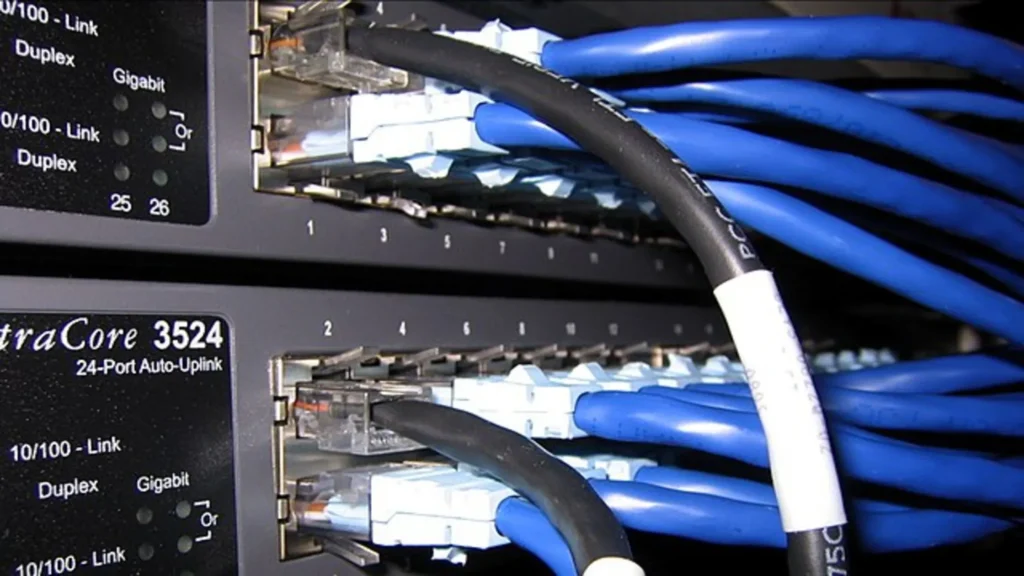
Switching from Wi-Fi to a wired Ethernet connection can have a significant impact on your ping. Wi-Fi is often unstable and prone to interference, whereas Ethernet provides a direct, stable connection to your router.
2. Select the Closest Fortnite Server Region
Fortnite offers multiple server regions across the globe. Choosing the closest server region to your location helps reduce the distance your data travels.
- Open Fortnite and go to the “Settings” menu.
- Click on the “Game” tab and look for the “Matchmaking Region” option.
- Choose the server that is geographically closest to you. The ping should be displayed next to each region.
- Select your preferred server and save the settings.
3. Employ a Ping Reduction/Boosting Tool
Several tools and applications are designed specifically to reduce ping and boost connection stability.
- ExitLag: A ping booster that optimizes routing paths to reduce lag and packet loss.
- WTFast: A GPN (Gamers Private Network) that reduces ping and latency.
- NoPing: Focuses on reducing packet loss and providing a more stable connection to game servers.
4. Disable Nagle’s Algorithm on Your PC
Nagle’s Algorithm is a feature that combines small packets into larger ones before sending them over the network. While this can reduce network traffic, it can also introduce delays, especially in fast-paced games like Fortnite.
- Open the Windows Registry Editor (press Win + R, type regedit, and hit Enter).
- Navigate to HKEY_LOCAL_MACHINESYSTEMCurrentControlSetServicesTcpipParameters.
- Look for TcpAckFrequency and set its value to 1.
- Restart your computer to apply the changes
5. Close Background Applications and Devices Using Bandwidth
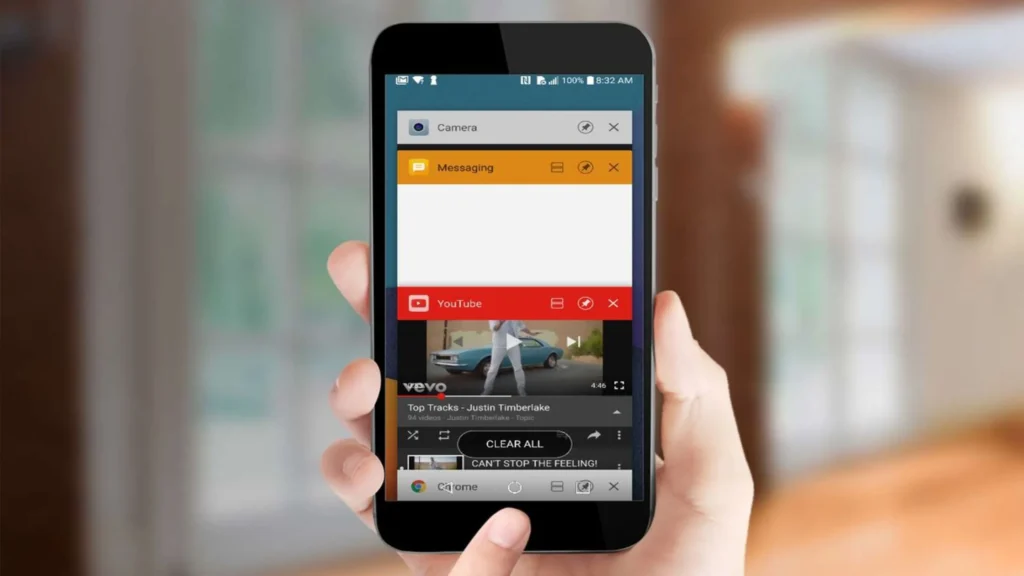
Background apps (like streaming, downloads, game platforms like Softonic, or updates) can consume bandwidth. You should:
- Close streaming platforms (Netflix, YouTube) while playing.
- Pause any ongoing downloads or updates.
- Limit the number of devices connected to your network during gaming.
6. Optimize Network Hardware and Firmware
Outdated or inefficient network hardware can contribute to high ping (sometimes around 1000 ping Fortnite). Make sure your router and modem are up to date and optimized for gaming.
- Check for firmware updates for your router/modem. This can improve performance and fix known issues.
- If your router is old, consider upgrading to a more gaming-friendly model with features like Quality of Service (QoS) to prioritize gaming traffic.
7. Adjust In-Game Settings
Fortnite has settings that can help optimize your connection and reduce latency.
- Set Matchmaking Region to the closest server.
- Lower graphic settings to reduce strain on your system and focus on performance.
- Use Performance Mode for faster load times and reduced input lag.
Optimizing Your Network for Better Fortnite Performance

To get the best performance out of Fortnite, optimizing your entire Fortnite networking setup is the most important part.
1. Update Your Router’s Firmware Regularly
Router manufacturers frequently release firmware updates to improve performance and security. Keeping your router’s firmware up to date!
- Log in to your router’s settings page (typically through a web browser).
- Look for the firmware update section and follow the instructions to install the latest version.
2. Move Closer to Your Router for Better Wi-Fi
If you’re playing Fortnite over Wi-Fi, ensure that your device is within a reasonable range of the router.
- Try to stay within the same room or area as your router.
- Avoid physical obstructions like walls or large appliances that can block Wi-Fi signals.
3. Prioritize Your Device on the Network for Faster Ping
Some routers have Quality of Service (QoS) settings that let you prioritize specific devices on the network.
How to set up QoS?
- Access your router’s settings and look for the QoS section.
- Add your gaming device to the list of high-priority devices.
- Save the settings and restart your router for the changes to take effect.
Bottom Line
To wrap it up, how to get low ping on Fortnite is all about making simple but effective changes. With our strategies, you’ll be ready to take on Fortnite like a pro!