Knowing how to check if a VPN is working is the first step to ensuring your digital privacy remains intact. Many users blindly trust their “Connected” status, only to discover later that their real data was exposed the entire time.
If you don’t verify this, you might as well not be using one. In this guide, we will walk you through the essential tests to confirm your security, ensuring that TurisVPN or any other service is doing its job correctly.
How to Check If VPN Is Working

Before you start browsing sensitive sites or streaming geo-blocked content, it is vital to run a few diagnostic tests to ensure your encryption tunnel is actually holding up against leaks.
Step 1: Check if your public IP address has changed
The most fundamental way to verify protection is to see if your public identifier is hidden. When you connect to our servers, your actual IP address should be replaced by one from our network.
How to check your IP address:
- Disconnect your VPN completely.
- Visit an IP lookup site, such as WhatIsMyIP.com, ipinfo.io, or ipleak.net.
- Note down the IP address and location displayed (this is your real identity).
- Turn on VPN and connect to a server in another region
- Refresh the page.
If the number remains the same, your VPN is not functioning properly. A working VPN must display a different set of numbers associated with the server location you chose. This is critical because what someone can do with your IP includes tracking your physical location and targeting you with cyber attacks.
If the IP address matches your actual location, you are vulnerable. By learning how to check if your VPN is working, you prevent third parties from logging your activity.
Step 2: Confirm your virtual location (country/region)
Sometimes an IP changes, but the location data does not update correctly, which can lead to frustrating blocks on streaming platforms.
How to verify your virtual location:
- Connect to a specific server country (e.g., the UK or Japan).
- Go to a site like iplocation.net or any IP-based geolocation service.
- Verify that the detected country and city match the VPN server, not your home location.
- Open a major streaming or news site and see which regional catalogue or homepage you get.
If you encounter content intended for a different region, repeat the steps and switch to a different server. This is one of the most practical ways to test whether a VPN is working or not when you need access to specific libraries or websites.
If you encounter issues with platforms like Netflix, our guide on ‘VPN Netflix not working‘ explains why some IP ranges get blocked and how choosing better servers can help.
Step 3: Test for DNS leaks
Even if your IP is hidden, your DNS requests for the “phonebook” lookup of websites you visit might still be going to your ISP.
How to test for DNS leaks:
- Disconnect the VPN service.
- Visit a DNS leak test site such as dnsleaktest.com or ipleak.net.
- Run the extended test and note the DNS servers and countries listed.
- Connect to VPN and repeat the same extended DNS leak test.
- Confirm that all DNS servers now belong to the VPN network or the VPN’s trusted resolvers, not to your ISP.
If DNS entries from your ISP still appear, you have a leak. In that case, you can toggle your DNS settings inside your operating system or router and let TurisVPN handle DNS resolution. You can also learn more about how your ISP sees your traffic in our article on Does a VPN hide search history from your ISP and browser.
Step 4: Test for WebRTC leaks
WebRTC is a browser feature that enables voice and video chat, but it can also inadvertently reveal your actual IP address, even behind a VPN.
How to check for WebRTC leaks:
- With the VPN disabled, visit a dedicated WebRTC leak test site. (browserleaks.com/webrtc).
- Note the IP addresses shown under WebRTC or “local and public IPs.”
- Turn VPN on and reconnect to the same leak test page.
- Ensure that only your VPN IP address (and not your actual IP address) appears in the WebRTC section.
If your home IP or local private address appears as a “public” IP in the results, you should disable WebRTC via browser settings or use extensions that control it. For anyone who wants strong, reliable anonymity, mastering how to check if vpn is working or not at the WebRTC level is just as important as checking basic IP data.
Step 5: Check your VPN kill switch status
A kill switch is your failsafe; if the VPN connection drops for a millisecond, the kill switch should cut your internet to prevent data leaks.
How to test your Kill Switch:
- Enable the VPN service and turn on any available “block traffic without VPN” or kill switch option in the settings.
- Start a background activity such as streaming or downloading a file.
- Manually disconnect your VPN or force your device to switch networks (e.g., Wi-Fi to mobile data).
- Check whether your connection drops instead of quietly continuing without the VPN.
If your internet continues to work immediately without the VPN, the kill switch is off or broken. Your internet should stop entirely until the VPN reconnects. This ensures that no data packet ever leaves your device unencrypted. This is a vital safety mechanism for anyone living in areas with high censorship.
Step 6: Test your VPN connection speed
A working VPN usually introduces a slight speed drop due to encryption overhead, but a massive drop indicates a problem.
How to test VPN speed:
- Run a speed test on Speedtest.net or Fast.com without the VPN.
- Turn on VPN and connect to a nearby server.
- Run the test again.
If your speed drops by 90%, there is likely an issue with the protocol or server. However, if your speed is exactly the same or faster, the VPN might not be encrypting data at all.
Understanding how much data a VPN uses per hour and the speed trade-off helps you distinguish between a working encrypted connection and a “fake” connection that isn’t actually tunnelling traffic.
How to Make Sure Your VPN Is Turned On

Sometimes the technical tests are overkill, and you just need to know the quick visual cues on your device to ensure you are protected.
Check your VPN app dashboard
The most obvious indicator is the app’s interface, which is designed to provide a clear status update.
How to check the dashboard:
- Open the application.
- Look for a large “Connected” button or a green status bar.
- Read the “Current IP” displayed on the dashboard.
If the app displays “Disconnected” or “Connecting…” for an extended period, you are not safe. The dashboard is your mission control. We design our interface to be unambiguous. If you are unsure how to check if the VPN is working, this screen is your first source of truth. Always wait for the confirmation message before minimising the window.
Look for a connected icon (mobile/desktop)
Mobile devices and desktops often display small status icons in the notification bar or system tray, providing instant feedback.
How to check system icons:
On iPhone (iOS): If you are wondering how to check if the VPN is working on iPhone, you should watch out for these:
- Modern iPhones (Face ID/Notch): Due to limited space in the status bar, you will likely not see the VPN icon on the home screen. You must swipe down from the top-right corner to open the Control Centre. The small “VPN” box will appear near your battery percentage or Wi-Fi signal.
- Older iPhones (Home Button): The “VPN” icon should appear directly in the top status bar.
On Android: Similarly, for those asking how to check if VPN is working on Android, look for a small key icon (or sometimes a lock/shield icon) in the top status bar. This is the universal sign of an active VPN tunnel on Android 10, 11, 12, 13, and 14. If you have many notifications, you may need to pull down the notification shade to see them clearly.
On Windows/Mac: Look for the VPN logo in the system tray (bottom right for Windows, top right menu bar for Mac).
If these icons are missing, the system does not recognise an active VPN connection.
Verify connection protocol (OpenVPN, WireGuard, etc.)
Different protocols offer varying levels of security and speed, and verifying which one is active can indicate whether the connection is stable.
How to check your protocol:
- Open the VPN settings and look for the protocol menu.
- Select WireGuard for the best mix of speed and security in most cases.
- If a network blocks UDP traffic, switch to OpenVPN over TCP when available.
- Reconnect and redo your IP and DNS tests to confirm that the new protocol still passes every privacy check.
We generally recommend WireGuard for speed or OpenVPN for stability. If you are interested in the differences, our guide on WireGuard vs OpenVPN explains why choosing the right one matters. Sometimes, switching protocols can fix a “connected but not working” state.
Ensure auto-connect is enabled
The best way to ensure your VPN is working is to prevent it from turning off without your knowledge.
How to enable auto-connect:
- Open VPN and navigate to Connection or Startup settings.
- Toggle “Auto-connect on launch” or “Always-on VPN.”
- Select “Connect on untrusted Wi-Fi.”
- Restart your device once and confirm that the VPN connects automatically.
This removes human error from the equation. You won’t have to constantly ask how to check if the VPN is working if the software is programmed to connect the moment you go online. This is especially useful for mobile devices that frequently switch between data and Wi-Fi networks.
Common Reasons Your VPN Is Not Working

If you have run the tests above and found leaks or connection failures, understanding the root cause is necessary to get back online safely.
1. Unstable or No Internet Connection
A VPN relies entirely on your existing network to build its encryption tunnel. It cannot generate an internet signal on its own. When your Wi-Fi signal fluctuates or drops data packets, the tunnel loses its structural integrity.
The VPN client will constantly try to re-establish a “handshake” with the server, but the poor connection prevents this synchronisation, leading to an endless “Connecting” loop.
How to verify internet connectivity:
- Disconnect the VPN.
- Try to load a basic news website.
- If it fails, reset your router.
If you are trying to determine whether the VPN is working or not, always rule out your Wi-Fi connection first. A patchy signal will cause the VPN handshake to fail repeatedly, leading to a “Connecting” loop that never resolves.
2. Firewall or Antivirus Interference
Modern security suites aggressively monitor network traffic for irregularities to protect your device. Since VPN encryption scrambles your data into an unreadable format, some strict firewalls and Antivirus software misinterpret this traffic as a potential threat or malware communication.
Consequently, the security software blocks the specific communication ports (such as 443 or 1194) required for the VPN to communicate with the outside world.
How to check firewall settings:
- Open your Antivirus or Windows Defender.
- Check the “Quarantine” or “Blocked Apps” list.
- Add the VPN service to the “Exclusions” or “Allow” list.
If your firewall is blocking the specific ports we use, the app may appear connected but transmit no data. This is a common conflict that prevents the VPN from establishing a handshake with the server.
3. VPN Server Issues
Physical servers have limits on bandwidth and user capacity. If too many users crowd a single server location, it becomes overloaded and rejects new connection requests to maintain stability for existing users. Additionally, servers occasionally go offline for necessary hardware maintenance. In these cases, your device sends a request that simply hits a dead end.
How to troubleshoot server issues:
- Disconnect from the current server.
- Choose a server in a different country.
- Attempt to connect again.
If the second server works, the first one was likely the culprit. This is a crucial step in verifying that the VPN server is functioning properly. Servers can go offline unexpectedly, so hopping locations is a quick fix.
4. Outdated VPN Software or Settings
VPN protocols and security certificates evolve rapidly to stay ahead of hackers. An outdated client application often attempts to connect using deprecated encryption methods that the modern server no longer accepts.
This version mismatch creates a compatibility barrier, causing the server to terminate the connection immediately upon initiation to prevent security risks.
How to update software:
- Check the App Store or our website for the latest version.
- Uninstall the current app.
- Reinstall the fresh version.
Old software may lack the latest security patches or protocol updates required to bypass new censorship blocks. Keeping your app updated ensures you have the latest tools to combat ISP blocking of websites and other restrictions.
5. Incorrect Login Credentials or Account Status
The authentication process acts as the gatekeeper of the VPN tunnel. If you change your password or your subscription expires, the server will be unable to validate your access token. The app may appear to be attempting to connect, but the server silently rejects the request because the provided credentials do not match the active database records.
How to check account status:
- Log in to your VPN service.
- Verify your subscription is “Active.”
- Re-enter your username and password in the app.
A silent authentication failure can sometimes look like a connection timeout. Always ensure your account is in good standing if the VPN connection fails.
6. ISP or Network Restrictions
Many Internet Service Providers and public networks (like schools or hotels) use Deep Packet Inspection (DPI) to analyse traffic patterns. They look for the specific digital signature of VPN protocols. Once identified, the network applies a firewall rule to drop these packets, preventing you from bypassing their content filters or throttling mechanisms.
How to bypass ISP blocks:
- Switch to a different protocol (try TCP instead of UDP).
- Enable “Obfuscated Servers” or “Stealth Mode” in settings.
If you suspect your provider is the issue, reading up on ISP blocking websites can help you understand the techniques they use.
Checking Your VPN Status with TurisVPN

TurisVPN is designed to make all these checks simple while giving you the control you need to verify everything. Instead of relying on vague status messages, you can utilise our features in conjunction with external tools for genuine proof. Here is a short routine for how to check if vpn is working with TurisVPN:
- Open the TurisVPN app on your devices or browsers and log in.
- Connect to a preferred server.
- Confirm the in‑app “Connected” state and session details.
- Run an IP checker and DNS leak test in your browser.
- Optionally, run a speed test to confirm performance.
How to Fix a VPN That Is Not Working
If you have identified a problem, follow this structured path to resolve it and get your encryption back on track.
Step 1: Basic Checks
Begin with the easiest fixes that address the most common issues. This also allows you to quickly show others how to check if a VPN is working or not without needing to dive into complex settings.
How to perform basic fixes:
- Restart the app: Close TurisVPN completely and reopen it.
- Restart your device: A reboot clears network caches.
- Check your internet: Ensure you are online.
These simple steps reset the network stack and often clear out temporary glitches that stop the VPN from tunnelling correctly.
Step 2: Advanced Troubleshooting
If basic steps do not help, move into more advanced checks. These target deeper issues, such as protocol blocks, DNS misconfigurations, or security software conflicts.
How to perform advanced fixes:
- Flush DNS: Open Command Prompt and type ipconfig /flushdns.
- Change Ports: Manually select port 443 (HTTPS) or 1194.
- Reinstall drivers: In Device Manager, uninstall TAP/TUN drivers and let the app reinstall them.
These steps address deeper conflicts within your operating system that might be preventing the VPN from modifying your routing table.
Step 3: Seek Help
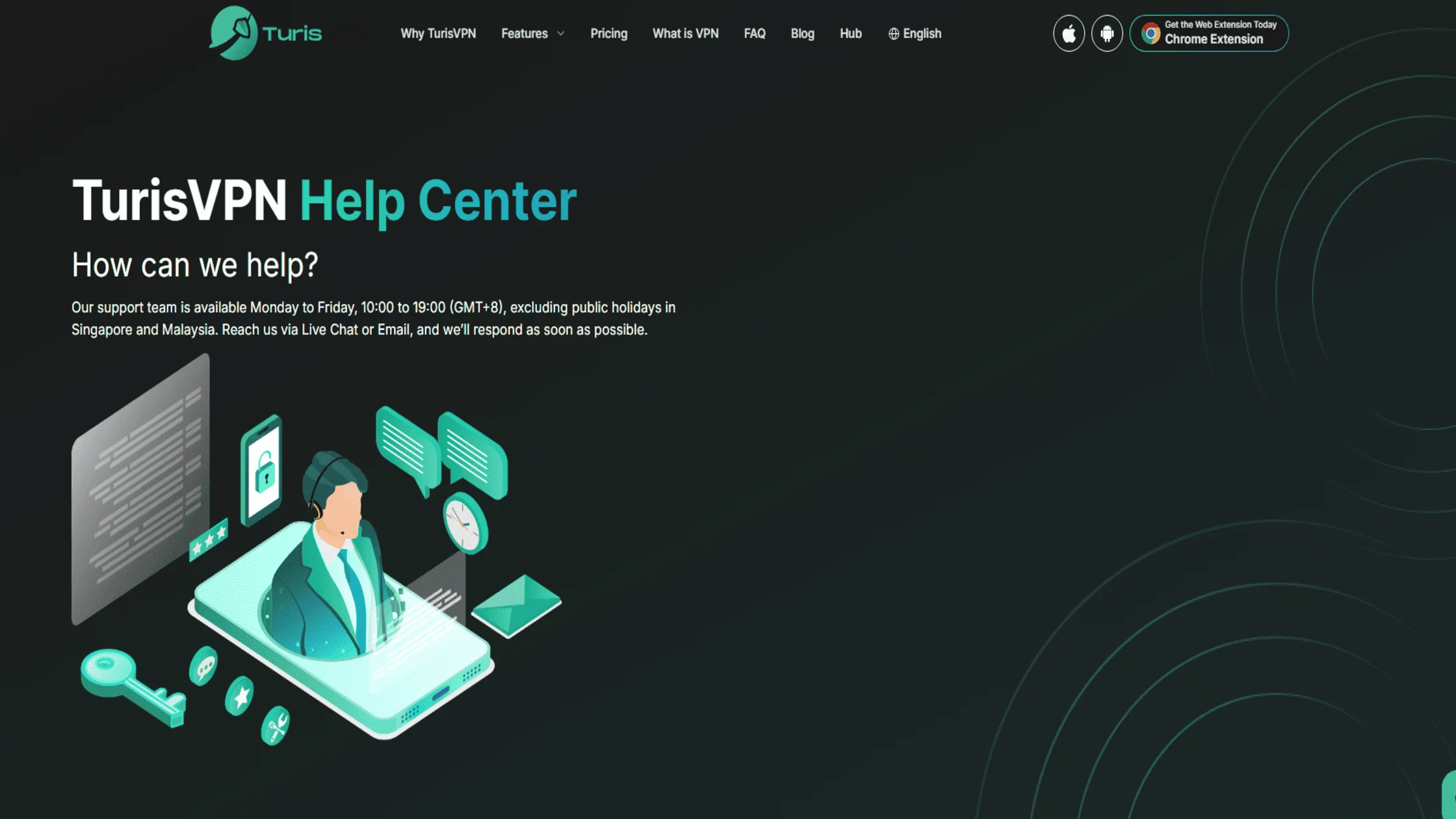
If you are still experiencing issues after trying the advanced fixes, our support team is ready to assist you.
How to contact support:
- Check our Help Centre: Visit the TurisVPN Help Centre to access our FAQs and troubleshooting guides.
- Use Live Chat: Our agents are available via Live Chat from Monday to Friday, 10:00 to 19:00 (GMT+8) (excluding public holidays in Singapore and Malaysia).
- Email Us: If you are browsing outside of support hours, send a detailed description of your issue (including screenshots or connection logs) to [email protected].
We can analyse exactly why the handshake failed and guide you through the specific fix for your device, ensuring you get back online as quickly as possible.
Bottom Line
Knowing how to check if a VPN is working is just as important as having one in the first place. A silent failure is the worst kind of security risk because it gives you a false sense of safety while leaving your door wide open. By regularly performing the IP checks, DNS leak tests, and speed analysis outlined in this guide, you take control of your digital privacy.
Don’t wait for a data breach to realise your protection was off. Make these checks a habit, especially when connecting to new WiFi networks. With TurisVPN, we strive to make security seamless, but your vigilance is the final lock on the door. Stay secure, stay hidden, and browse with the confidence that your private life remains truly private.