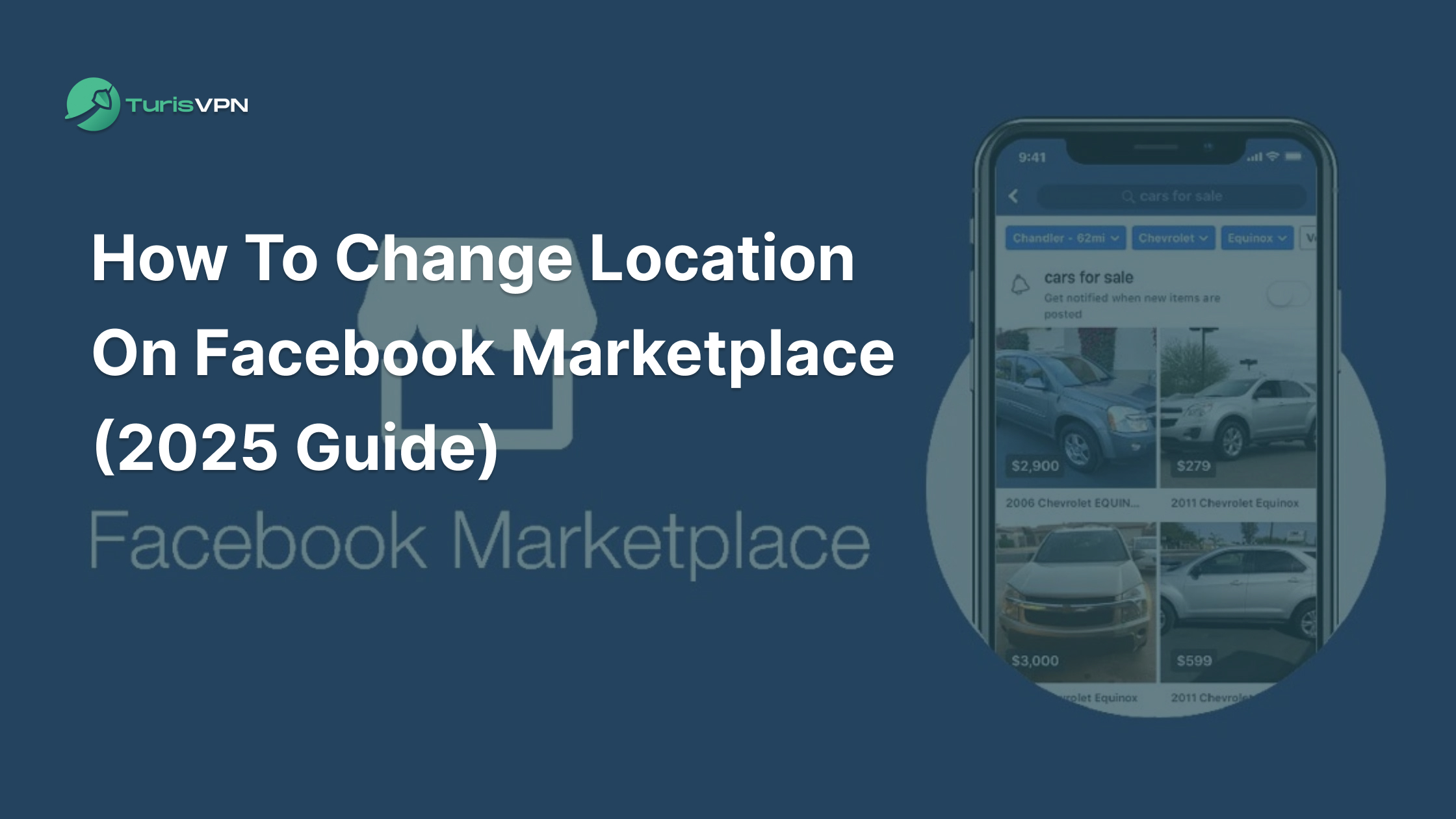
There are over one billion people using Facebook Marketplace each month. The platform is one of the biggest online platforms for buying and selling locally. However, your location settings directly affect what listings appear. If your feed shows items far away or from the wrong city, you’re not alone.
Our blog post will explain how to change location on Marketplace Facebook. Therefore, you can view nearby listings, connect with local sellers, and fix any location-related issues.
Key Takeaways
|
Why You Might Need to Change Your Marketplace Location?
Facebook Marketplace uses your location settings to show local items and listings near you. When these settings are wrong, your feed can look completely off or sometimes showing products hundreds of miles away.
The reason why Facebook Marketplace shows items far away is often outdated GPS data, a VPN connection, or a mismatch between your Marketplace area and your actual location. You might also see the message “Marketplace isn’t available to you” if Facebook detects you’re in a region where the feature is limited. In some cases, your Facebook searches not working properly can also affect Marketplace results.
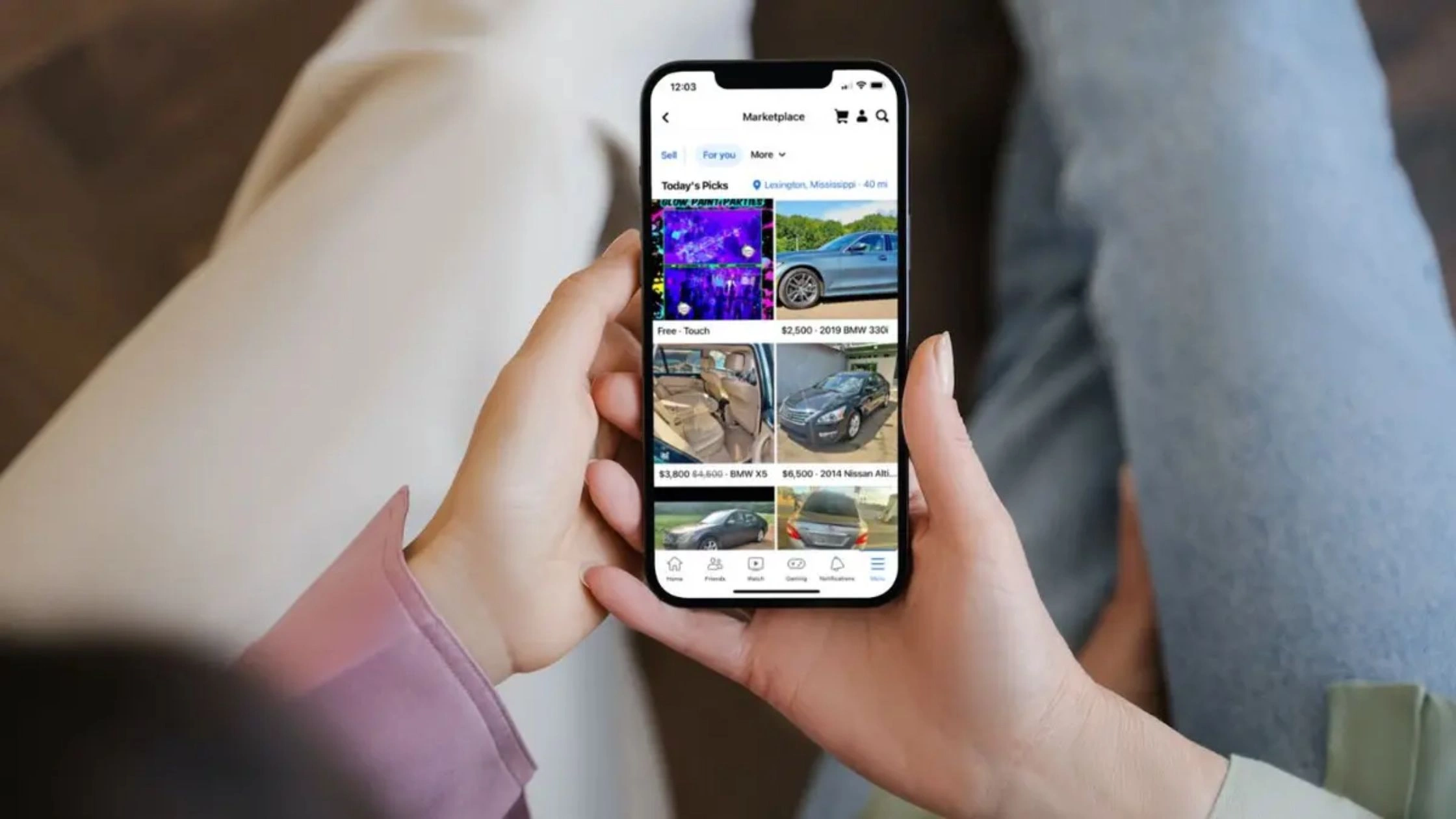
Here are a few common reasons you may want to change or update your location:
- You’ve moved to a new city and want to see listings nearby.
- You travel often and need to browse deals in another region.
- Your Facebook Marketplace wrong location setting shows items too far from your area.
- You’re a seller trying to target buyers in a specific city or region.
- You want to explore better offers or cheaper prices in nearby locations.
If your feed still looks off after adjusting your settings, you can refresh the app or temporarily delete Marketplace Facebook data (cache) to reset location detection. Updating your Marketplace location ensures you only see relevant, local listings.
How to Change Location on Facebook Marketplace
Changing your Marketplace location is quick and simple once you know where to look in your Marketplace settings Facebook menu. Whether you’re using a phone or computer, the process helps you control what listings you see nearby.
On Mobile App (Android & iPhone)
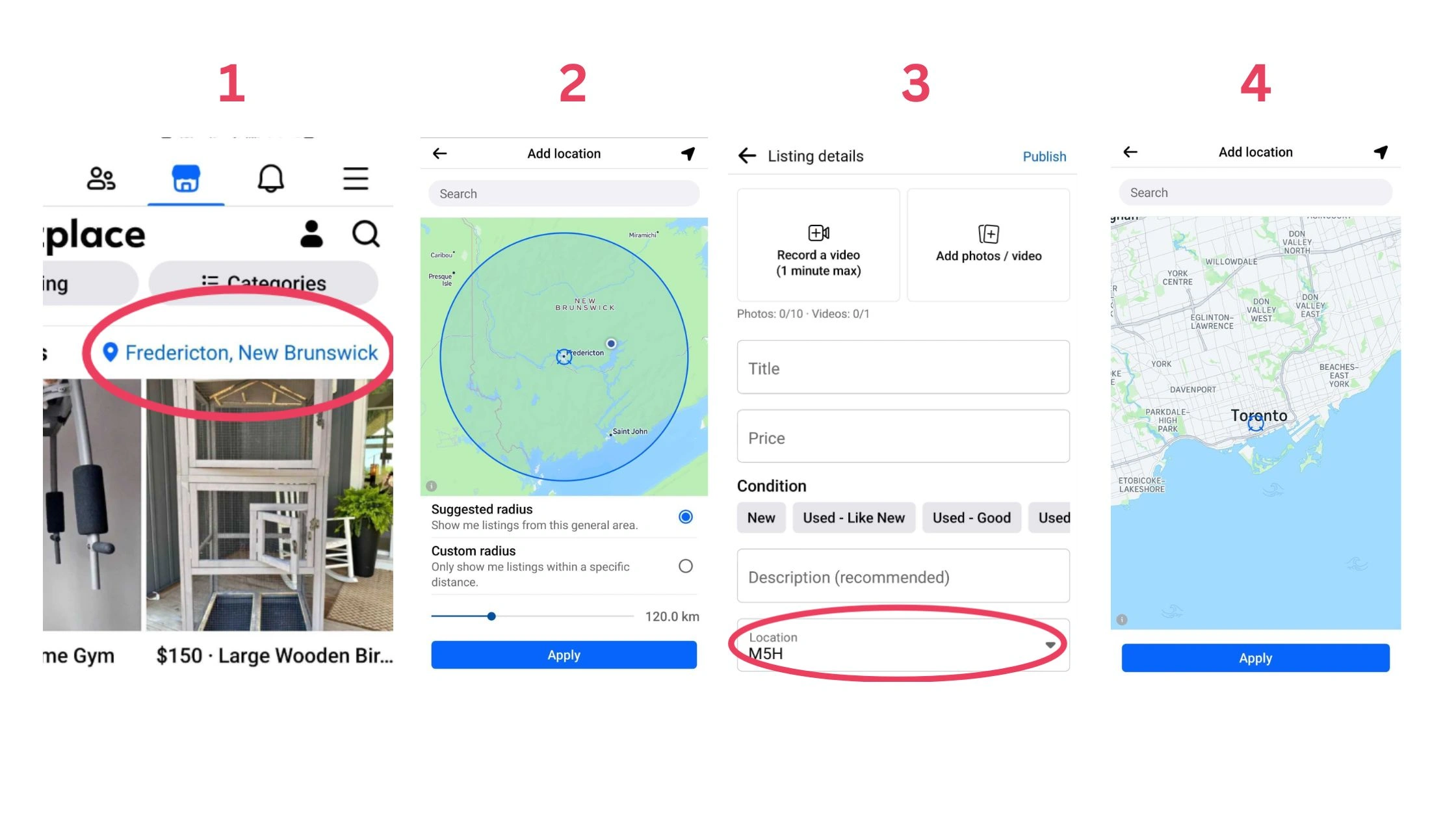
Follow these quick steps to update your location on the Facebook app:
- Step 1: Open the Facebook app and tap the Marketplace icon (the shopfront symbol).
- Step 2: At the top of the Marketplace page, tap your current location or the Location field.
- Step 3: Type in the new city, postal code, or region you want to search in.
- Step 4: Tap Apply or Save to confirm your new area.
- Step 5: Refresh the listings to load results from your updated location.
- Step 6 (Optional): Use the Distance filter to control how far you want to search from that point.
If you can’t see Marketplace, go to Settings → Shortcuts → Marketplace and turn it on.
On Desktop Browser
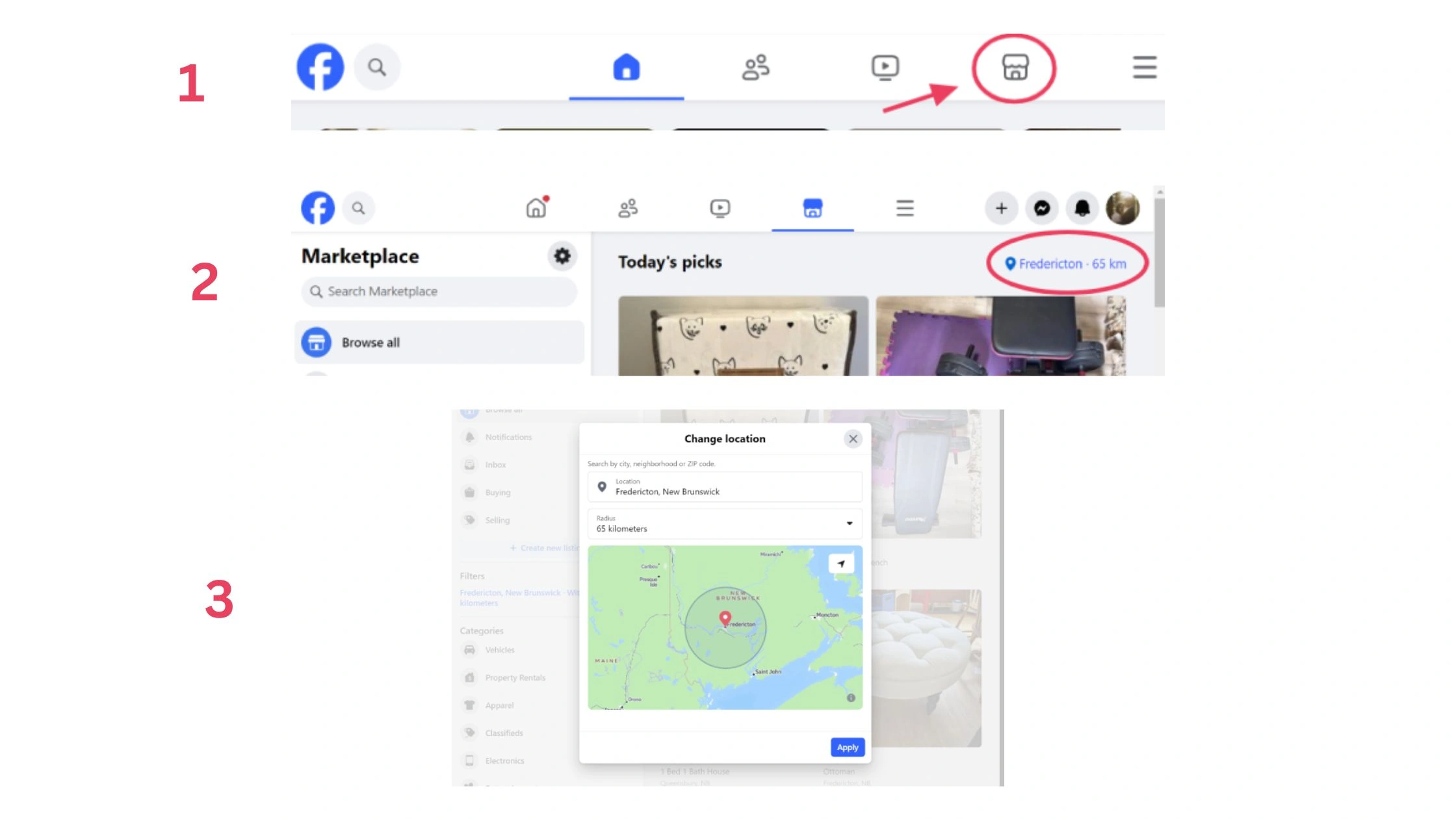
You can also change your Marketplace location directly from a browser.
- Step 1: Visit facebook.com and log in to your account.
- Step 2: Click the Marketplace icon in the left-hand menu.
- Step 3: In the Marketplace settings Facebook section or near the search bar, find the Location option.
- Step 4: Edit location on Facebook by entering your preferred city, ZIP code, or area.
- Step 5: Adjust the distance radius to limit how far listings appear from that spot.
- Step 6: Refresh the page, your Marketplace feed will now show local results.
For sellers managing business pages, you can also create locations on Facebook through: Page Settings → Locations → Add New Location.
What to Do If Facebook Marketplace Won’t Change Location
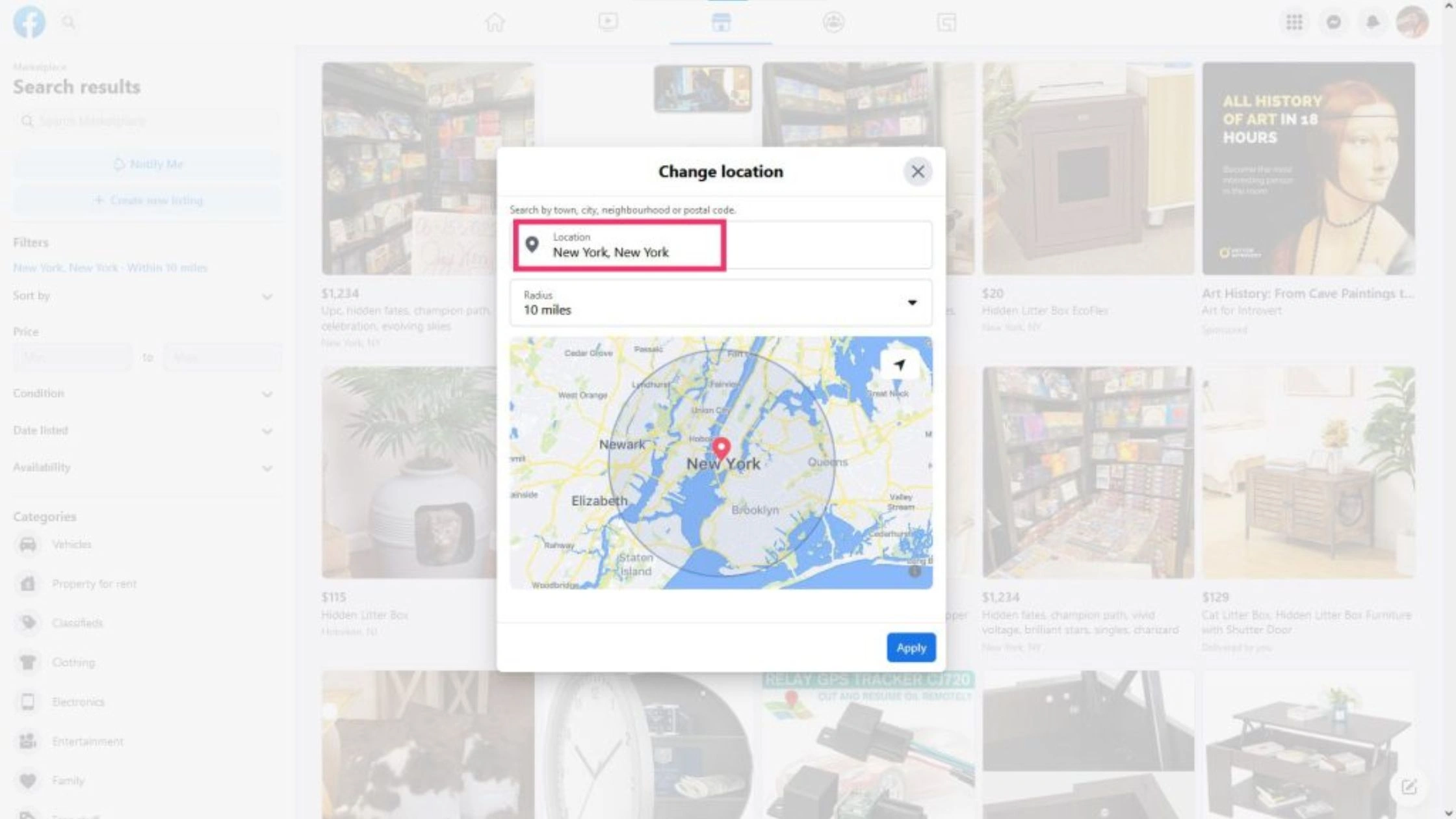
Sometimes, Facebook Marketplace doesn’t update your location even after you change it. You may still see listings from your old city or faraway areas. This can happen because of app bugs, outdated data, or location permission errors. Here’s how to fix it step by step:
Step 1: Check location permissions
Go to your phone settings → Facebook → Permissions → make sure Location Access is allowed. If Facebook can’t use GPS, your Marketplace area won’t refresh.
Step 2: Update your Facebook app or browser
Old versions often cause bugs.
- On mobile: Open the App Store or Google Play and update Facebook.
- On desktop: Update your browser or clear its cache and cookies before reopening Facebook.
Step 3: Clear Facebook cache and data
If the app keeps showing the Facebook Marketplace wrong location, clear cached data.
- On Android: Settings → Apps → Facebook → Storage → Clear Cache.
- On iPhone: Delete and reinstall the Facebook app. This forces Facebook to reload new GPS data.
Step 4: Refresh Marketplace settings
Open Marketplace settings Facebook, and re-enter your city or postal code. Try reducing the search distance to force an update.
Step 5: Log out and back in
Log out of Facebook, restart your device, then log back in. This refreshes your marketplace location data with your most recent login details.
If none of these steps work, you can contact Facebook Help Center or temporarily use the desktop version to manually edit your location again.
How to Use TurisVPN to Access Facebook Marketplace in Another Country
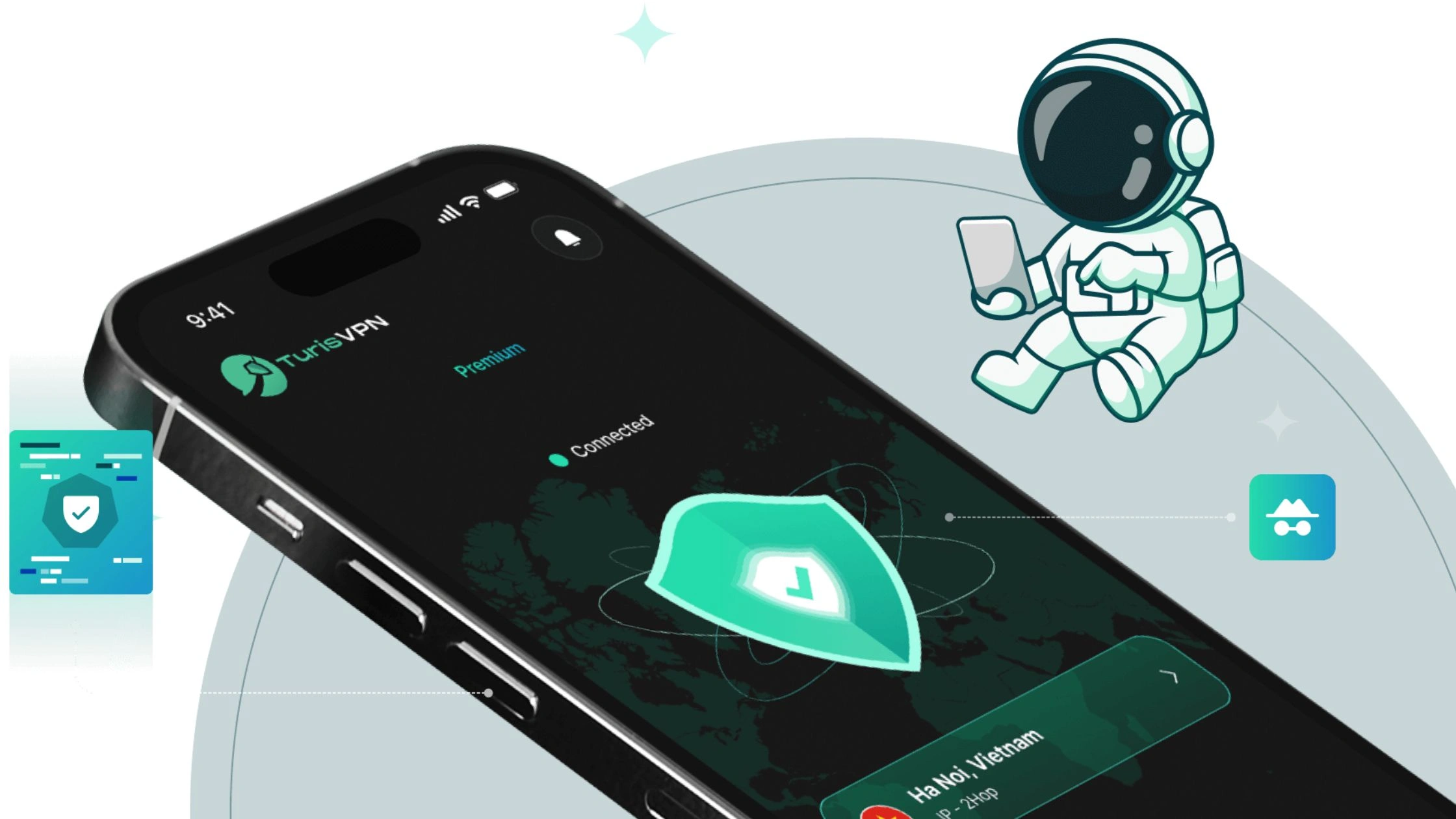
If Facebook Marketplace isn’t available in your country, or you want to browse listings from another region, a VPN can help. TurisVPN lets you change your virtual location safely so you can access Marketplace as if you were there. Here’s how to do it:
- Step 1: Download and install TurisVPN on your device.
- Step 2: Open the app and sign in to your account.
- Step 3: Choose a server in the country where you want to access Marketplace, for example, the Singapore VPN
- Step 4: Click Connect to switch your virtual location.
- Step 5: Open Facebook, go to Marketplace, it should now display listings from your chosen region.
Using TurisVPN also keeps your browsing private and prevents Facebook from automatically resetting your Marketplace area based on your IP address. Always connect to a nearby TurisVPN server for faster speeds and smoother browsing when accessing international Marketplace listings.
How to Turn On or Access Marketplace if It’s Missing
If you can’t find Marketplace in your Facebook app or browser, don’t worry. Many users ask how to turn on Marketplace on Facebook or how to open Facebook Market after it disappears due to updates or account changes.
Follow these steps to bring it back.
Check Your Account Eligibility
Marketplace is available only for users aged 18 or older and in supported regions.
- If your account is new, it may take time before Marketplace appears.
- Check if you’re using a business account, some professional pages don’t have direct Marketplace access.
- If Facebook has flagged your account for policy violations, Marketplace may be restricted temporarily.
Update the App or Browser
An outdated app or browser can hide certain features.
- On mobile: Go to the App Store or Google Play Store → search “Facebook” → tap Update.
- On desktop: Refresh Facebook in the latest version of Chrome, Edge, or Firefox.
After updating, restart your device and open Facebook again.
Locate Marketplace in Navigation
If Marketplace isn’t visible, it might just be hidden.
- On mobile: Tap the menu icon (☰) → scroll down → tap Marketplace under “All Shortcuts.”
- On desktop: Check the left-hand menu or the “See more” section — the shopfront icon is Marketplace.
Manually Add Marketplace Icon
If Marketplace is still missing, you can add it manually.
- Go to Settings → Settings & Privacy → Shortcuts.
- Look for Marketplace and switch the toggle to On.
- Return to your Facebook home screen — the icon should now appear on your main menu.
Direct URL Access
If none of the steps above work, try opening Marketplace directly through this link: facebook.com/marketplace
This shortcut often works even if the icon doesn’t appear yet. Log in to your account, and you should be able to view or search Marketplace listings immediately.
Bottom Line
Knowing how to change location on Marketplace Facebook helps you find listings that actually match where you are or where you want to shop. Updating your Marketplace location makes browsing smoother and more relevant.
TurisVPN gives you a secure way to switch regions safely. Stay updated, use the right tools, and you’ll always see the listings that matter most to you.
FAQs
Q1. Why is Marketplace showing me items far away?
Your location settings may be outdated or set to the wrong city. Update your Marketplace area or enable location access for Facebook in your phone settings. If the problem continues, clear cache or manually edit your location under Marketplace filters.
Q2.Can I use TurisVPN to browse Marketplace in another country?
Yes, connect to a TurisVPN server in the country you want to browse, clear cookies, and reopen Facebook. Marketplace will show listings from that region while keeping your connection private and secure.
Q3. Why can’t I see Marketplace on Facebook?
You might be under 18, using an unsupported country, or your account is new or restricted. Update your app or browser, then go to Settings → Shortcuts → Marketplace to enable it. You can also access it directly at facebook.com/marketplace